You can adjust the volume on your iPhone using the volume button or the volume bar in Control Center, etc., but using shortcuts allows you to change the volume using numerical values (%), allowing you to make detailed settings.
Furthermore, you can set the desired volume with just 3 taps without having to press buttons or swipe the bar.
This time, I will show you how to create a shortcut that allows you to finely adjust the volume on your iPhone.
How to create a shortcut recipe that allows you to set the volume adjustment in detail
With this shortcut, you can adjust the ringer volume and media playback volume.
- Mute
- 1%
- 10%
- twenty five%
- 50%
- 75%
- 100%
You can change it to .
When actually making it, please set the percentage and value as you like.
*The minimum volume for incoming calls is set to 6.25% in the system, so even if you select “Mute” or “1%”, the ring volume will remain at 6.25%.
① Create volume options with menu actions
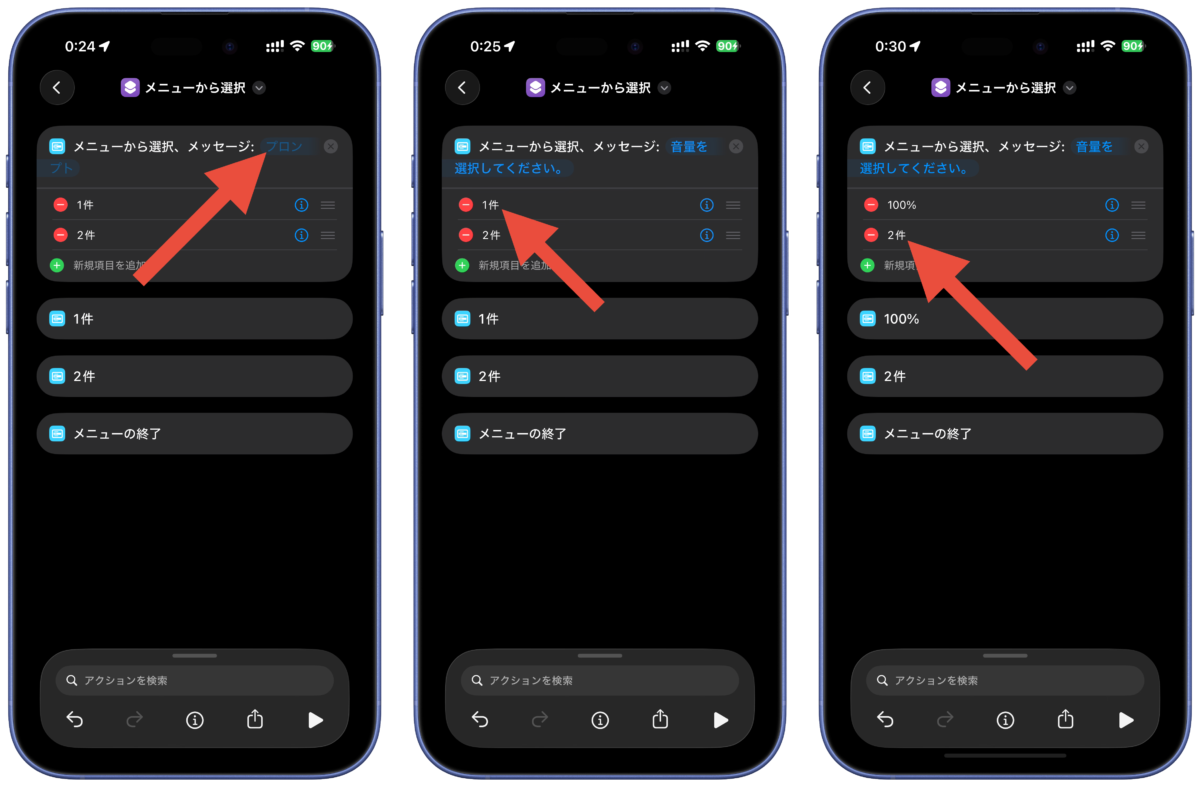
Open the Shortcuts app and tap the “+” in the top right corner.
Tap “Search for Actions,” type “menu,” then select “Choose from Menu.”
Tap “Prompt” and enter “Select volume.”
*Even if the prompt is left blank or other words are used, the operation will not be affected.
Tap “1 item” and rewrite it to “100%”, tap “2 items” in the same way and rewrite it to “75%”.
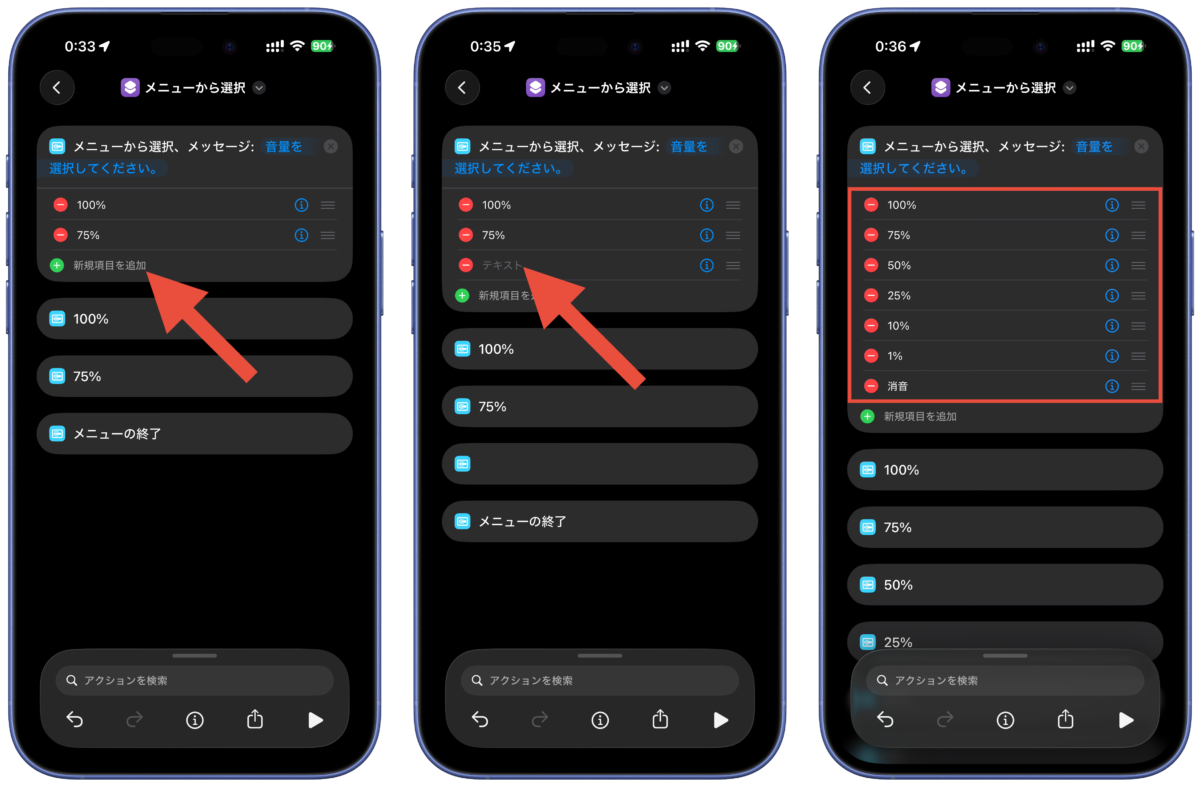
Tap “Add new item” to add a menu item. Tap “Text” and enter “50%”.
Add “25%”, “10%”, “1%”, and “Mute” in the same way.
②Enter the actual value set for the menu action
Tap “Search for Actions,” enter “Number,” and select “Number.”
Drag the added number action below “100%”.
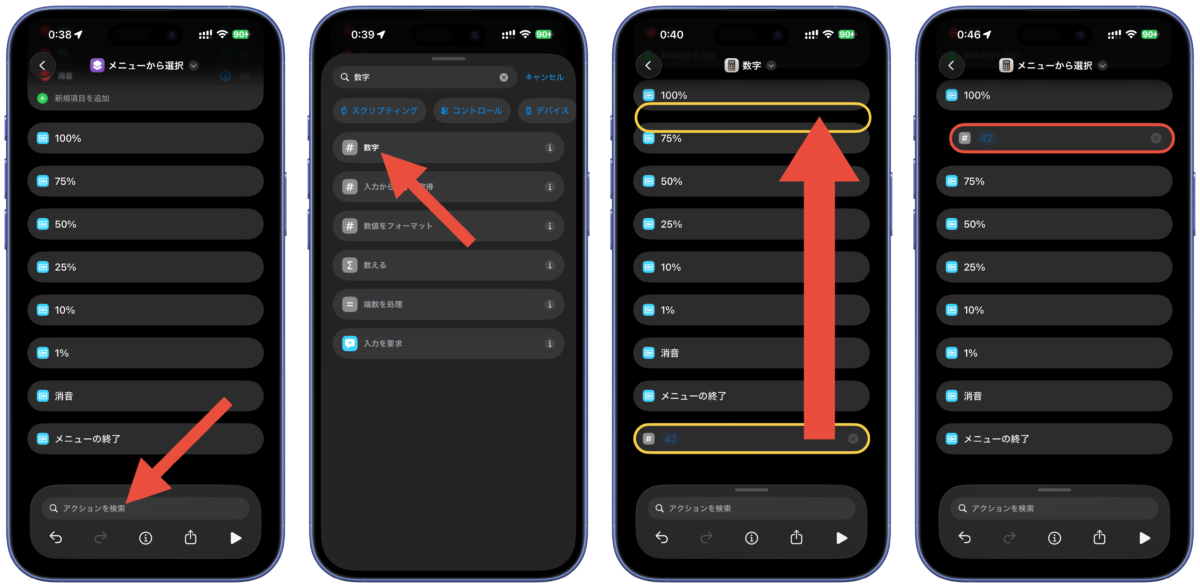
Tap “#” to the left of the number action and select “Copy”.
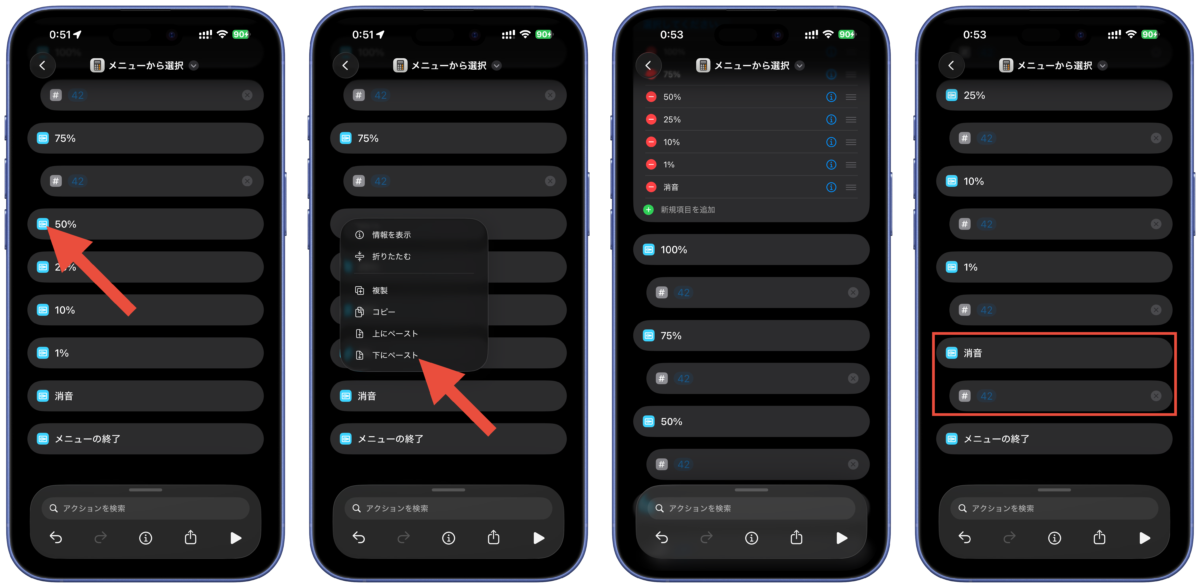
Tap the icon to the left of “75%” and select “Paste below.”
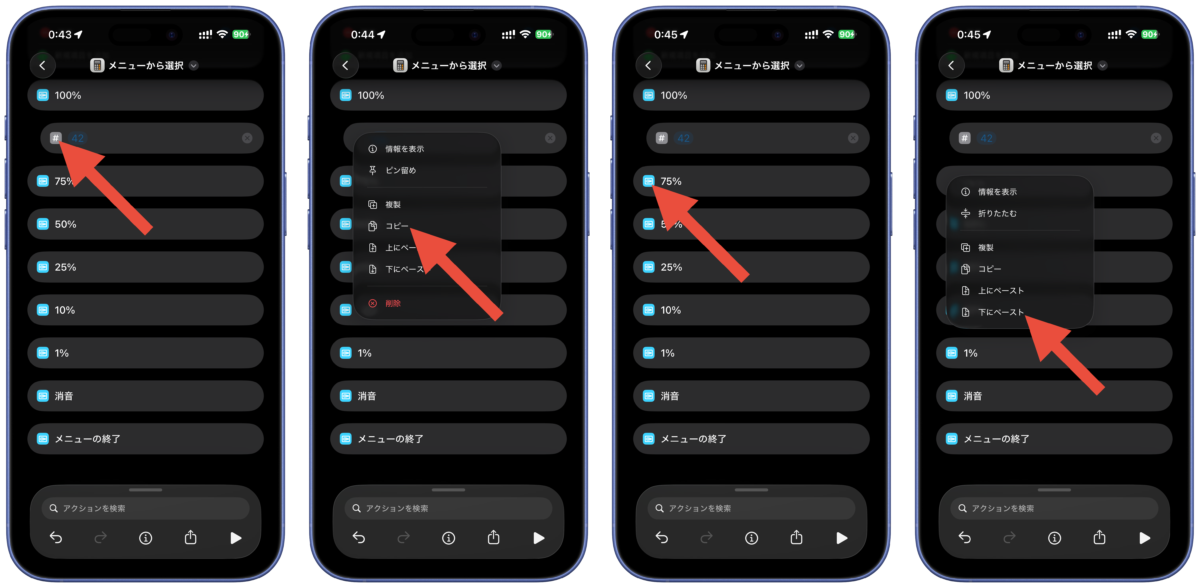
Paste below in the same way for “50%”, “25%”, “10%”, “1%”, and “Mute”, and it is OK when there is a numerical action under “Mute”.
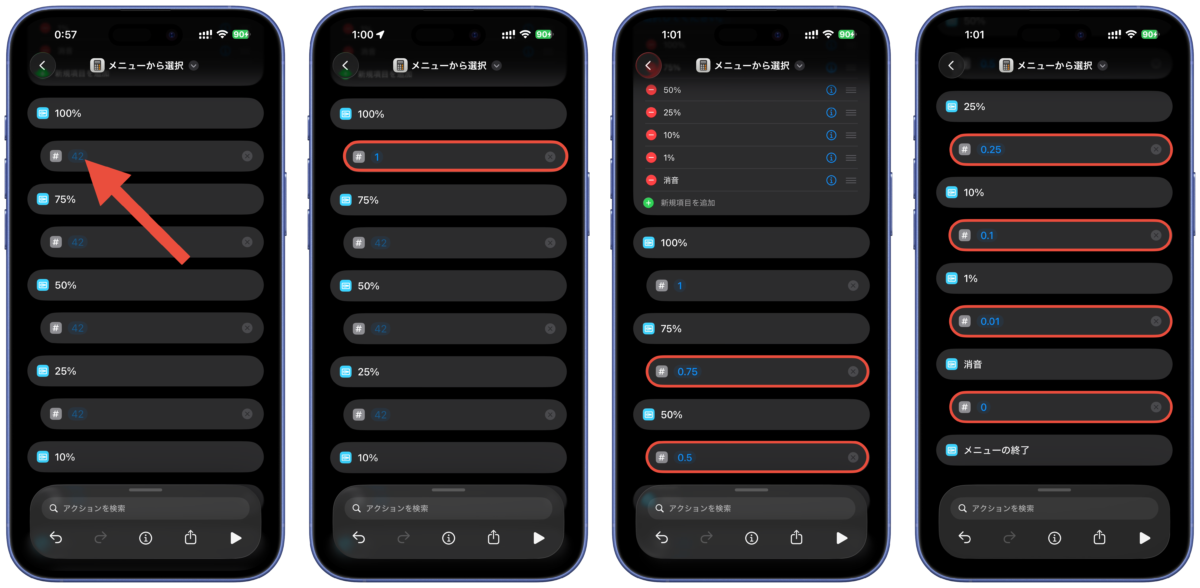
Tap the blue letter “42” in the “100%” number action and enter “1”.
Similarly, enter “0.75” for “75%”, “0.5” for “50%”, “0.25” for “25%”, “0.1” for “10%”, “0.01” for “1%”, and “0” for “Mute”.
③ Add action to set volume
Tap “Search for Actions,” enter “volume,” then select “Set Volume.”
Tap the blue “Media” and select “Ask every time.”
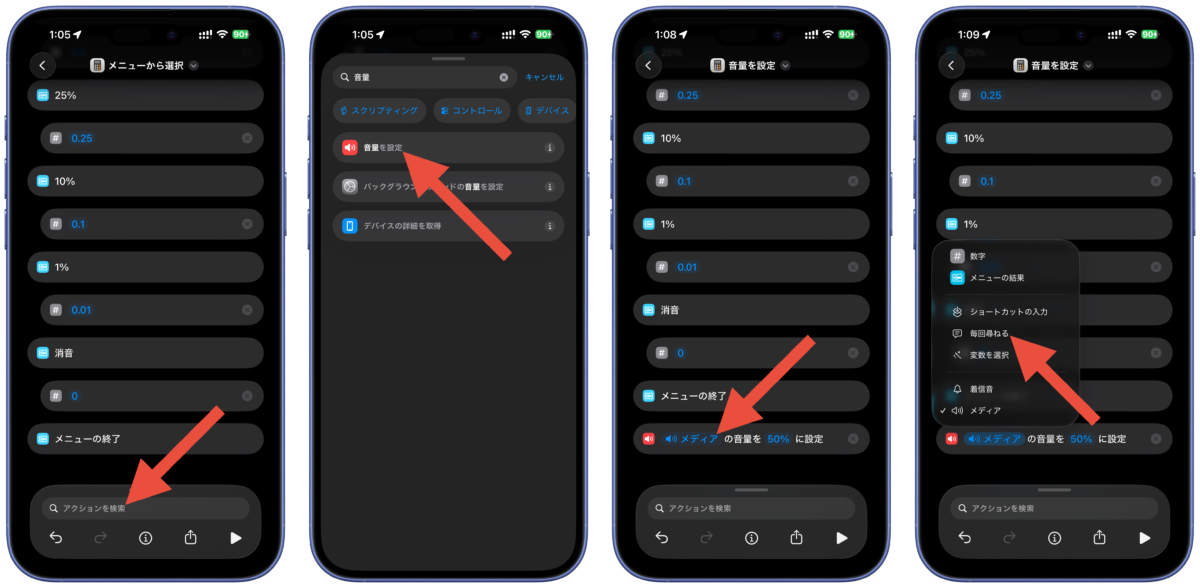
Press and hold the blue text “50%” and select “Menu Results”.
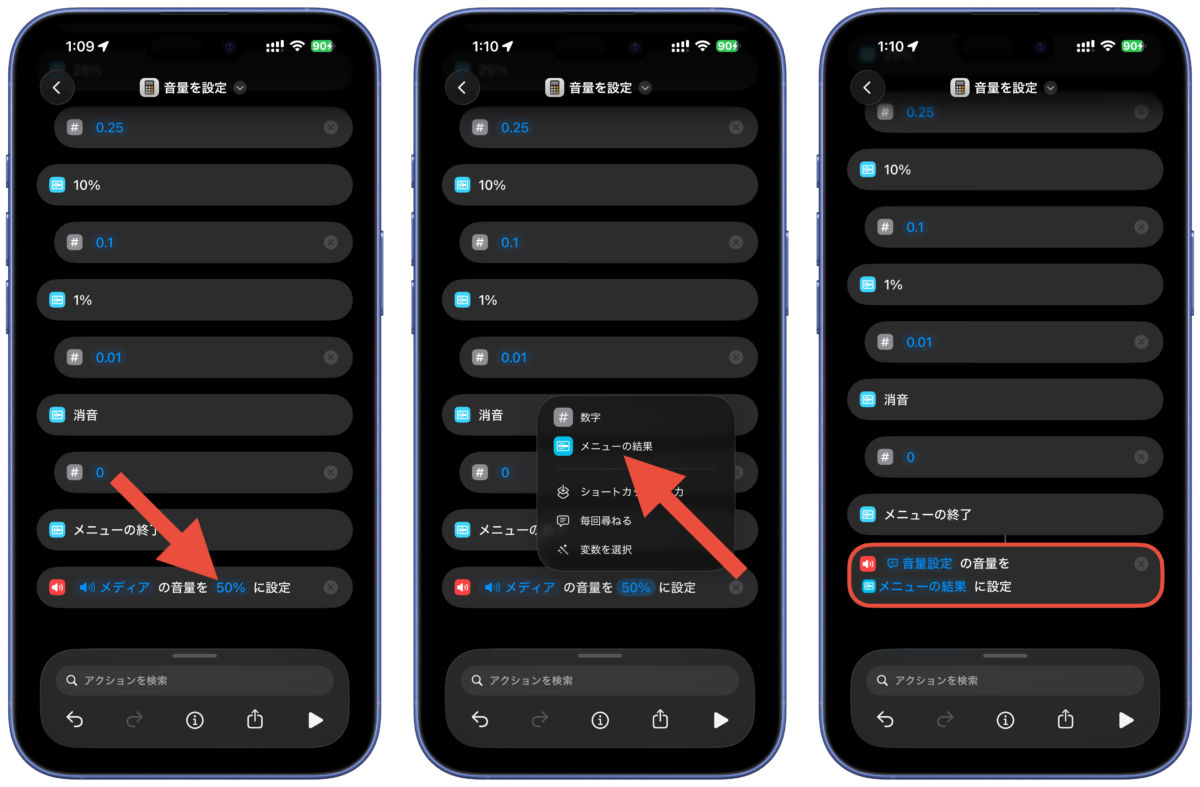
④Completion
This completes the volume adjustment shortcut.
Then add it to your widget or home screen and use it.
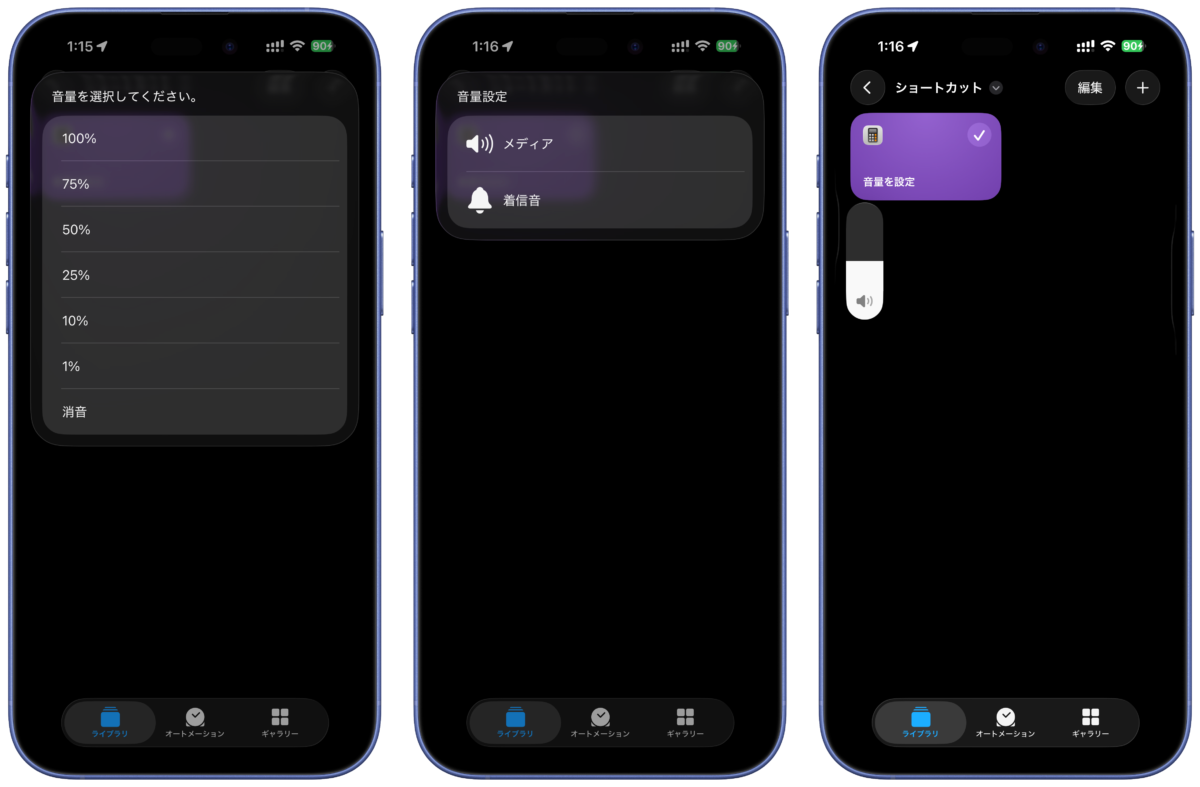
The shortcut works as follows:
- Select setting volume (%)
- Select ringer volume or media volume
- Setting completed
It becomes.
For the basics of shortcuts, please refer to the previous article “Compatible with iOS26! Explaining how to create iPhone shortcut recipes”.
It also explains how to add shortcuts to the home screen.
Source: iPhone Mania