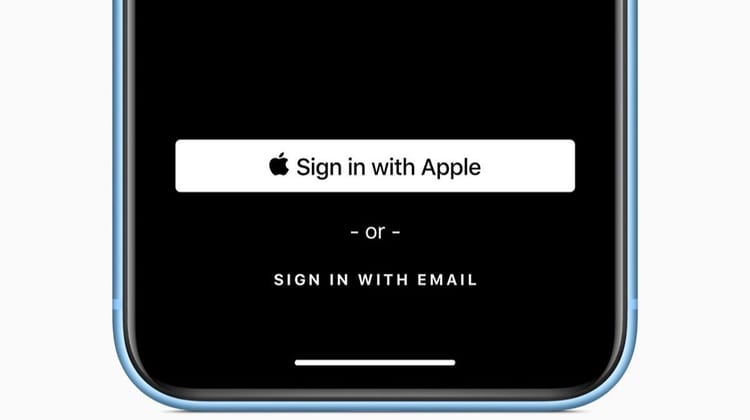
Nintendo is ending Sign in with Apple. From 26 January 2027, a Nintendo Account can no longer be linked, created, or signed into with an Apple or Google account. The company posted the notice on 10 November and gave no reason. The fix is small but it has to be done before the date: set a Nintendo Account password, or register a passkey. Best do both.
Nintendo Account loses Google and Apple sign-in on 26 January 2027
Three things end on that date, per Nintendo's English support article Discontinuation of Google and Apple accounts linking to Nintendo Accounts. You cannot sign in to a Nintendo Account with a Google or Apple account. You cannot create a new Nintendo Account that way either. And the My Nintendo Platinum Points mission for linking a Google account stops too. A footnote on the page says the exact end time "may be delayed depending on the progress of the system change work", so the date can slip. Do not plan around that.
Devices where you are already signed in may keep working without a fresh login. But the next time the sign-in page appears, the Apple button will be gone. One clarification, because social posts got this wrong. This is a Nintendo policy change. Apple is not removing Sign in with Apple. The viral posts saying "add a passkey or you'll be locked out" are not Nintendo's wording. Nintendo says you will be "unable to use a Google or Apple account to sign in". Nothing about deleted or locked accounts.
Set a Nintendo Account password at accounts.nintendo.com
The password is not your Apple Account password. It is a separate Nintendo Account password, and if you always tapped the Apple button you may never have made one. Nintendo's own instructions are short. Open the Nintendo Account login page at accounts.nintendo.com, select Forgot your password?, and follow the steps to send yourself a reset email.
No email arriving? Nintendo says to wait, since it may take some time, then add no-reply@accounts.nintendo.com to your address book and safe-sender list. Still nothing after waiting, contact Nintendo support. If you no longer have access to the registered email address at all, Nintendo support has to update it for you. That case takes longer, so check today which address Nintendo holds.
Check Hide My Email in Settings before you request the reset
This is where Apple users get stuck. If you chose Hide My Email when you first tapped Sign in with Apple, Nintendo never got your real address. Apple's support article How to use Hide My Email with Sign in with Apple says the relay address ends in @private.icloud.com or @privaterelay.appleid.com and forwards to the verified email on your Apple Account. MacRumors flagged this on 12 November as the likely trap for Nintendo users, and Nintendo's FAQ only says to make sure you can reach the registered address.
To see the address, open Settings, tap [your name], tap Sign in with Apple, then choose the Nintendo app or developer, as Apple lists in Manage your apps with Sign in with Apple. The same list is on the web at account.apple.com under Sign-In & Security. One more trap. If forwarding is turned off, Apple says you will not receive further emails from that app. Keep Forward To on at least until the reset email lands. Apple's path is Settings > [your name] > iCloud > Hide My Email in the iCloud+ Features section > Forward To.
More on relay addresses in our earlier tip: create a Hide My Email address so forms never see your real inbox.
Register a passkey, but keep the password
Nintendo also recommends a passkey. It signs you in with Face ID, Touch ID, or the device passcode instead of typing a password. Steps below are from Nintendo's passkey support article. On the device you want to register, open accounts.nintendo.com and sign in. Select Sign-in and security settings. Select Passkeys, then Edit. Select Register a new passkey. When asked, enter your Nintendo Account password and select OK, then Register and follow the device prompts. The message "The passkey below has been registered." means it worked.
Supported devices listed there: iPhone with iOS 16 or newer, iPad with iPadOS 16 or newer, Mac with macOS 13 or newer, and Android with Android 9 or newer. Up to 10 passkeys per account. Nintendo says biometric data is not sent to or saved in the Nintendo Account. Two cautions. The registration step itself asks for the Nintendo Account password, so the password comes first. And Nintendo says to keep managing your email address and password even after a passkey is registered.
Do not delete the Nintendo link in Sign in with Apple first
Apple's article on stopping Sign in with Apple with an app warns that when you stop, "you're signed out of the app on your device". So tapping Delete on the Nintendo entry in Settings > [your name] > Sign in with Apple before a password or passkey works is the wrong order. Apple notes some apps let you create a new password for your existing account afterwards, but do not bet the Nintendo Account on that. Set the password, register the passkey, confirm you can sign in without the Apple button. Then remove the link if you want it gone.
Photo: MacRumors, Nintendo, Apple
Source: Nintendo Support, MacRumors, Apple Support