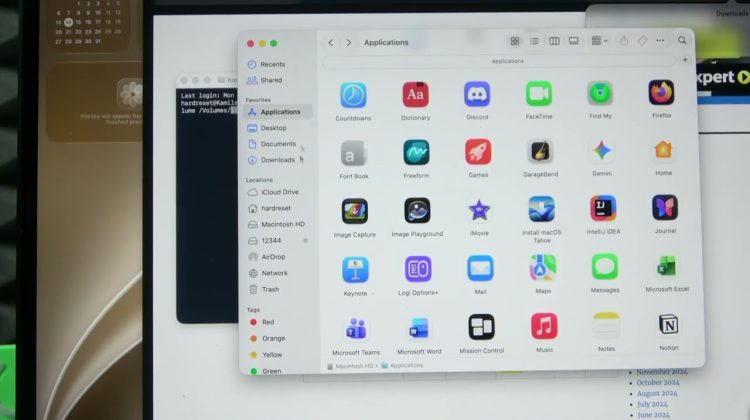
This video shows how to downgrade a MacBook from macOS 27 beta back to macOS 26 (Tahoe). You’ll learn how to download the macOS 26 installer, create a USB install drive with createinstallmedia, format the USB, erase your internal drive (APFS), boot into startup options and reinstall macOS. Important: this process will erase your Mac. Make sure you have a compatible backup or copy important files to an external drive. Also check Activation Lock and turn off beta updates before reinstalling.
How to downgrade MacBook from macOS 27 beta to macOS 26?
How to create a macOS Tahoe USB installer on MacBook?
How to erase Macintosh HD and reinstall macOS on a MacBook?
0:00 Intro & downgrade overview
0:30 Backup warning & compatibility notes
2:23 Download macOS Tahoe installer (MrMcIntosh)
4:55 USB drive size, speed & charging advice
7:00 Format USB as ExFAT and name it
8:27 Copy createinstallmedia & enter terminal command
10:48 Write installer to USB (wait time)
11:20 Turn off beta updates, shut down Mac
12:14 Boot to startup options and select USB
12:51 Erase Macintosh HD (APFS) and reinstall
#MacBook #macOS27 #macOS26 #DowngrademacOS
Find out more:
https://www.hardreset.info/devices/apple/apple-macbook/
Follow us on Instagram ► https://www.instagram.com/hardreset.info
Like us on Facebook ► https://www.facebook.com/hardresetinfo/
Tweet us on Twitter ► https://twitter.com/HardResetI
Support us on TikTok ► https://www.tiktok.com/@hardreset.info
Use Reset Guides for many popular Apps ► https://www.hardreset.info/apps/apps/