iPhone photography presets are all in HEIC format. Although pictures have the advantages of efficient compression and image quality, most of them are still in JPG and PNG formats on Windows, some websites or software. If you want to convert iPhone photos to PNG, JPG or HEIC to JPEG formats, you can easily achieve it through the built-in shortcut APP. I’ll share this article how to quickly convert photos into PNG, JPG, HEIC and other formats through iPhone shortcuts, so that you can balance efficiency and privacy, and save the risk of data leakage caused by downloading third-party tools.
iPhone Photo HEIF Transfer Shortcut Script Features
Since iOS 11, preset camera photos have been stored in HEIC/HEIF format. The advantage is that the files are small and the picture quality is good, but the disadvantage is that some old devices, software or websites do not support it. If you need to upload to a website or APP that does not support HEIC, you need to convert the iPhone photos to JPG or PNG format first.
Of course, the “iPhone Photo Archive Shortcut” script shared this time has the following main features:
- Support batch processing of multiple photos
- Supports various image formats JPG, PNG, HEIC, PDF, TIFF, GIF, BMP
- Supports image to PDF format
- Can you customize whether to retain EXIF information?
- The photo conversion process will not be uploaded to the cloud, and can also protect privacy and security
- More secure and privacy than third-party app tools
Download iPhone photo conversion shortcut
- Author: Crazy
- System compatibility: new and old iOS, macOS
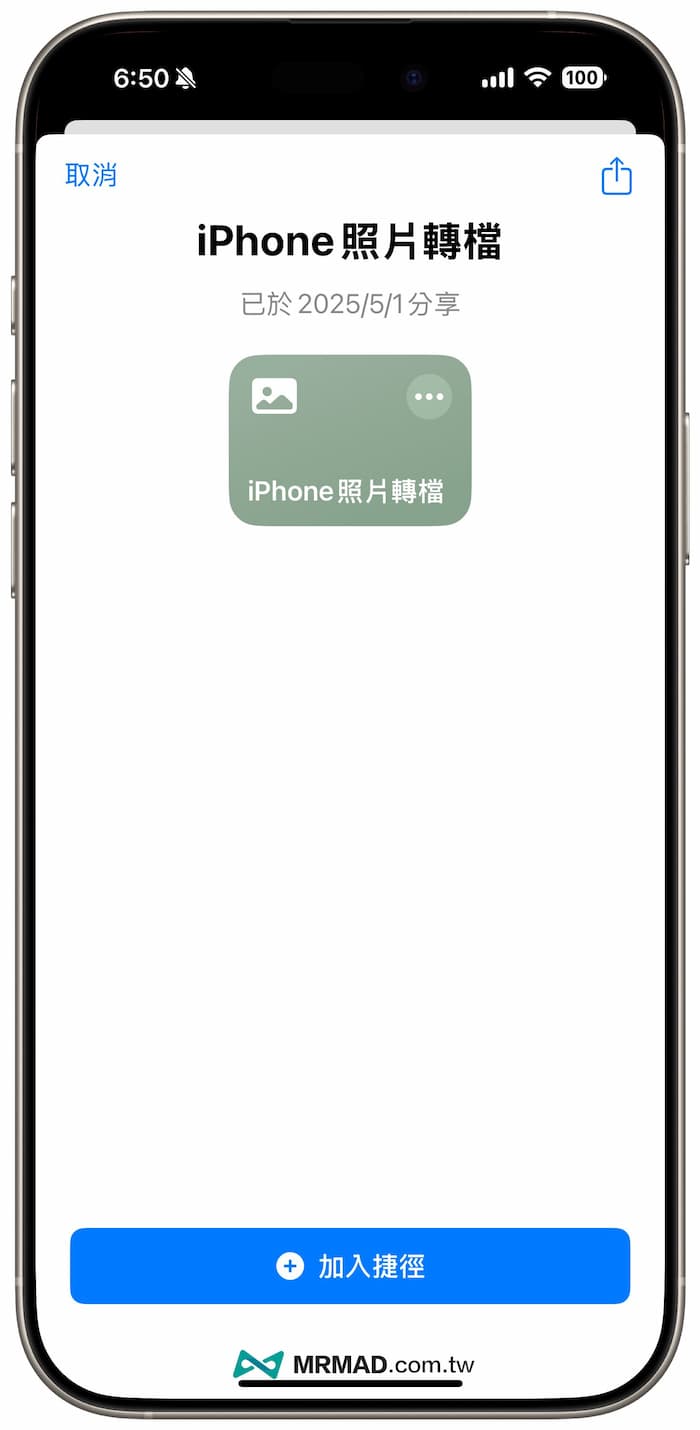
Directly click on the “iPhone Photo Conversion Shortcut” script link provided by Mr. Crazy below (the download location is at the rear) through the iPhone. Just click the “Add Shortcut” button to download and install the shortcut script into the shortcut library.
⛔️ If you download the iOS shortcut script, “This shortcut cannot be opened because your shortcut security settings do not allow untrusted shortcuts”, you can use “Another method to solve (click me)”; if the shortcut opens the download page and jumps out of the “Unable to connect to the shortcut database”, click the Reorganize button below and display it normally.
Shortcut script download:Shortcut to iPhone photo conversion
How to convert the iPhone photo conversion shortcut to different formats?
Step 1: Perform a shortcut to select the picture
Open the built-in “Shortcut” app through your iPhone, and click the “iPhone Photo Conversion” script, select the photos you want to convert from the album (single or single photo), and finally press “Join”.

Step 2: Select the conversion picture format
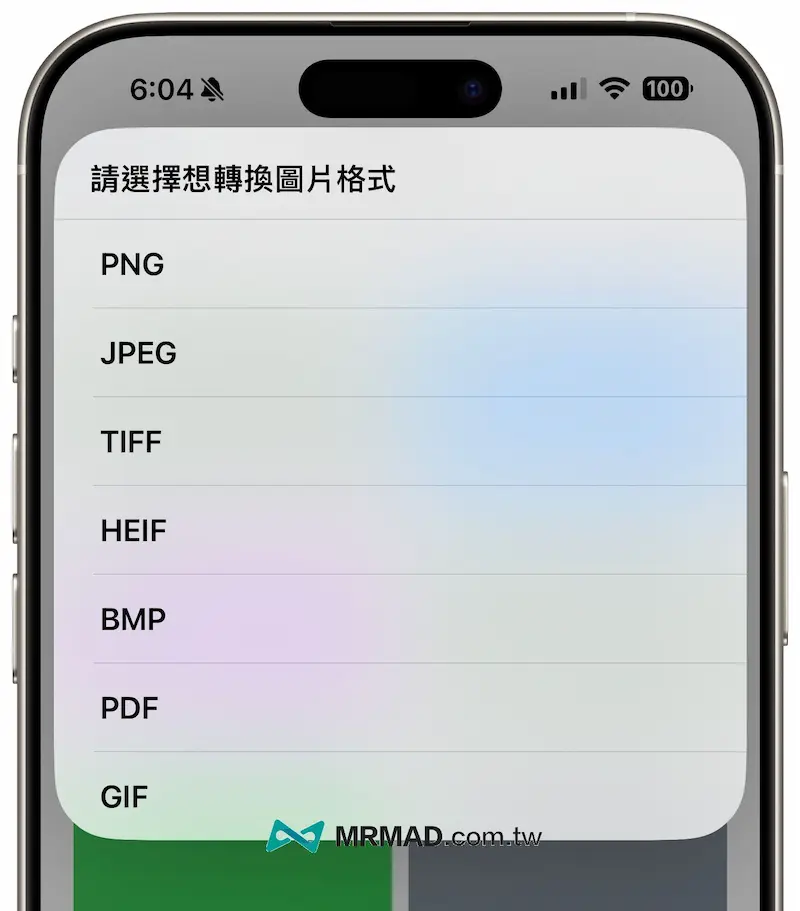
The receiver can choose the image format to be converted, including PNG, JPEG, TIFF, HEIF, BMP, GIF, or you can also convert the image into PDF files.
Step 3: Select to keep the information or original archive
Then the shortcut to photo conversion will pop up whether to save the EXIF and whether to delete the original photo archive. It is recommended that you choose to keep and Yes. After confirming that the photo conversion is completed, you can delete it manually.
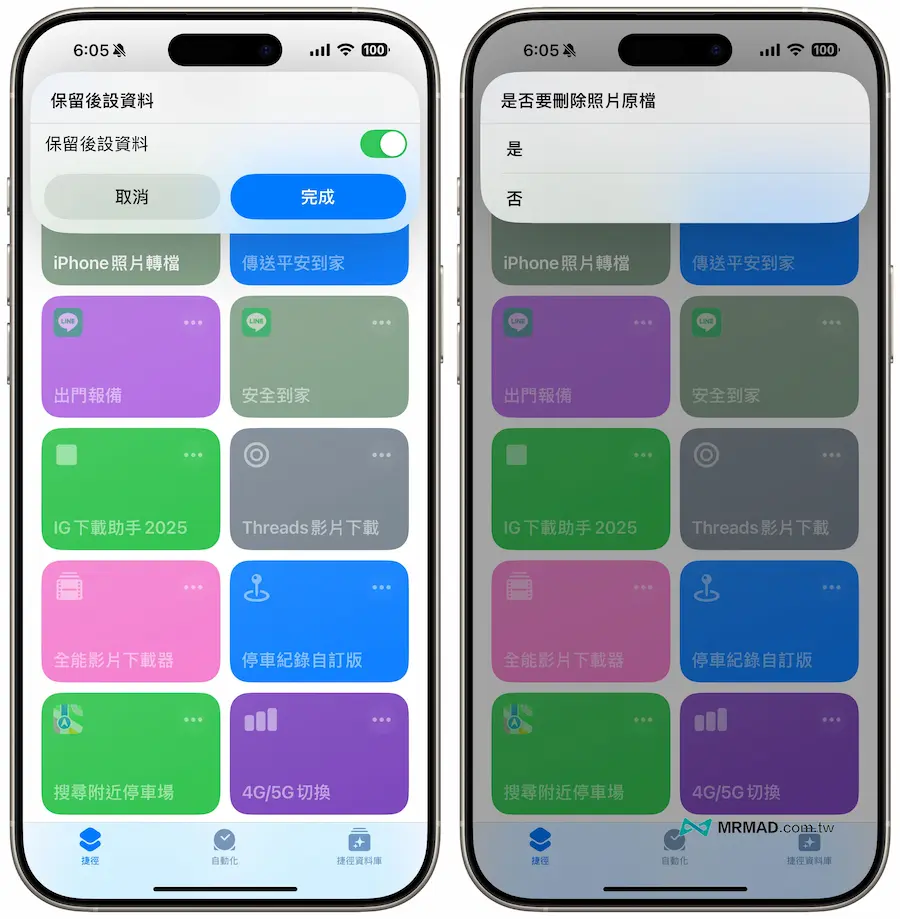
Step 4: Complete the transfer output
Finally, wait for the shortcut to complete the image format conversion, and you can see the photo files that have just been converted through the album. You can find that the photo format will be converted immediately according to the selection.
Reminder: If you convert the photos to PDF format, the process will jump out of the location to be stored in the iPhone Archives APP, and you can choose the storage folder yourself.
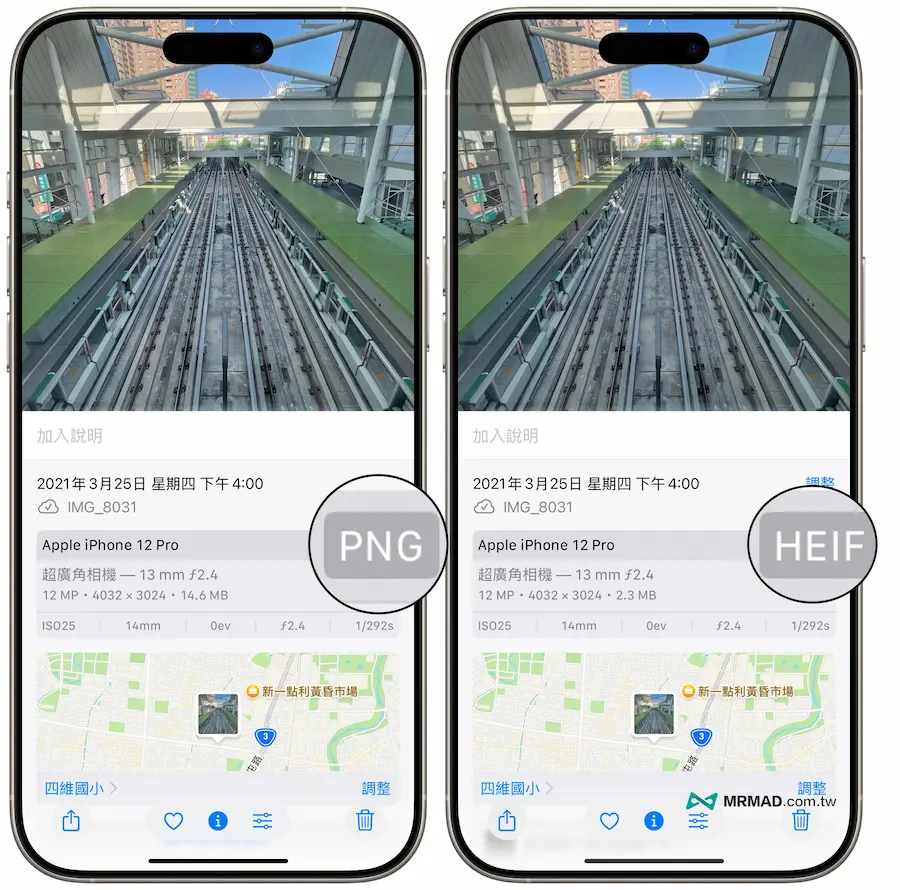
Function summary
Basically, through this iPhone photo format conversion shortcut script, you don’t have to rely on third-party services or APPs. It not only allows you to quickly convert batches, but also flexibly customize processes, taking into account efficiency and privacy. The key is to also be able to convert batches, making iPhone photo format conversion a painless experience in daily management.
Further reading: