
Recently, many netizens have found that the “Update Apple ID Account Settings” prompt will always pop up in the iPhone system settings, but when entering the correct Apple ID password, the authentication failure will always pop up. Some even prompts the Apple account setting screen again not long after, and some even have Apple ID account locked and unable to use it. This time, let’s share the main reasons for these situations and how to solve them thoroughly.
Why iPhone keeps jumping out of Apple ID settings?
Update: At present, many iPhone users are known to keep showing updates to Apple ID settings, and repeatedly jumping out of authentication failure. This situation is mainly caused by Apple server errors. Please do not keep trying to enter or modify the password to avoid the Apple account automatically starting the security mechanism to lock it. Please read the detailed solution at the end of the article.
Apple added the “Update Apple ID Settings” prompt for iPhone, mainly to ensure that your Apple ID and iCloud settings are kept synchronized and secure. This prompt will be triggered as long as the system detects that some situations occur. Usually, the warning will be triggered in the following situations:
- Frequently log out and log in to the same group of Apple ID in a short period of time
- Password leaked and logged in to an unknown device
- Haven’t verified Apple account for a long time
- Account information is incomplete
- System version is too old or software vulnerable
- Apple authentication server exception problem
1. Log out frequently in the same group of Apple ID in a short period of time
If you repeatedly log out and log in to the same Apple ID account on multiple different iPhones, iPads, and Mac devices in the short term, the system may think that this is an abnormal behavior. In order to protect the account security, Apple will ask you to re-verify the account information, so the “Update Apple ID Settings” security prompt pops up.
2. Password leaks and logs in to an unknown device
When Apple detects that your Apple account is logged in in an unusual device or region, and the login location and usage habits are different from the past, and even keeps trying to log in to the account again, it will cause the iPhone to immediately issue a risk warning, requiring updates or verification of account settings.
3. Have not verified Apple account for a long time
If your Apple ID account has not been logged in for a long time, has not downloaded APPs, games, or has not been active for a long time, the system may think that the account has expired or is inactive. At this time, the prompt “Update Apple ID Account Settings” will pop up, asking you to confirm your identity and make sure you are using it.
4. Account information is incomplete
If your Apple account lacks the necessary information, such as contact number, backup mailbox, payment method, etc., it may also be considered “not fully set” by the system, and the “Update Apple ID Account Settings” reminder may also ask you to make up for the settings.
5. System version is too old or software vulnerable
If your iPhone or iPad is using an old iOS version, the verification process may be stuck due to system bugs and the update settings cannot be completed smoothly, and the prompt “Update Apple ID Account Settings” may keep popping up.
6. Apple authentication server exception problem
Usually, in some cases, the iPhone will have a prompt “Update Apple ID Settings”, mainly because Apple’s Apple ID authentication server has an abnormality, resulting in a short-term service error. Usually, when this happens, it is easy to cause the verification failure to enter the correct Apple ID account and password. Update: At present, many iPhone users are known to keep showing updates to Apple ID settings, and repeatedly popping out of authentication failure. This situation is mainly caused by Apple server.

iPhone updates Apple ID settings constantly appear solution
If you want to solve the problem that iPhone has always “updated Apple ID settings”, you can use the following six ways to solve it:
1. Check the status of the Apple server
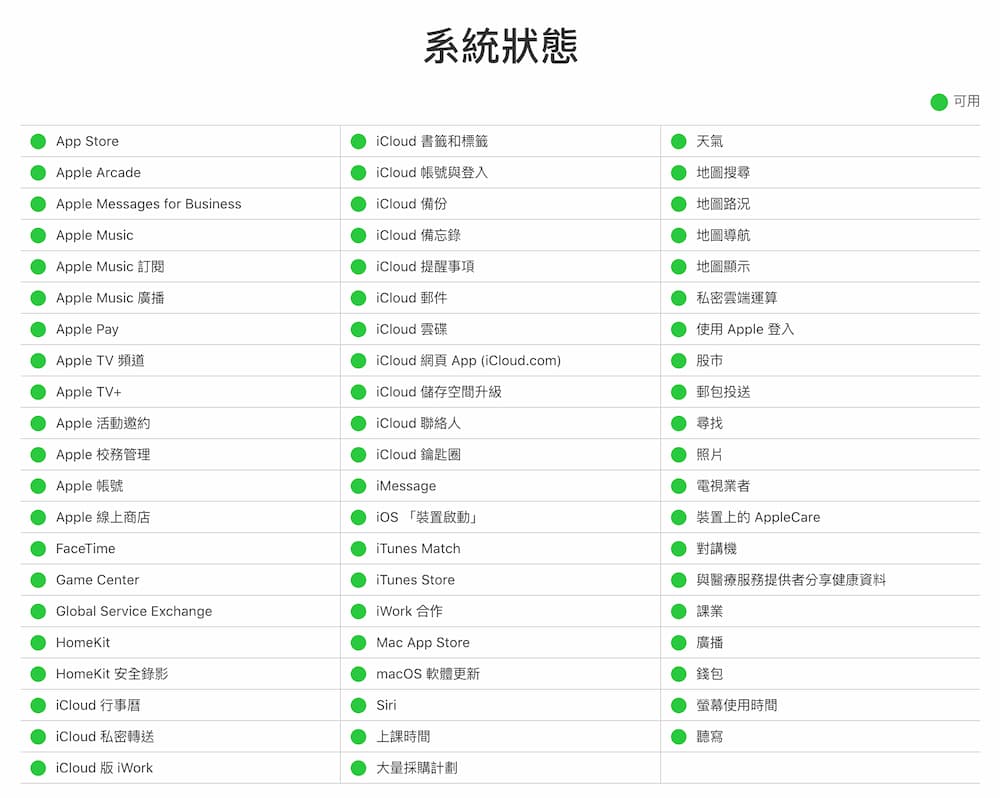
Before troubleshooting, go to “Apple System Status Page“Check whether the Apple server is operating normally. If the server service has abnormal downtime, it is recommended to try again later.
If the “green light” is displayed, it means that the Apple service is normal. If the “red light, yellow light or orange light” is displayed, it means that the Apple service is abnormal or interrupted. You can only wait for the Apple engineering team to fix the Apple ID connection error or exception. Update: At present, many iPhone users are known to keep showing updates to Apple ID settings, and repeatedly jumping out of authentication failure. This situation is mainly caused by Apple server errors. Please do not keep trying to enter or modify the password to avoid the Apple account being automatically locked. You need to contact customer service to unlock it 24 hours a day.
2. Check Downdetector Error Reward Status
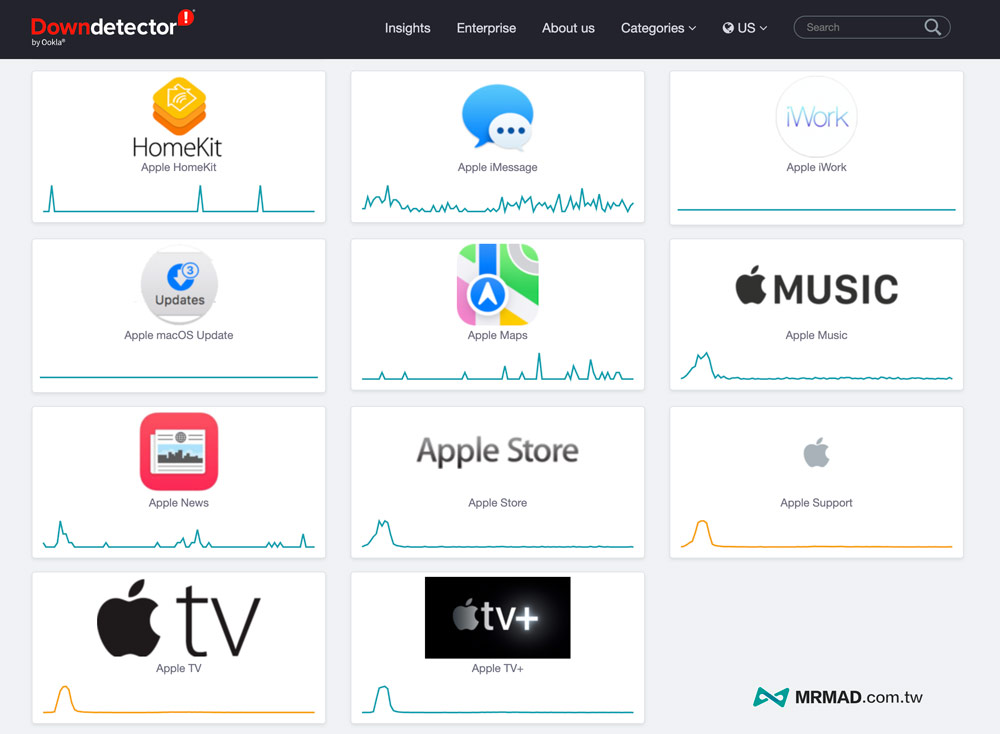
You can use the Downdetector platform to check whether there are currently problems or failures in various Apple services. Usually, when foreign users have a failure, they will report through the website to check which countries users also encounter Apple ID verification errors or keep appearing in Apple ID password verification errors.
3. iPhone reset network settings
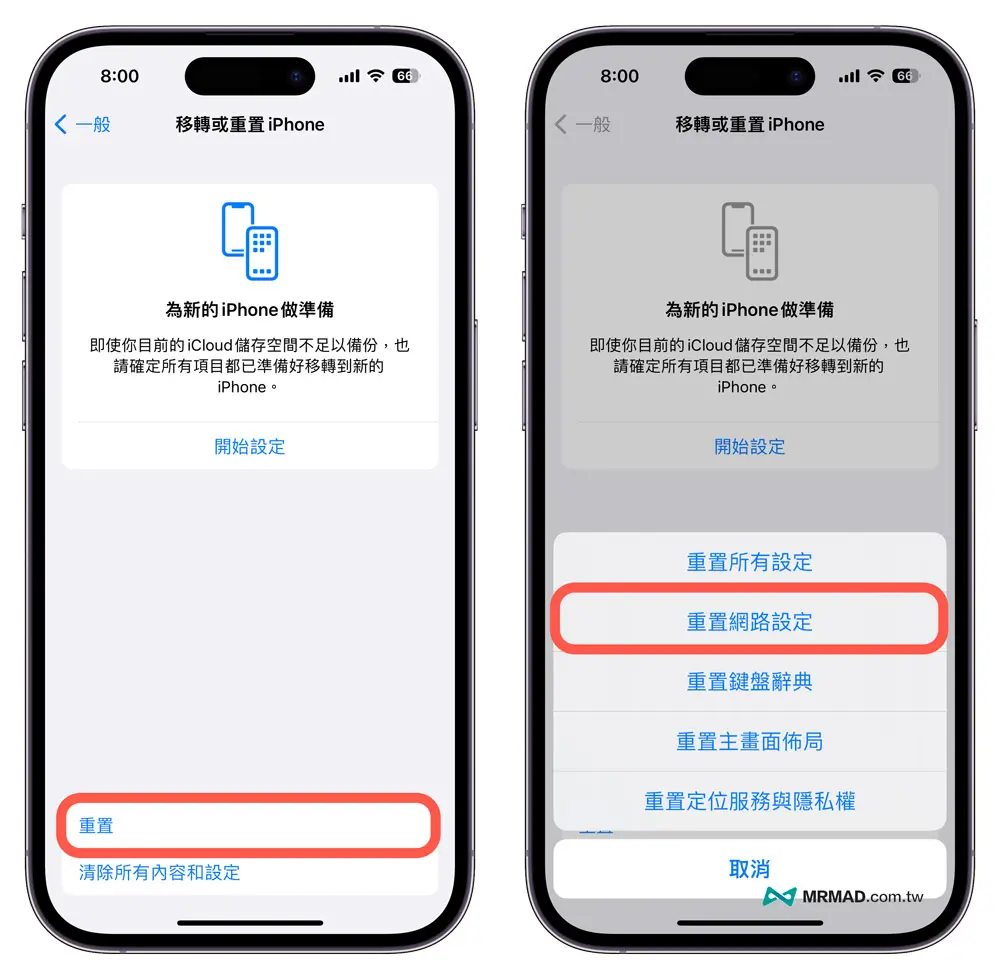
If the iPhone network has settings incorrectly or has adjusted some functions, it will also cause the iPhone server to be abnormal and the Apple ID verification fails. You can try resetting the mobile network settings.
The following are the steps to reset the network settings for iPhone:
- Go to iOS built-in “Settings” App
- Turn on “General” > “Move or reset iPhone”
- Select “Reset Network Settings”
4. Reboot the iPhone once
After trying the above method, it still cannot solve the problem that iPhone will require “Update Apple ID settings” to enter Apple account verification problem from time to time. You can reboot your iPhone once, and most of them can resolve various iOS system abnormal errors.
Face ID iPhone reboot
Suitable models: iPhone X, iPhone XS series, iPhone 11 series, iPhone 12 series, iPhone 13 series, iPhone 14 series or new models.
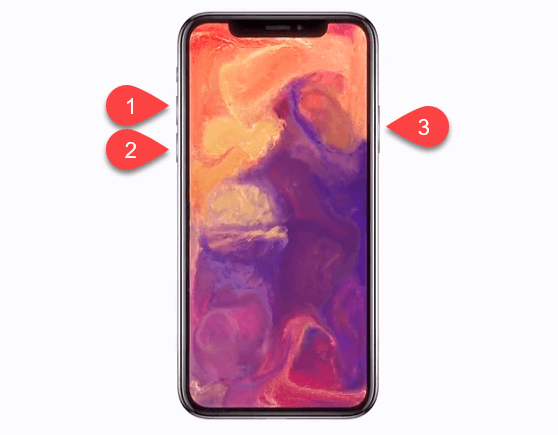
- Press the “Volume key to increase (+)” key. (No need to keep suppressing)
- Press the “Volume key down (-)” key. (No need to keep suppressing)
- Finally, press the “Power” button on the right for about 10 seconds, until the screen becomes dark and the Apple logo (white apple, black apple) appears and then force reboot.
Note: Press all three steps before the volume pattern disappears, and you can forcefully restart the machine. If you are not able to see the picture when the phone is on, just press it through the feel.
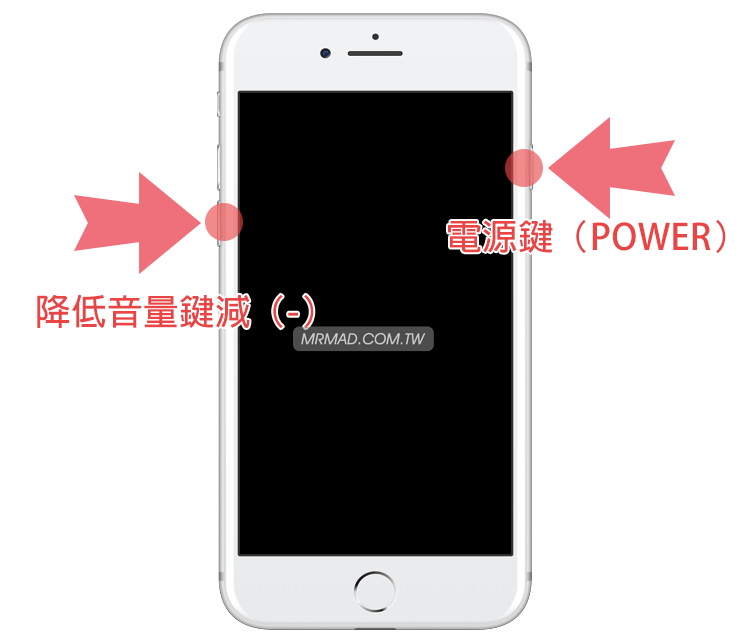
If the iPhone 7, iPhone 8 or iPhone SE 2/3 HOME buttons have been changed to non-press buttons, the internal vibrator will only be feedback from the internal vibration, so it cannot be passed through the previous pressing method of the iPhone 6s, and a new method is needed.
Method: Press and hold the “Power key + volume key (Download volume)” at the same time and keep it playing for about 5 to 10 seconds. After the screen enters and turns black, restart the Apple Logo (white apple, black apple) screen and release it.
TouchID iPhone reboot method
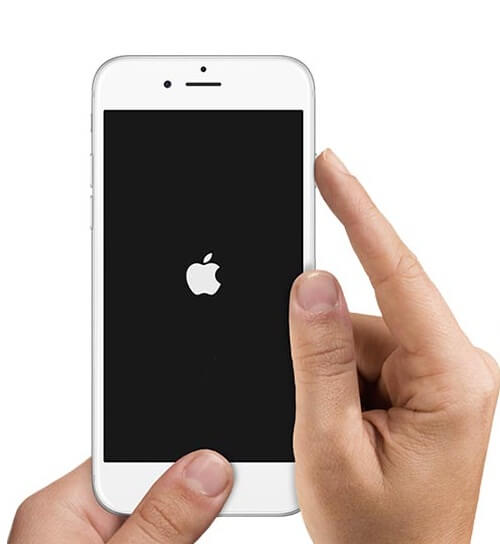
Press and hold the “Power key + Home key” at the same time for about 5 to 10 seconds. It will continue until the screen enters and turns black. Restart the Apple Logo (white apple, black apple) screen and release it.
5. Log out and log in again with Apple ID account
If the iPhone will prompt for entering the Apple ID password from time to time, this may be due to the App Store verification error caused by the iOS system. You can try to log out the Apple ID account bound to the App Store and then log in again through the following method. Most of them can solve the prompt for asking for the Apple ID password to be entered.
- Open the App Store App
- Click the “Big Head Photo” picture in the upper right corner
- Swipe to the bottom and click “Login” Apple ID account
Reminder: If the Apple ID account password is clearly entered correctly, please do not keep repeating it to avoid the account being locked.

6. Update iOS system version
If you still stay in the old iOS version, you will easily encounter various abnormal problems on the iPhone system. Therefore, upgrade your iPhone to the new version as much as possible, with fewer system errors and higher stability.
There are two ways to update the iPhone system. The first one can be directly updated through the iPhone device, and can be upgraded to the latest iOS version through “Settings” > “General” > “Software Update”.
If iOS has not been updated for too long, it will not be updated. You need to update the iTunes update method through the computer. The detailed operation method can be learned through “This iTunes update iPhone teaching”.
7. Seek Apple customer service to assist with the processing
If you keep encountering iPhones and jump out of “Update Apple ID Account Settings”, you can also contact them directly in the endApple Customer ServiceSeek technical support, whether it is via telephone or online, it can be solved by the official.
What should I do if I fail to verify or lock it when updating the Apple ID account settings?
When you enter the Apple ID password with your iPhone several times but continue to appear “verification failed”. This is not because the account or password is incorrect, but because there is an abnormality in the verification server of Apple ID. Please do not repeat the input to avoid the account being automatically locked.
This type of problem sometimes does not appear on Apple’s system status page, and it may not be possible to know the abnormal server status immediately. Usually, in this case, it is recommended to wait a few days for Apple to repair the Apple ID authentication system to automatically recover. If the device still displays the prompt “Update Apple ID settings” after a period of time, and then re-enter the password for verification.
If you find that after entering the Apple ID password to authenticate, the Apple account will be locked, you can only contact usApple Customer ServiceWhen seeking unlocking, you usually have to wait 24 hours before unlocking after confirming the account.
Summarize
Although it is troublesome to encounter the problem of “Update Apple ID Settings” stuck on iPhone, it can be quickly solved in most cases through the above methods. Whether it is checking the server status, updating the system version, or logging in to the account, it can effectively troubleshoot the problem. If the problem persists, it is recommended to seek official customer service assistance to ensure the normal operation of the equipment. I hope this article can help you solve the problem of “updating Apple ID settings” smoothly!
Further reading: