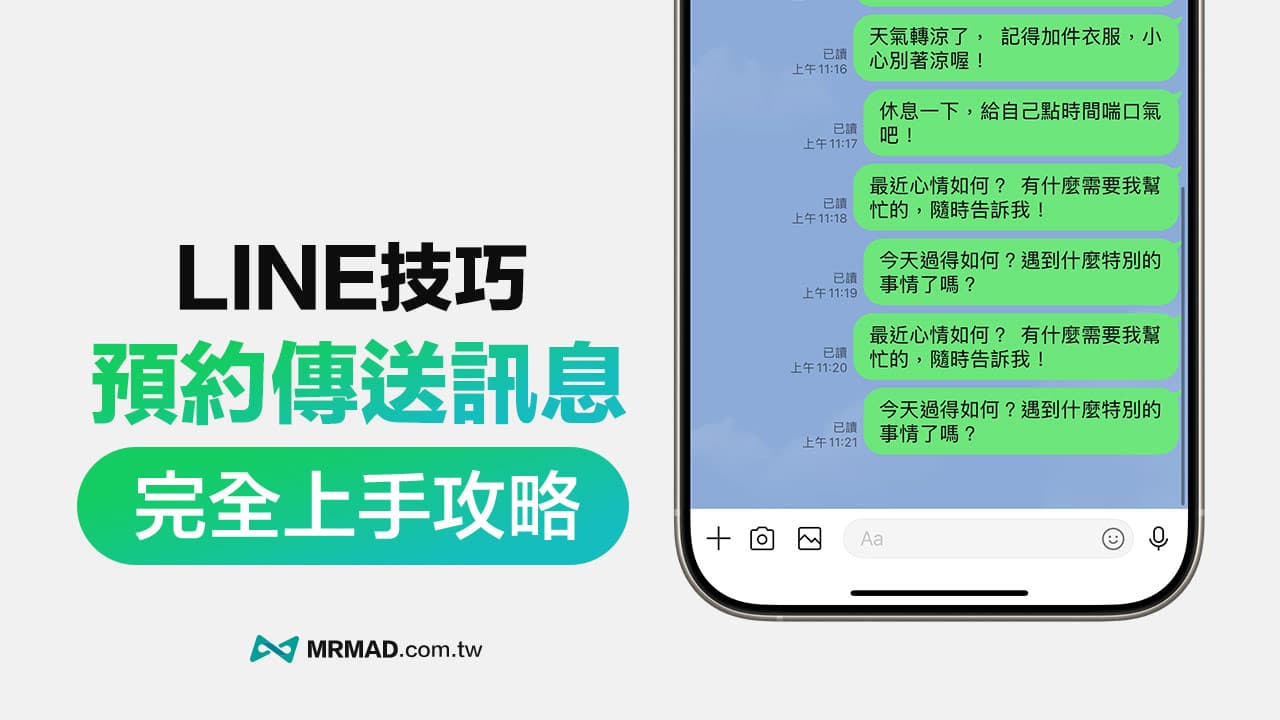
LINE is the most commonly used communication software in daily life. In addition to chatting, do you know how to make good use of LINE’s appointment messaging function to improve interpersonal relationships and add interest in life?
This article will share the skills of LINE scheduled messaging, which allows you to automatically schedule and send messages at specified times or conditions, such as reminding elders not to forget to take medicine, caring about family members, or reminding to pick up children, etc. You can also send LINE messages randomly. Message your friends to express their sincere greetings, allowing you to easily improve communication efficiency and draw closer relationships through LINE automatic messaging.
What does the LINE reservation message function do?
LINE’s reservation message function is super convenient! It is like a thoughtful reminder helper that can help you automatically send LINE messages at a designated time, so you no longer have to worry about others forgetting important things.
Below I’ll share the specific functions of LINE’s appointment messaging:
- Important reminder function: You can arrange important LINE messages in advance to remind others of important things to do, such as reminding elders to take medicine, reminding children to pick up and drop off from get out of class, reminding family members of payment deadlines, reminding colleagues of important meeting times, etc.
- Celebrate blessings on birthdays: On birthdays, important festivals or special anniversaries, you can use LINE to automatically send blessing messages to let the other party feel your heart.
- Send notifications at specific times: For example, you can use LINE to automatically notify team members of meetings and customer service progress.
- Creative use: You can set LINE to automatically randomize greetings every day to make the other party feel that you actively chat with them every day and improve the goodwill of both parties.
How to schedule LINE to automatically send messages?
Currently, only the iPhone can implement the automatic messaging function of LINE, which can be achieved through the iOS shortcut script function.
Reminder: As for Android phones automatically scheduled to send LINE messages, they cannot be sent through “silent messages”.
1. Create a shortcut script for sending messages in LINE (iOS)
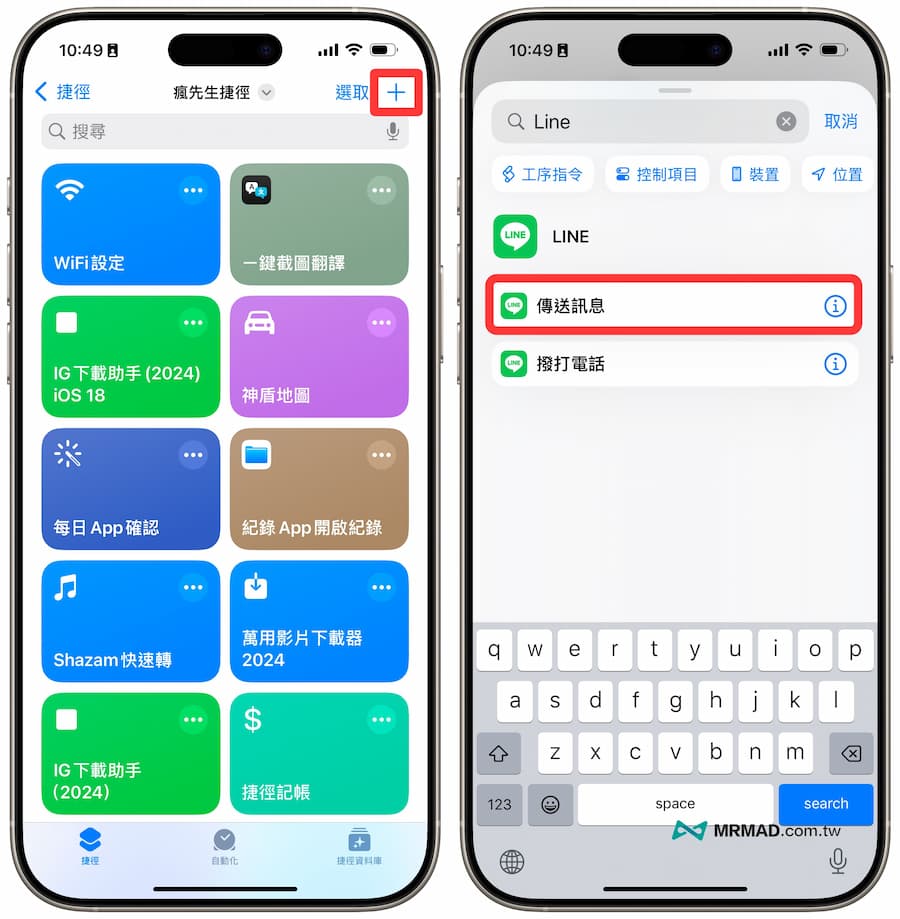
First, open the iPhone’s built-in “Shortcuts APP” and click the “+” in the upper right corner to create a new shortcut script. Click the search field to search for “LINE” and click “Send Message”.
2. Set the content and target of sending LINE messages
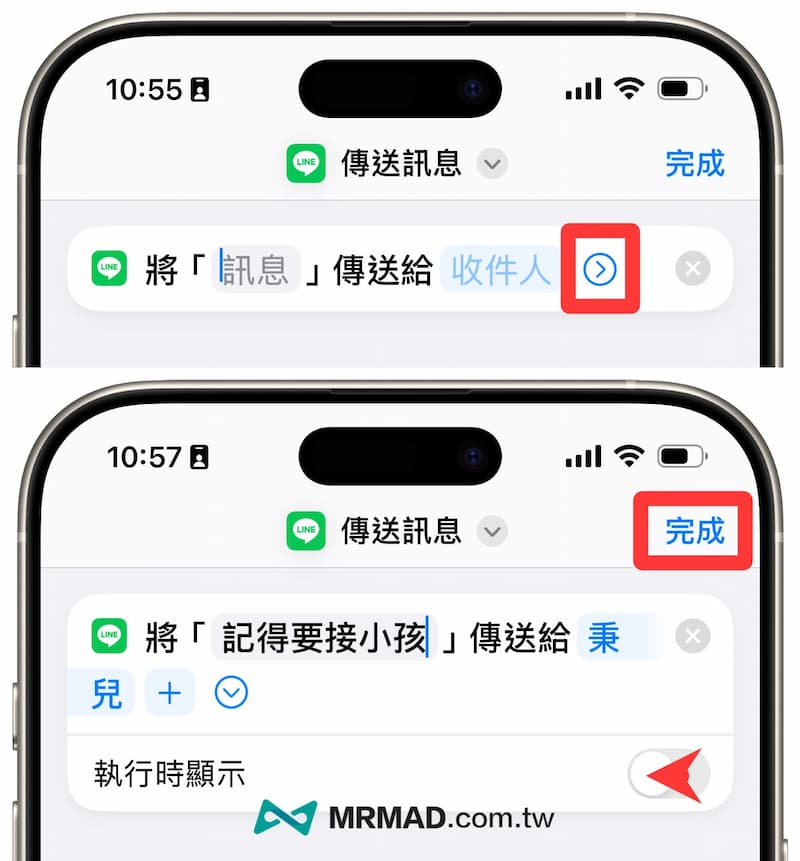
When LINE sends a message, the shortcut script will be added automatically. You can customize the content of the message to be sent, and click “Recipient” to specify the person to whom LINE is sent. After setting, click the arrow to turn off “Show during execution” .
3. Transfer single or multi-person settings
If you want to send reservation messages to multiple people through LINE, you need to create additional LINE reservation message shortcut scripts for different people to avoid errors.
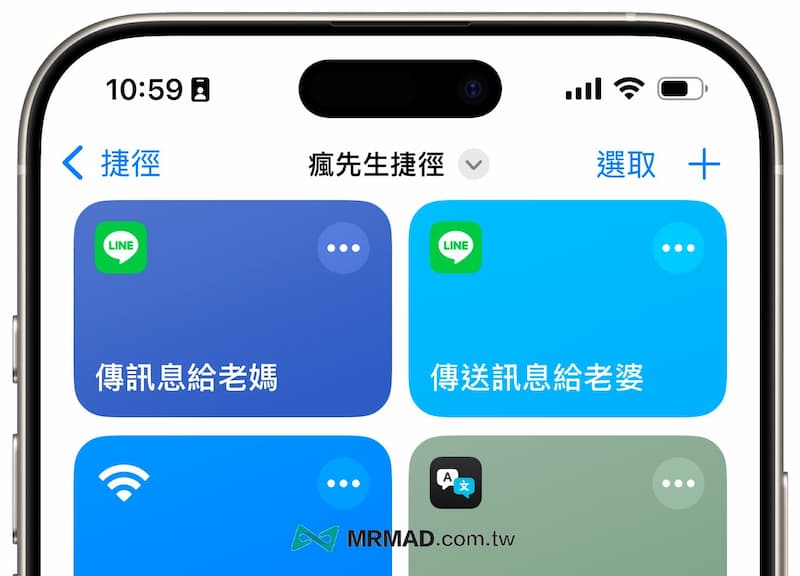
4. Set up automatic schedule for sending messages at LINE time
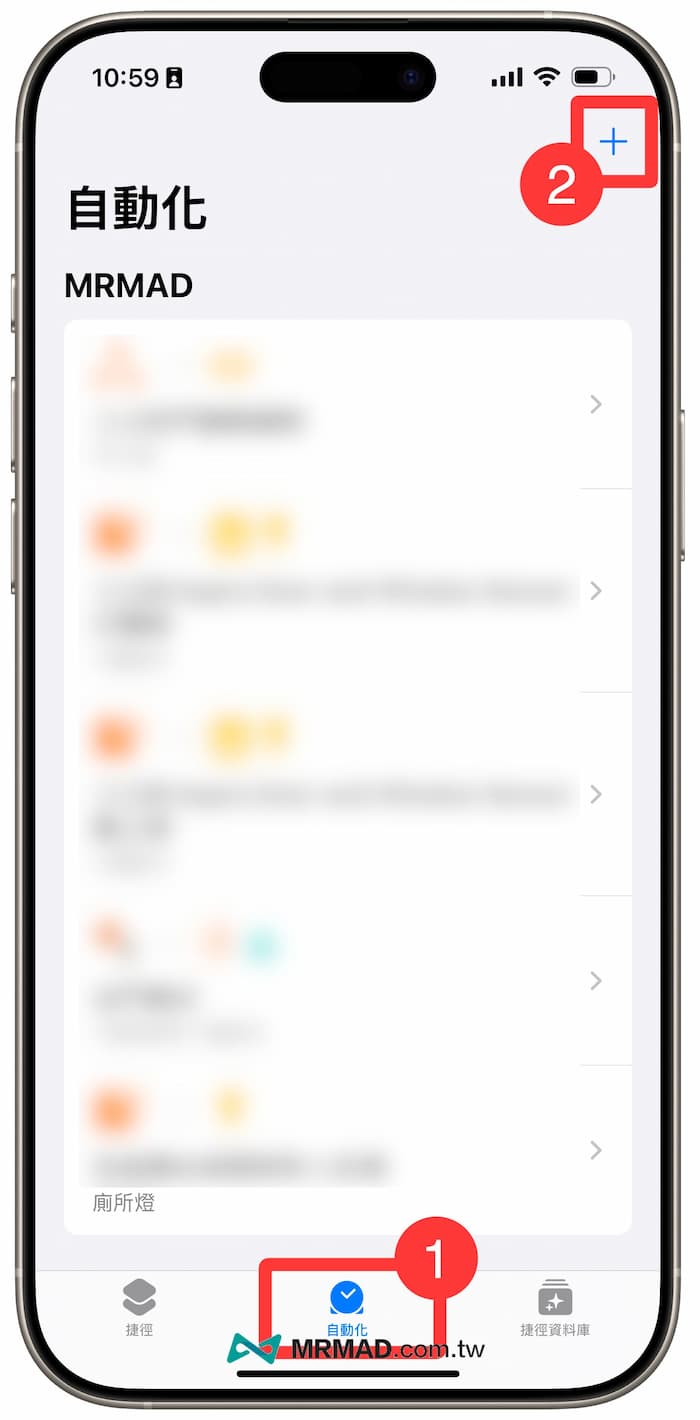
Switch to the “Automation” page of Shortcut APP and press “+” in the upper right corner; if you have not set up Shortcut automation before, press “Create Personal Automation Operation”.
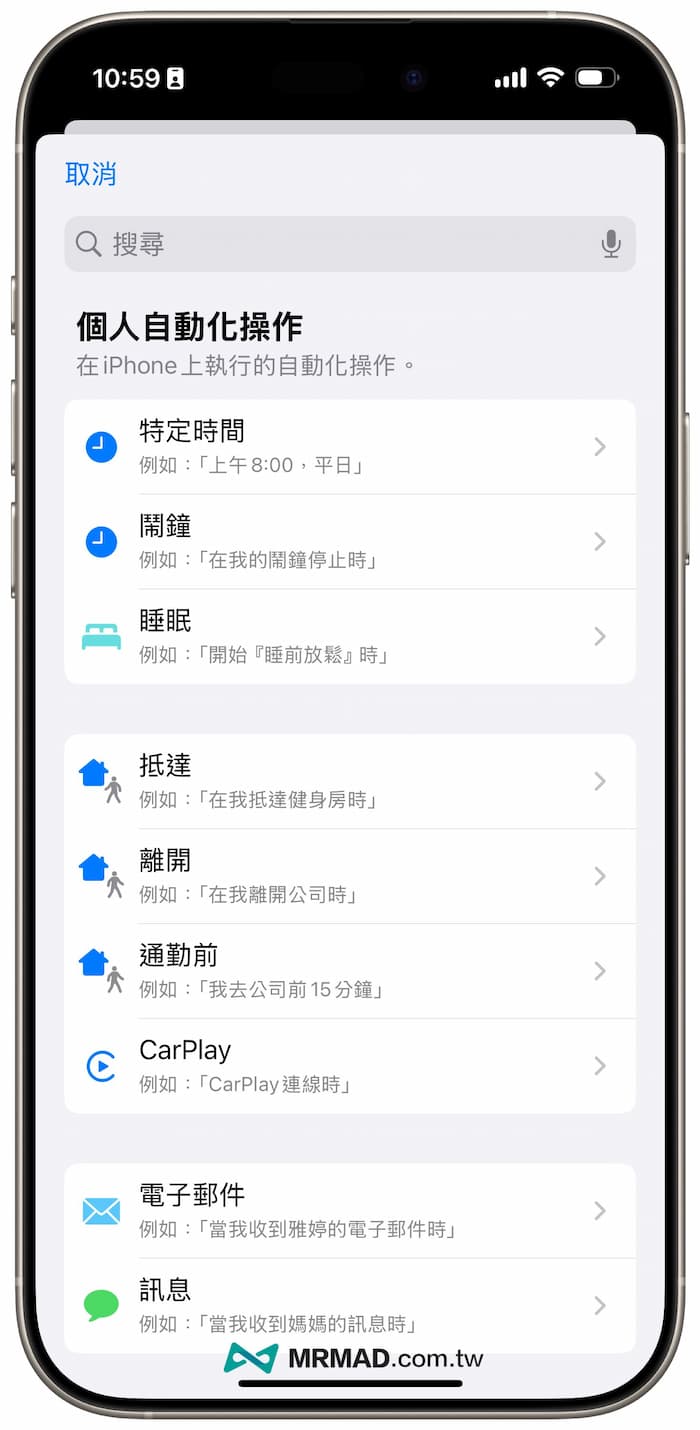
You can customize the automatic sending of LINE reservation messages at a specific time. You can choose a specified date and time, or even set it to happen when the alarm goes off every day, before going to bed, arriving or leaving a specific place, or before commuting.
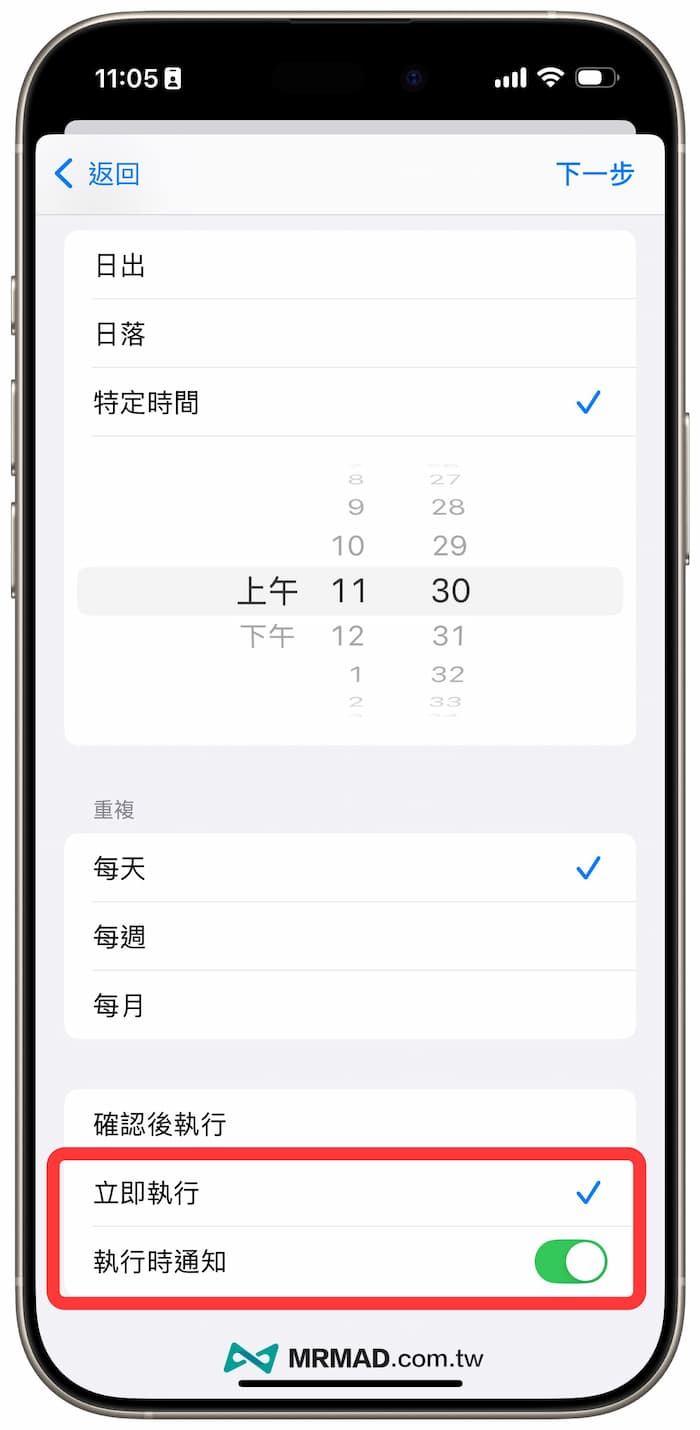
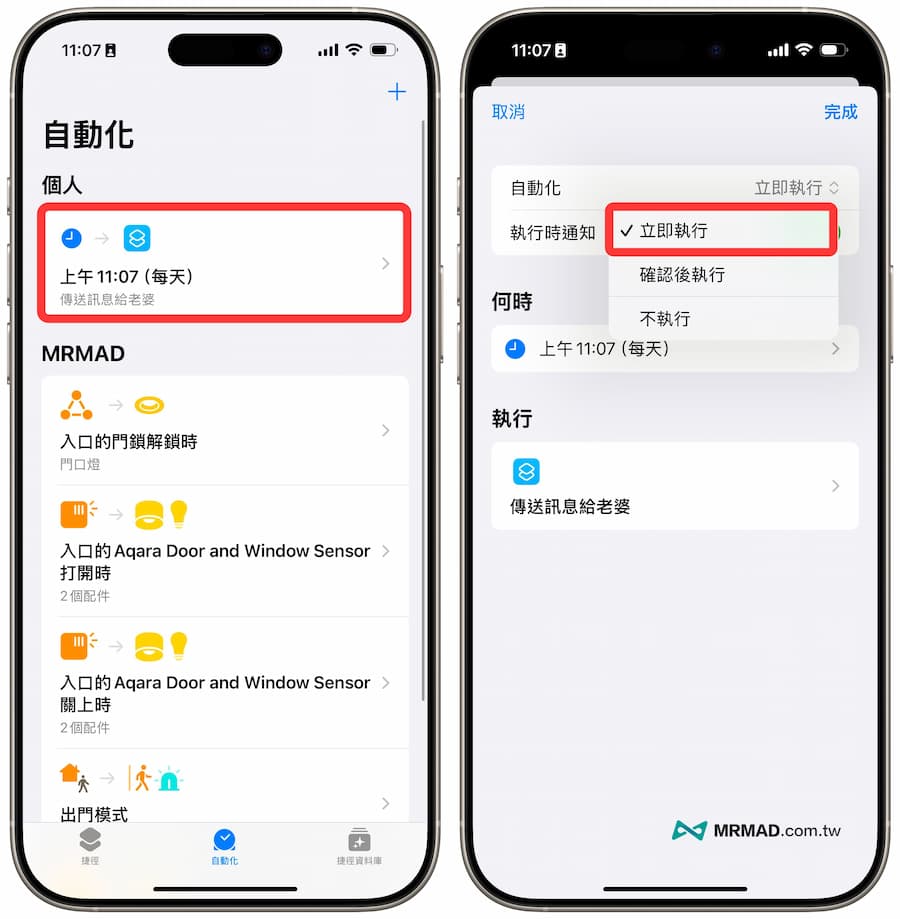
Usually, most people choose a specific time to automatically send LINE messages. You can customize the recurrence time every day, week, or month. Remember to change it to “Execute immediately” at the bottom and turn on “Notification when executing” to avoid unnecessary Only in the unlocked state can fully automated LINE messages be sent, and notifications have been sent to avoid the system popping up a prompt to confirm before sending.
Then select the LINE message shortcut script you just created.
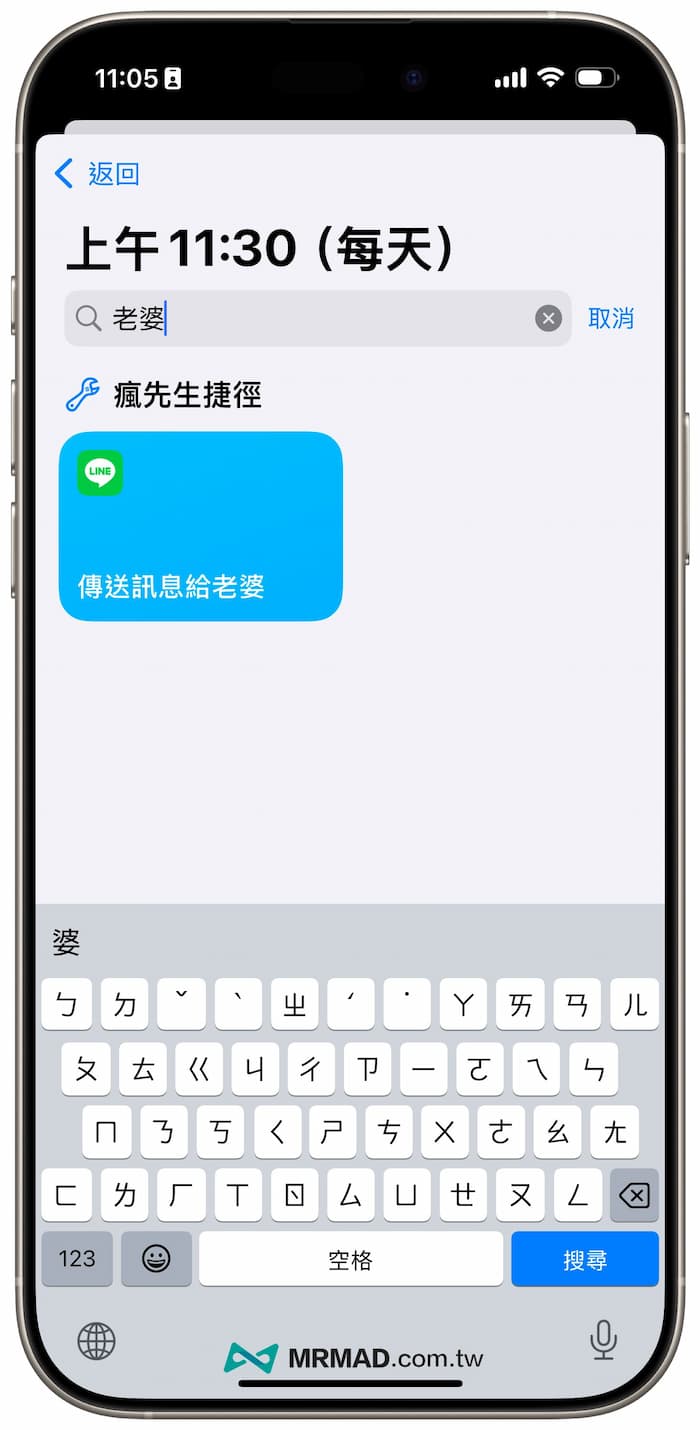
Finally, return to the shortcut automation page and you will see the newly added LINE automatic message command. If you find that the shortcut cannot automatically send LINE messages, click to confirm whether the automation option is set to “Execute immediately”.
5. Automatically send LINE messages
After the setting is completed, the iPhone shortcut will automatically send the LINE reservation message to the other party as soon as the time is up, and it will be sent automatically without the need for manual confirmation.
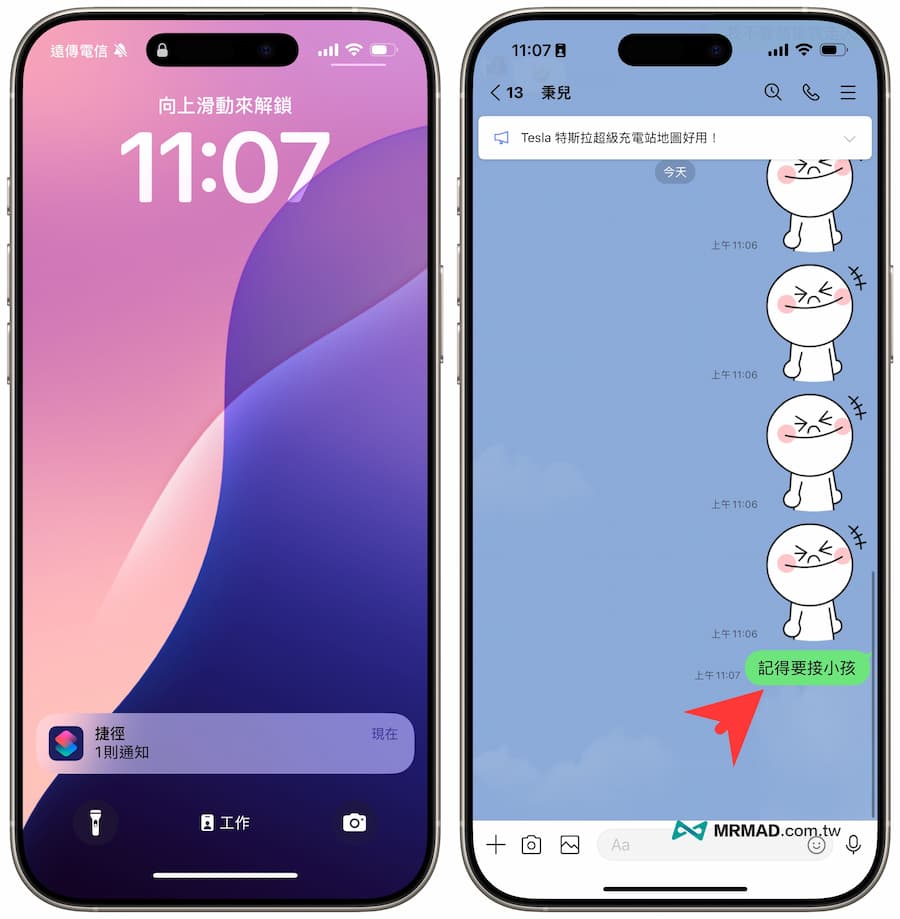
最後要提醒,這功能只能用來預約單次傳送LINE訊息,要記得LINE傳送後,就要回到捷徑自動化內關閉捷徑腳本,並設定為「不執行」,等到後續要排程時間在開啟settings.
How to set up LINE to automatically send different messages?
If you want to send different LINE messages to the other party every day and want to bring the two parties closer to each other, you can first create multiple groups of different texts to be sent, so that the shortcut can automatically send a random sentence to the other party to avoid reading the content of the message. It’s all the same sentence, which also prevents boredom.
Create shortcuts to random LINE pre-sent message content
Also open the Shortcut APP and create a blank script, or edit the original shortcut script directly. If you are editing the original, remember to delete all the actions in it, and look for the “List” action command from the search action box.
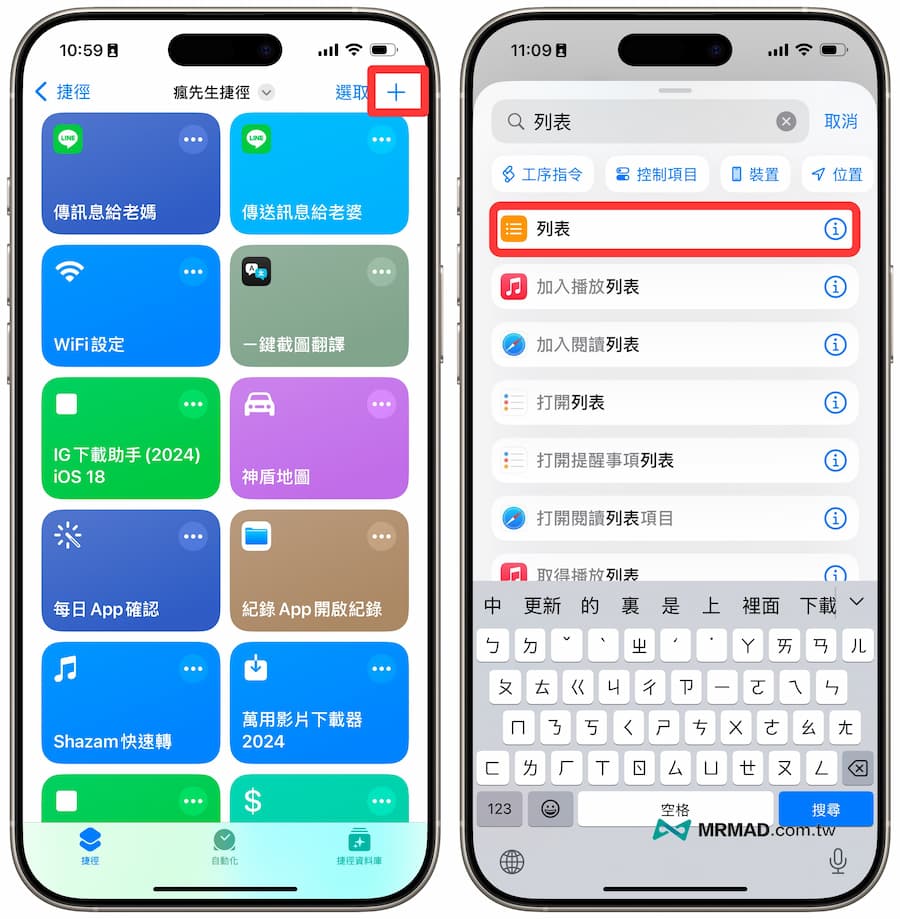
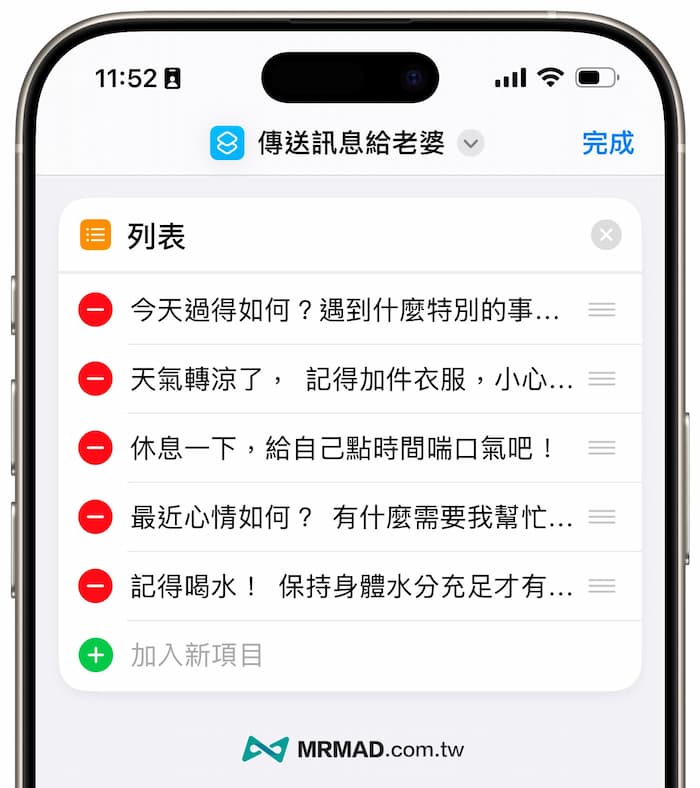
Enter text to send
You can enter the text of the message you want to send in the list. If you can’t think of a topic or inspiration for asking after you, you can also directly use ChatGPT to “generate ten daily greetings”, so that you can be a warm man every day.
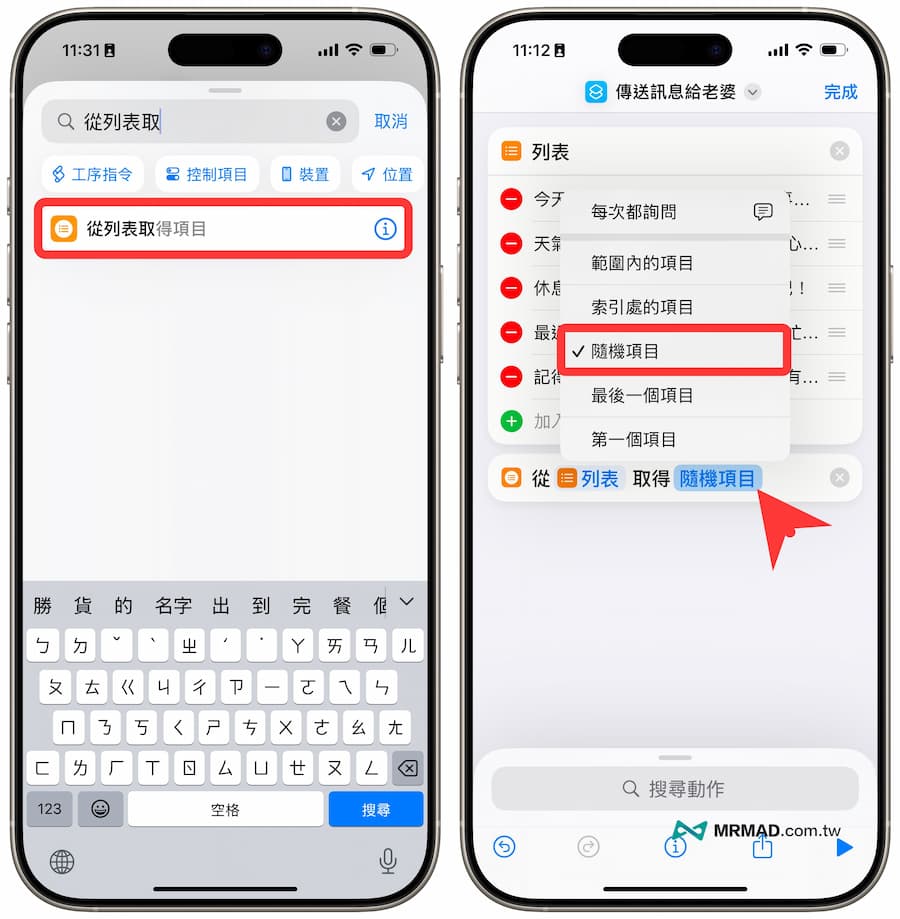
Add random item from list action
Next, after searching for the “Get item from list” action command, change the “first item” to “random item”.
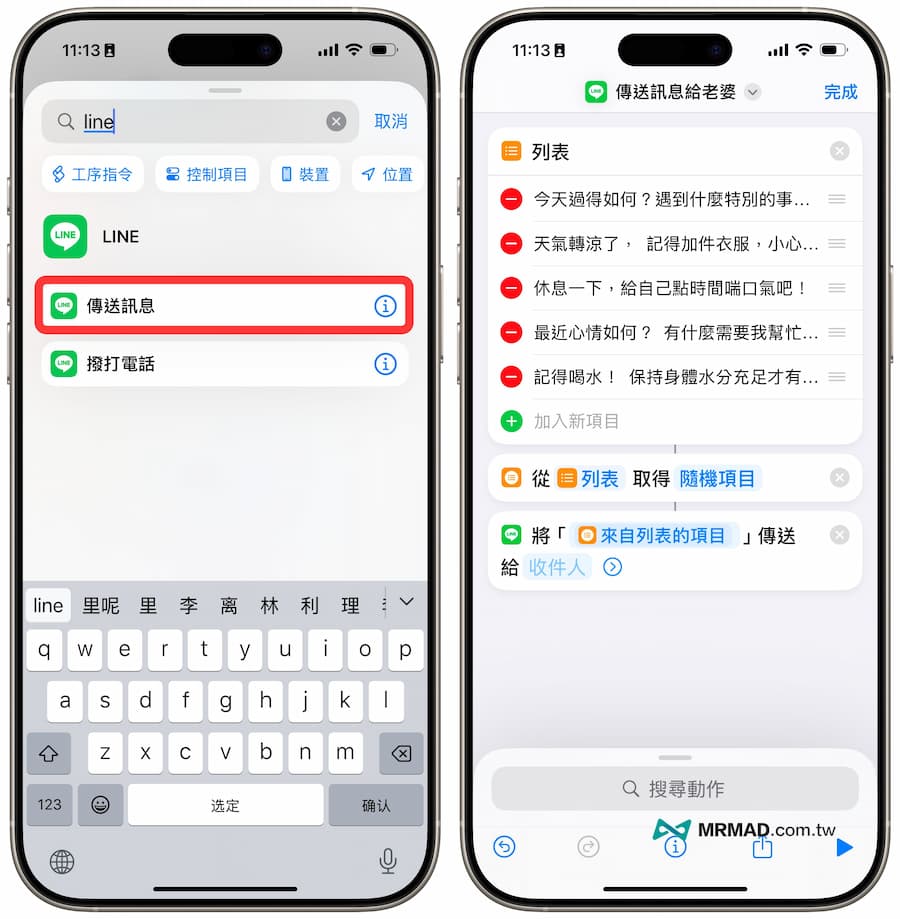
Automatically send LINE message action
Finally, add the LINE “Send Message” action command, and make sure the action is changed to “Item from List”. After setting the LINE object to be sent, the setting can be completed.
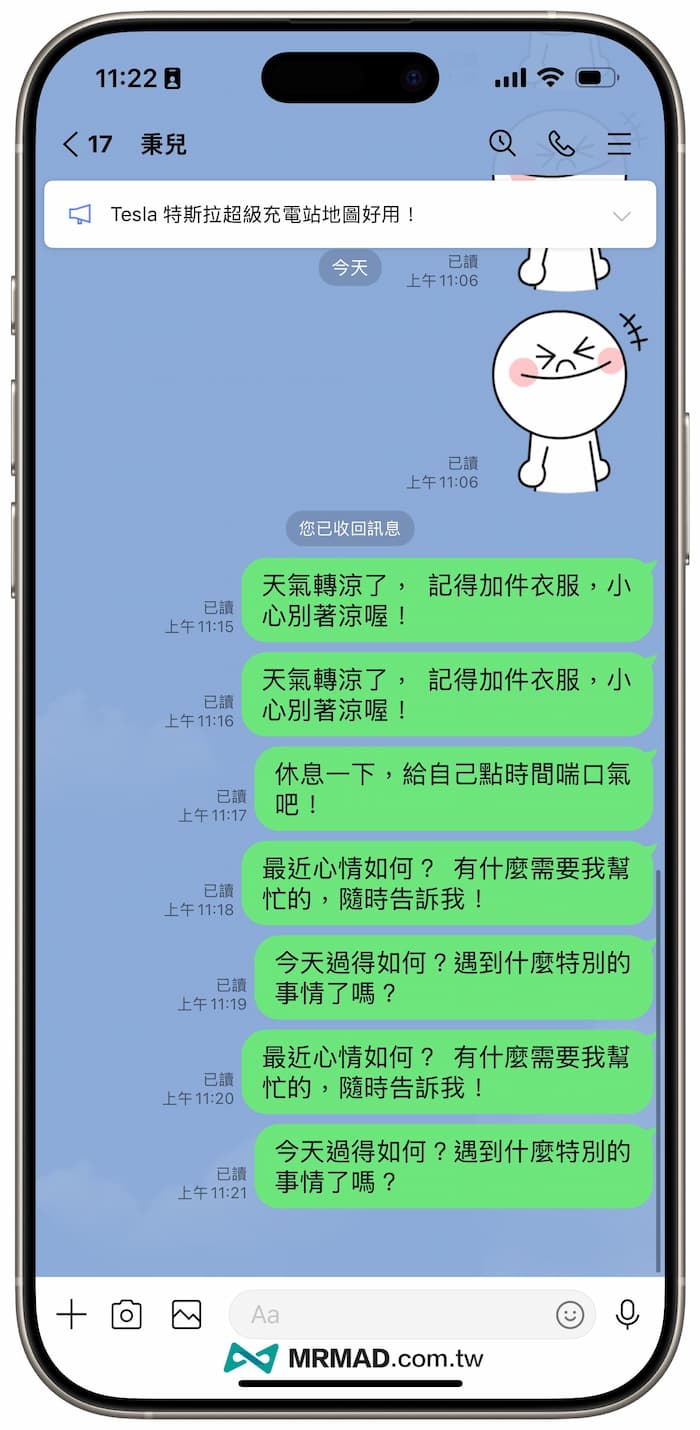
The system automatically sends LINE messages randomly
Similarly, through the shortcut automation, if you set up and execute this LINE automatic message sending script, a greeting will be randomly selected from the list and automatically sent to the other party through LINE, so that the other party will feel happy to receive it!
Summary of LINE reservation message functions
Through the LINE scheduled message function, you can schedule the messages to be sent in advance, and also allow the iPhone to automatically send the content of LINE scheduled messages according to different conditions or times, allowing you to better manage your time, improve chat efficiency and Improve interpersonal relationships. If you haven’t used this practical function yet, come and give it a try!
More LINE practical tips: