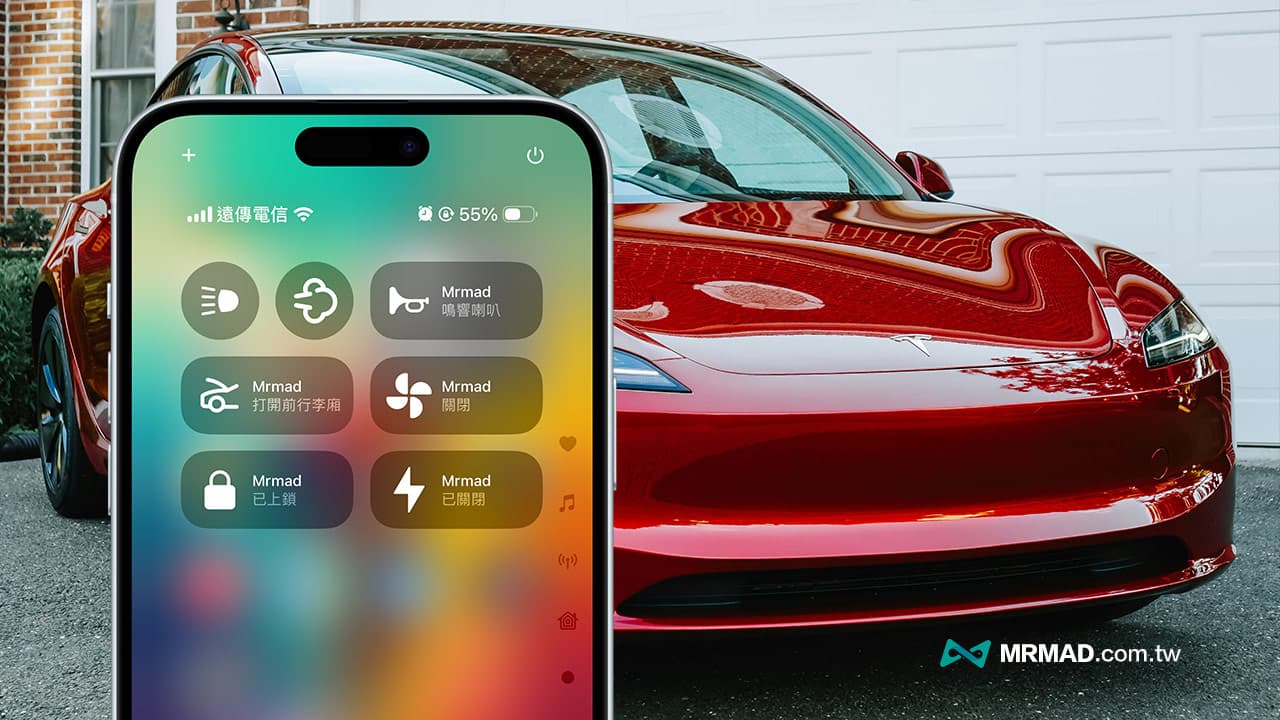
Tesla also recently released a Tesla App version update. The most important thing is that it can support the new iOS 18 Control Center quick control function, allowing iPhone users to control their cars faster and more intuitively through the Control Center without opening the Tesla App. car. This article will share how to set up quick controls in the iOS 18 Control Center of the Tesla App, making it easier to interact with Tesla through your iPhone.
Tesla iOS 18 control center shortcut function setting tutorial
Update Tesla App and iOS system
First, the Tesla App must be updated to 4.38.0 or a newer version, and the iPhone must be upgraded to the new iOS 18 system before the Tesla Control Center shortcut function can be used.
- Tesla App version requirement: 4.38.0 or newer.
- iPhone system requirements: iOS 18 or newer.
1. Turn on the control center editing mode
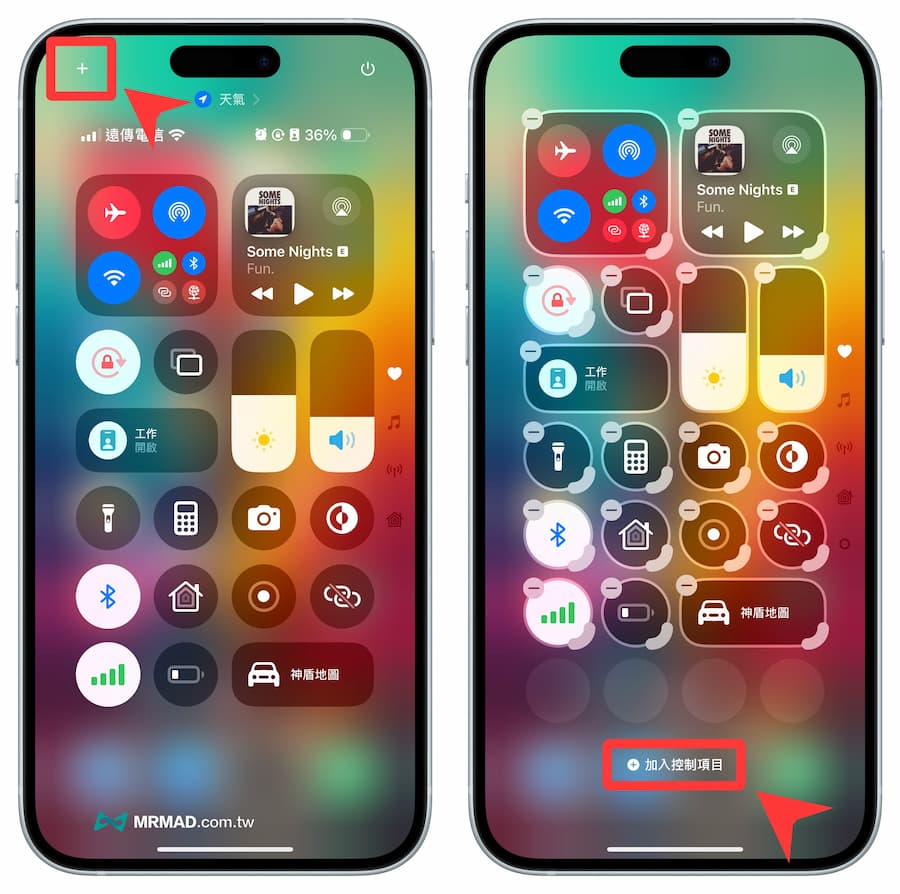
Pull down the iPhone Control Center directly through the upper right corner of the phone, click the “+” button in the upper left corner, and click “Add Control Item”.
2. Select the Tesla Control Project button
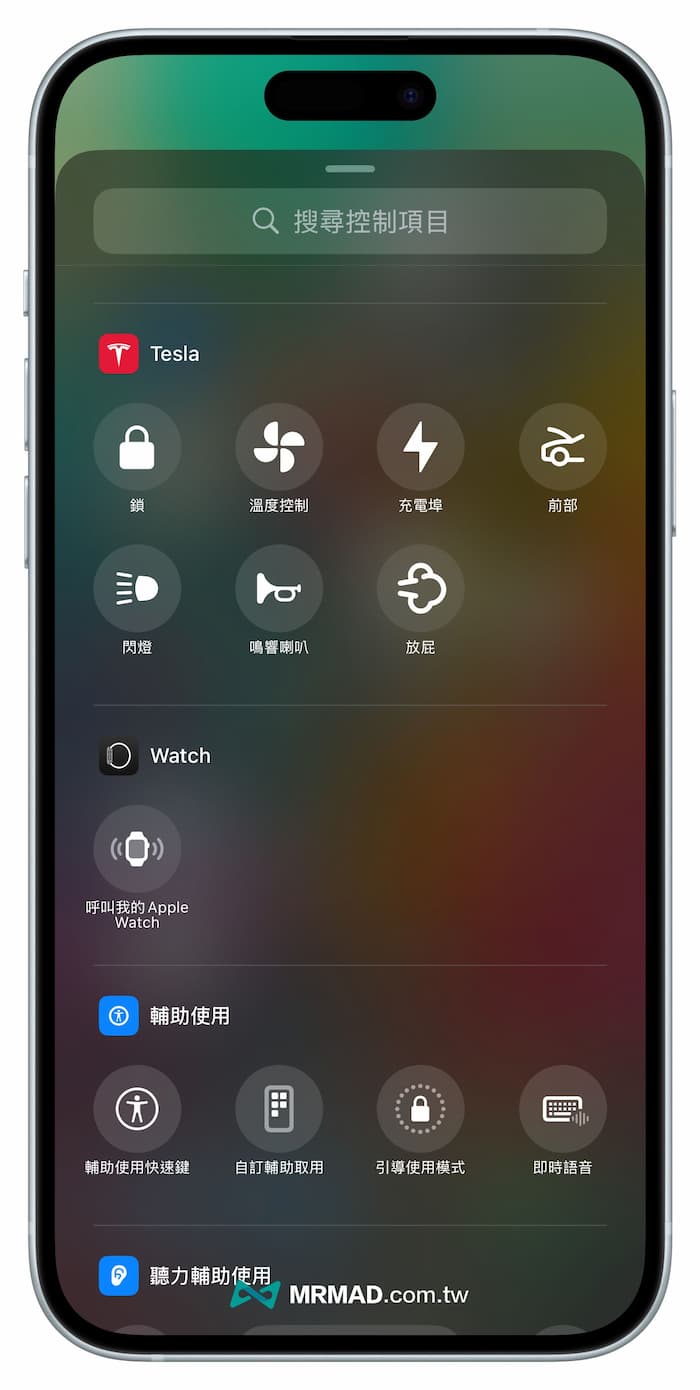
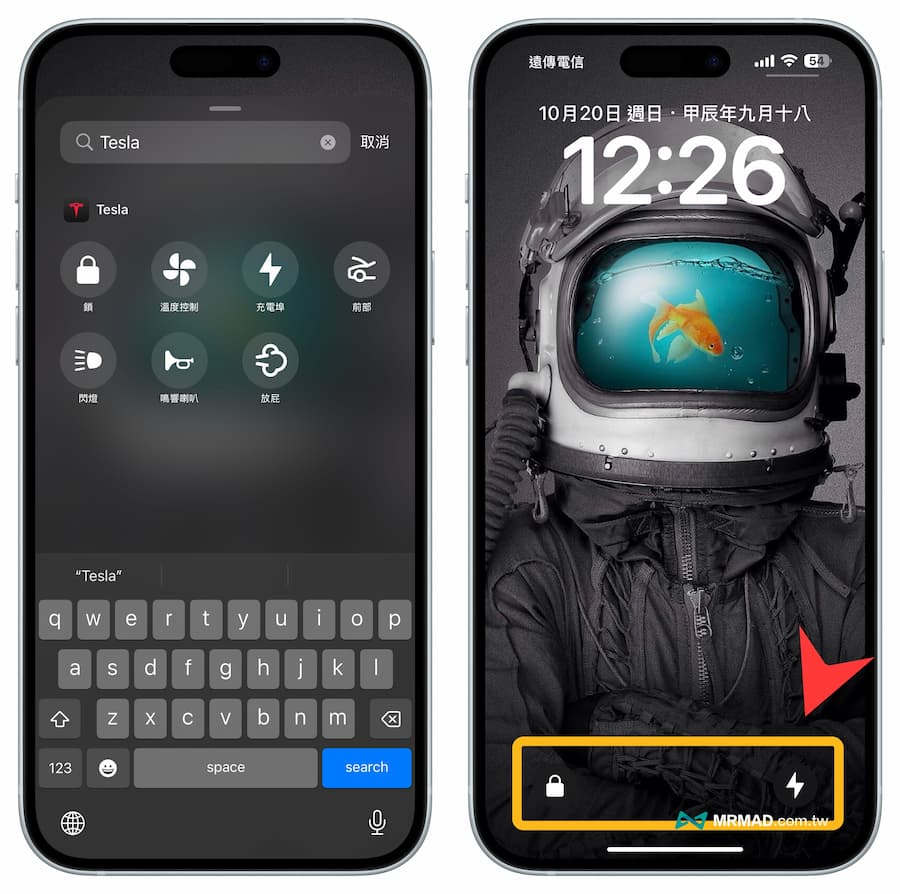
Scroll down from the control item page to find the “Tesla” section, where you will see 7 Tesla vehicle control functions, namely vehicle lock, temperature control, charging port, front compartment switch, flashing lights, horn and fart sound effects.
3. Confirm vehicle
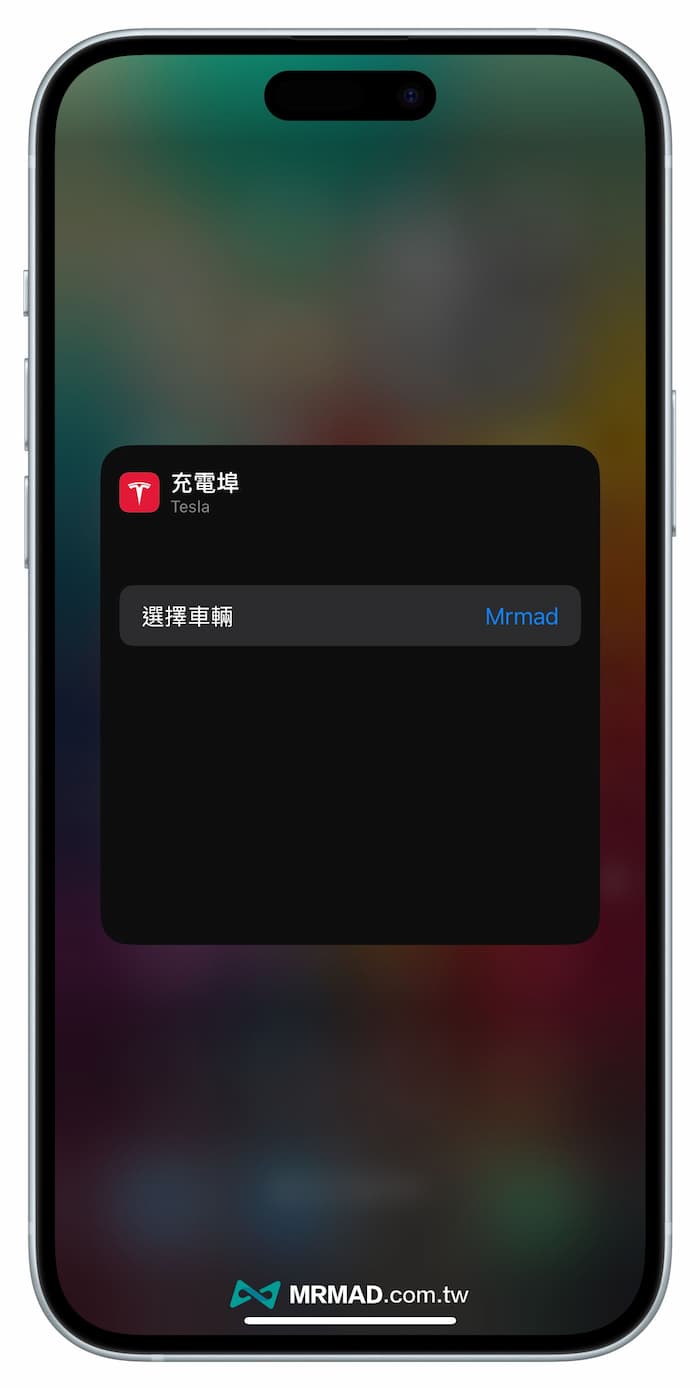
During the click-to-join control project setting process, the system will also pop up which vehicle to control.
4. Arrange editing adjustment buttons
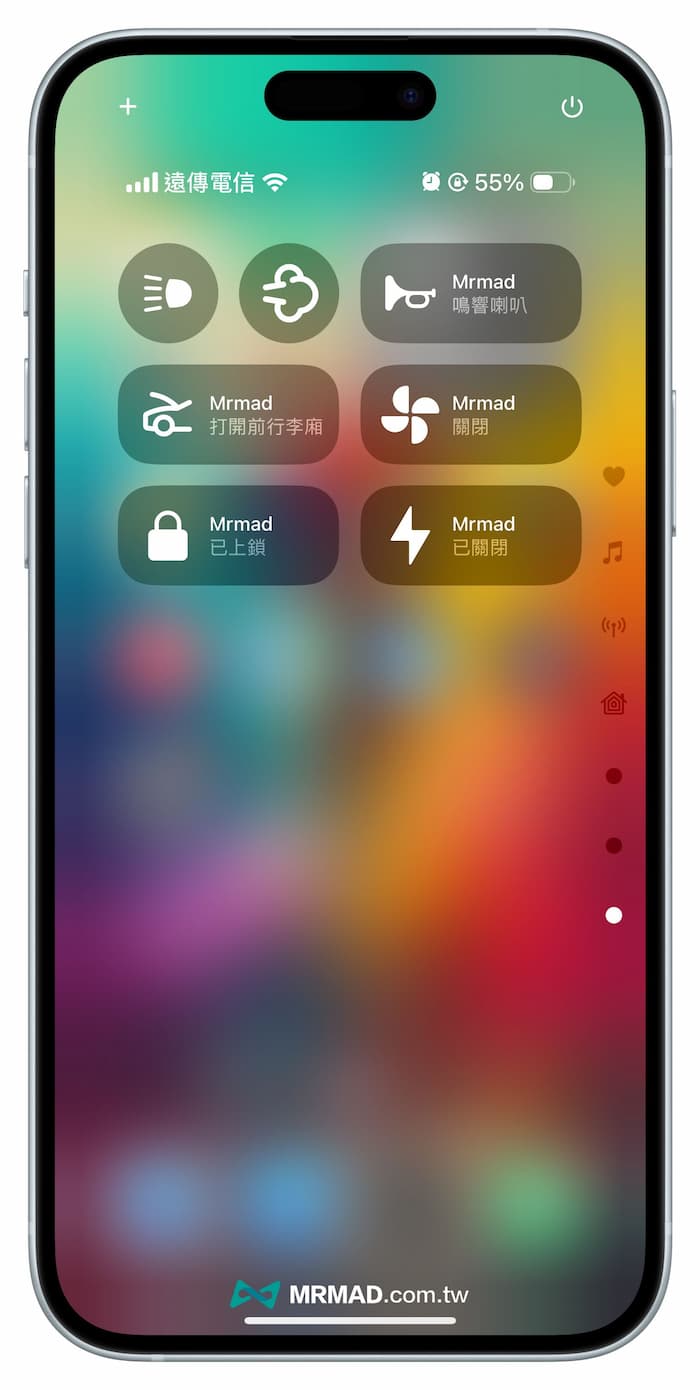
After adding control items, you can customize the position and size of the buttons. It is recommended to place commonly used vehicle devices, such as the most commonly used ones to open the charging port, front luggage compartment, etc. If you want to avoid accidental touches, it is recommended to put them in the new car. Within the iPhone Control Center page.
Put Tesla Shortcut Button into iOS 18 Lock Screen Tips
You can also place Tesla App control items directly on the iPhone lock screen. The operation steps are as follows:
Step 1. Simply press and hold the iPhone lock screen, enter editing mode and click “Customize”.
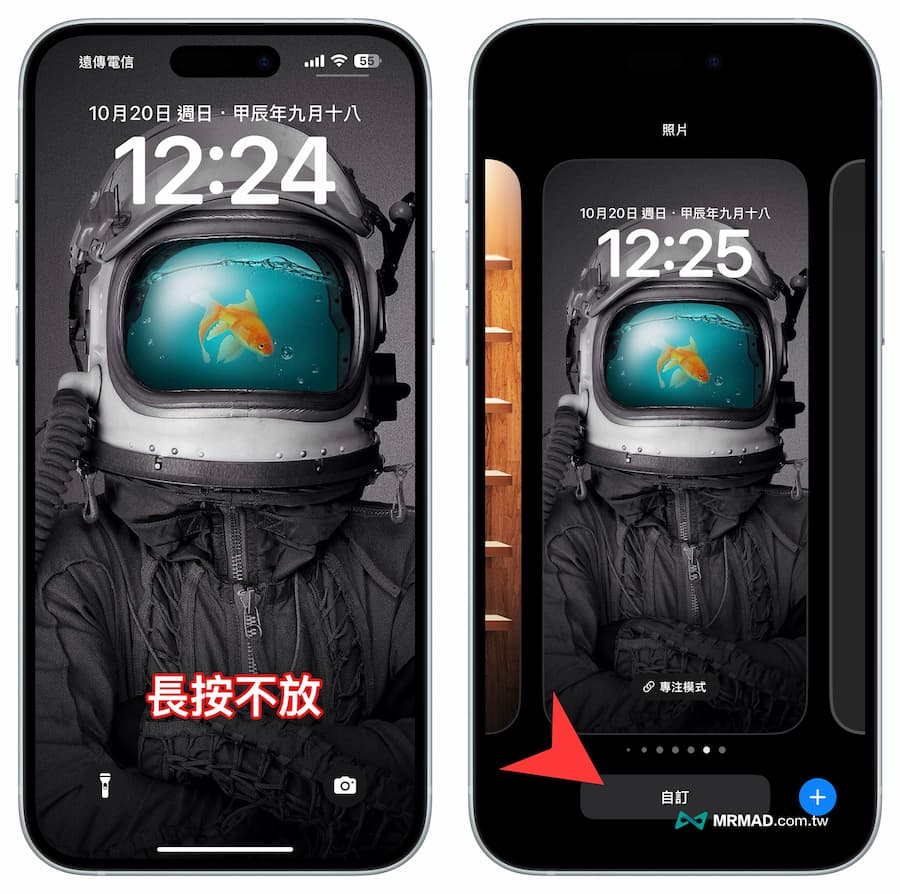
Step 2. From the background image settings, click “Lock Screen” on the left, and then click the “➖” symbol in the upper left corner of the shortcut function button below to edit.
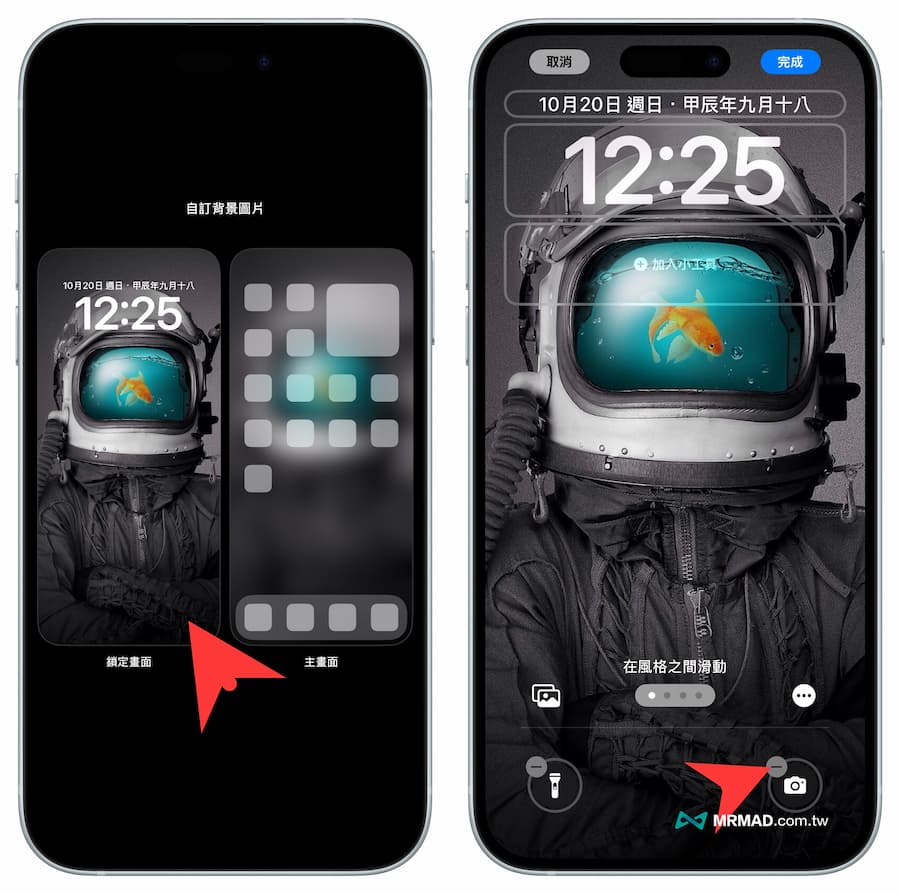
Step 3. Then click the blank button to add Tesla quick control items. There are also vehicle locks, temperature controls, charging ports, front compartment switches, flashing lights, speakers and fart sound effects to choose from. You can then lock them directly through your iPhone. Use the screen buttons to quickly control your Tesla.
Function summary
After this Tesla App update supports the iO8 control center and lock screen, you can add your frequently used Tesla quick control items, and you can control them without opening the App additionally. The function is quite convenient.
If you don’t see the Tesla shortcut control button in the iOS 18 control center, you can try restarting the phone or deleting and reinstalling the Tesla APP to solve the problem.
Further reading: