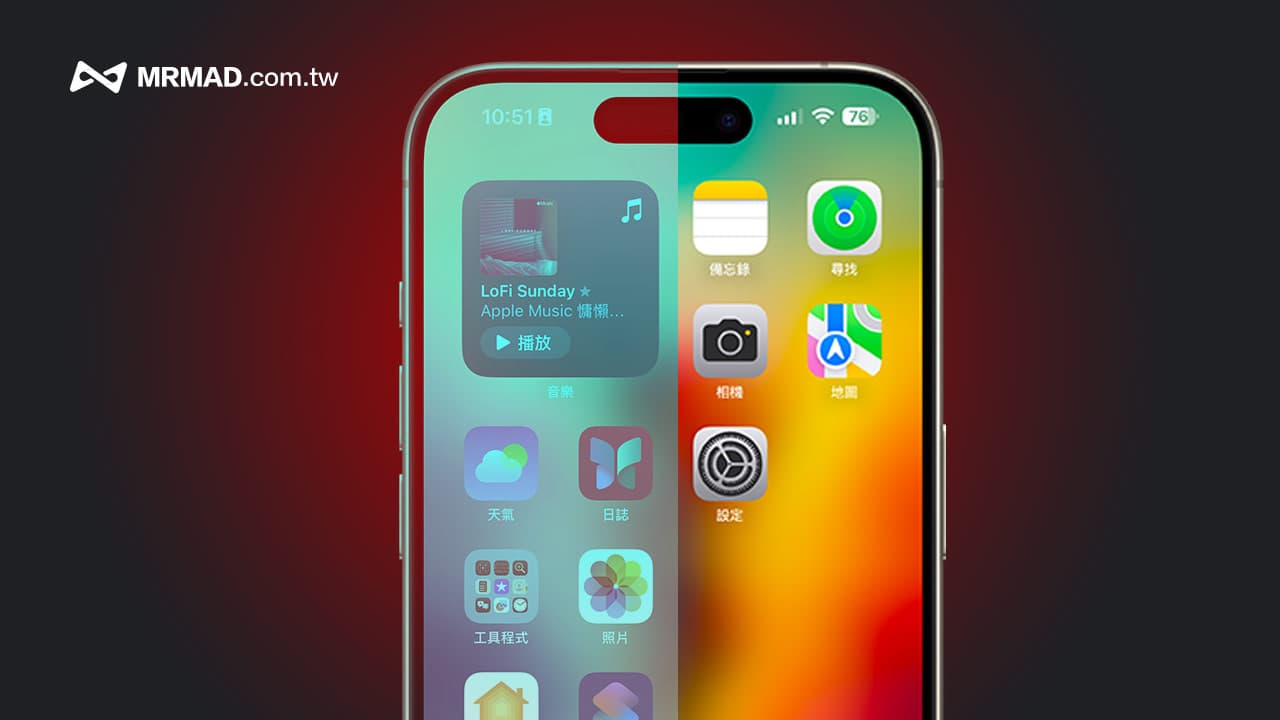
Have you ever carefully observed the screen settings of your iPhone? Especially the saturation parameter, which can directly affect the vividness of the colors in the picture you see. This article will teach you how to customize the saturation of the iPhone screen. Through the 5 major color filter parameters, whether it is adjusting lower saturation or increasing bright contrast, you can adjust it according to your own preferences.
How to adjust iPhone screen saturation?
1. Turn on accessibility settings
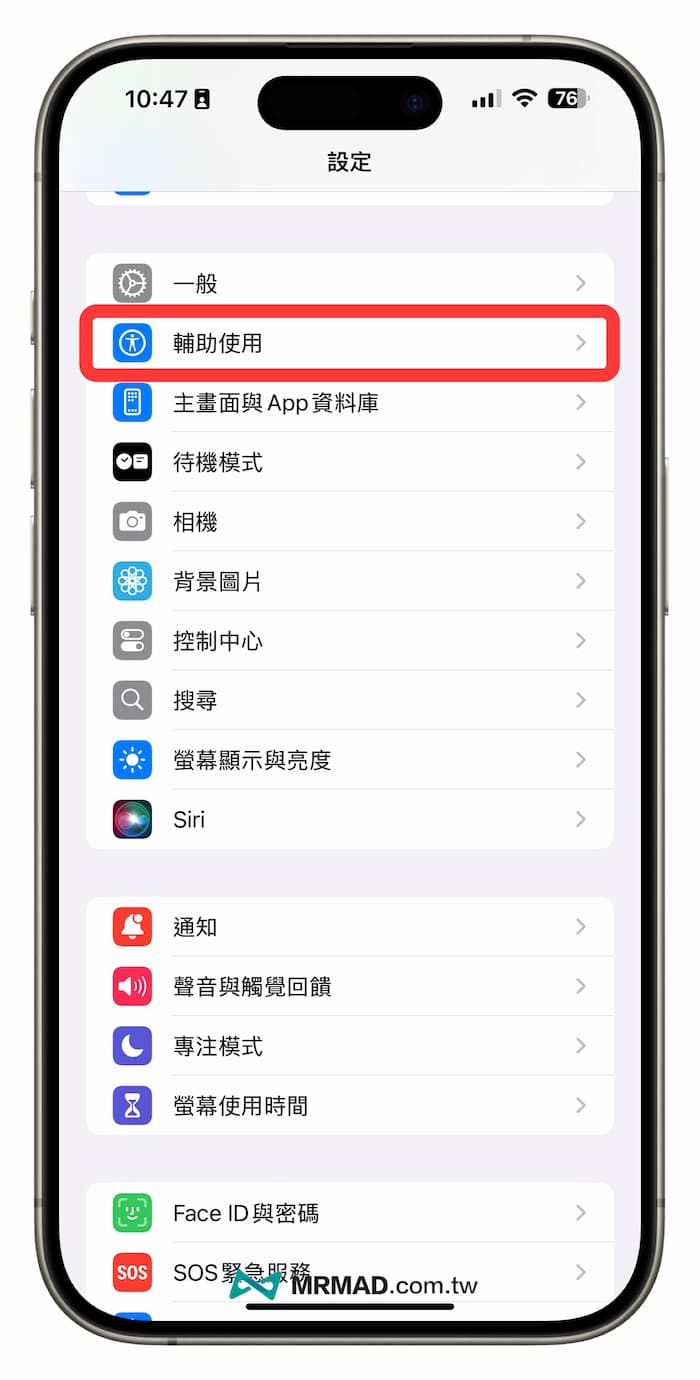
First, open the iOS built-in “Settings” APP and click “Accessibility”.
2. Enter display and text size settings
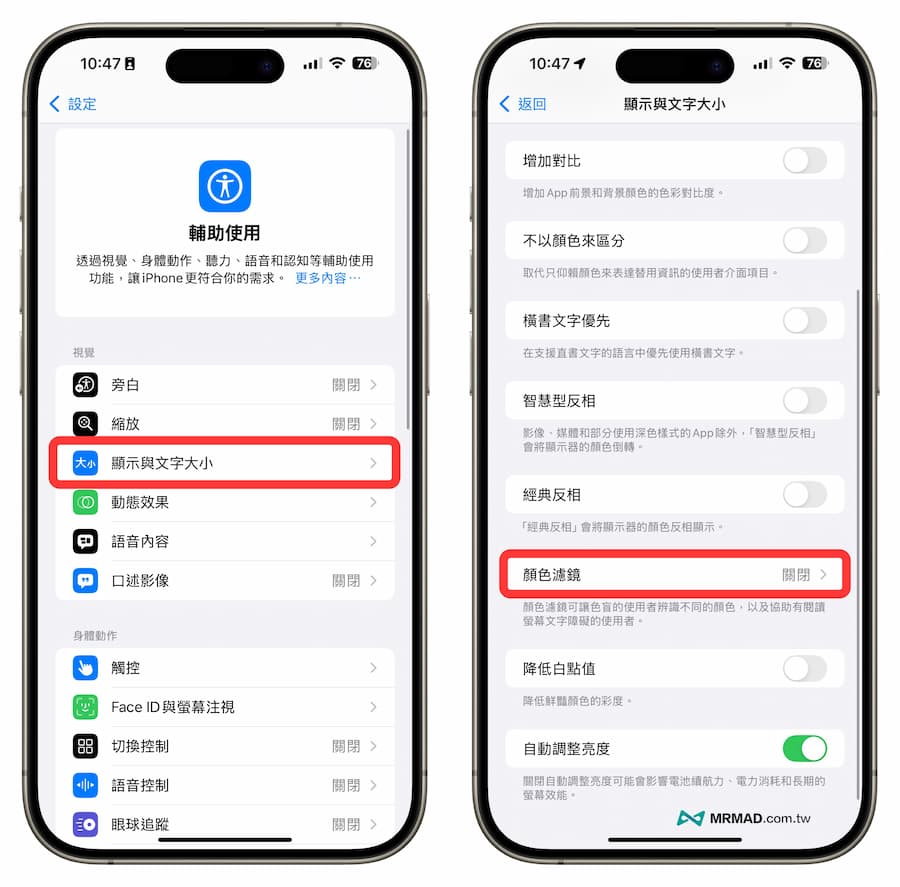
Find the “Display and text size” option in the auxiliary usage list and click on the “Color Filter” function.
3. Enable color filter function
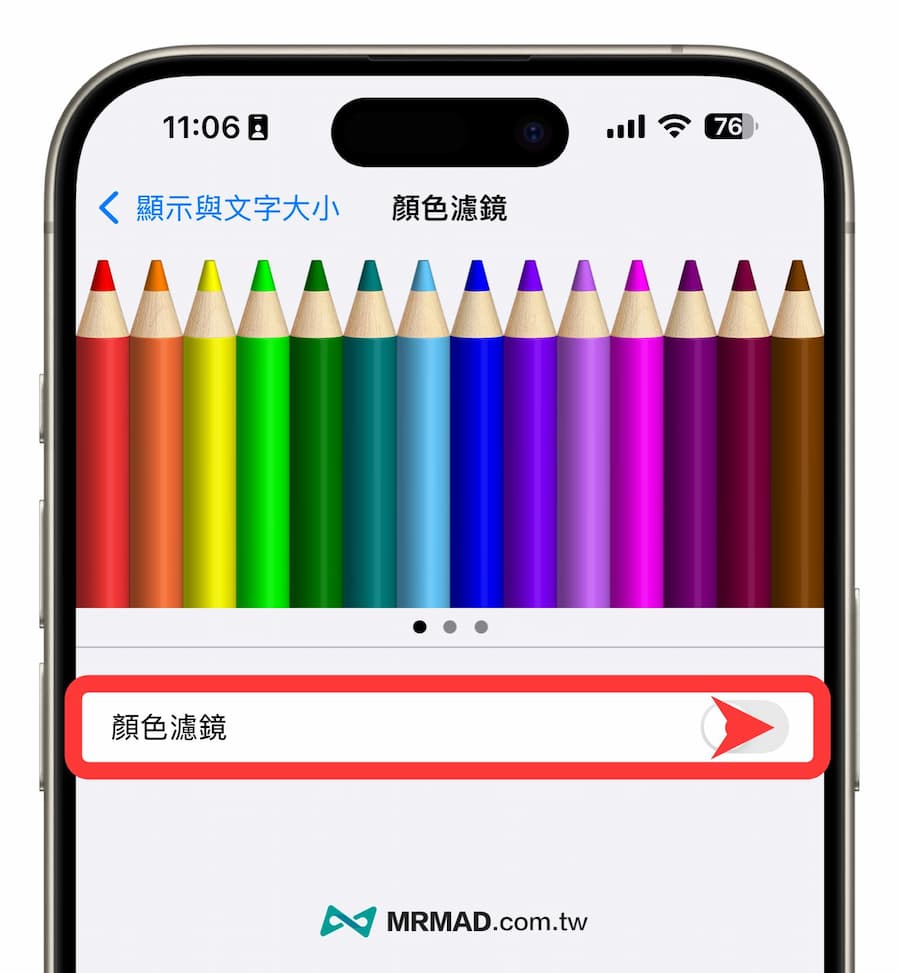
By default, the iPhone color filter function is turned off. Once turned on, you can customize the saturation and color temperature of the screen display.
How to adjust iPhone screen color filter? Why adjust colors?
The “color filter” function provided by Apple for the iPhone is mainly for people who are color blind or have special vision needs, or for users who want to change the display style of the screen. They can adjust the color of the screen according to personal needs. It is divided into three categories: Type requirements:
- Vision needs: For people with color weakness or color blindness, adjusting color filters can improve the reading experience.
- Reduce eye fatigue: Some specific color filters can help reduce blue light irritation to the eyes and reduce eye fatigue.
- Personalized settings: Make the screen display more in line with your preferences and improve the user experience.
Below we share four iPhone saturation adjustment techniques, including low saturation, higher vividness, black and white mode and red light mode.
iPhone desaturated screen settings
If you want to make the iPhone screen less glaring, you can reduce the saturation of the screen to make the screen look softer and reduce the strain on your eyes. You can directly set the color filter to “Grayscale” and adjust the chroma to the left. About 1/3 position on the side.
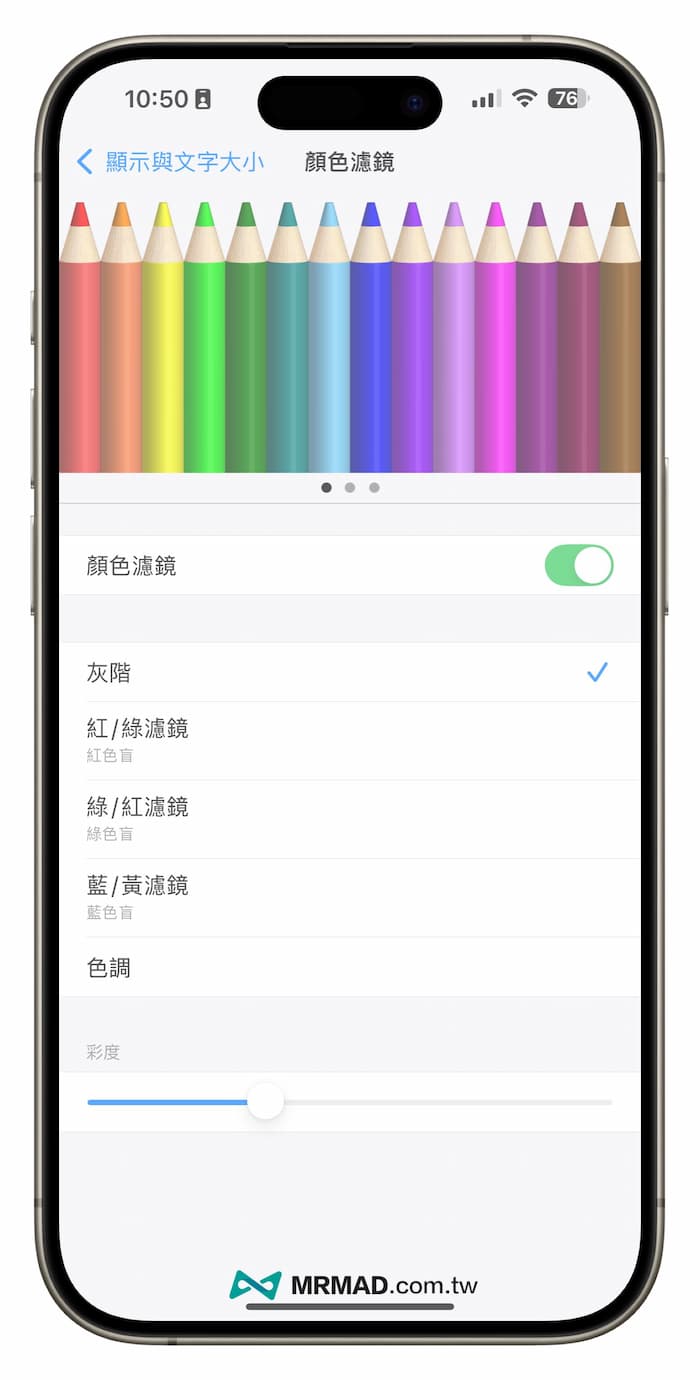
It can make the color display of the iPhone screen softer, the contrast will not be too strong, and the phone screen will not look too saturated.
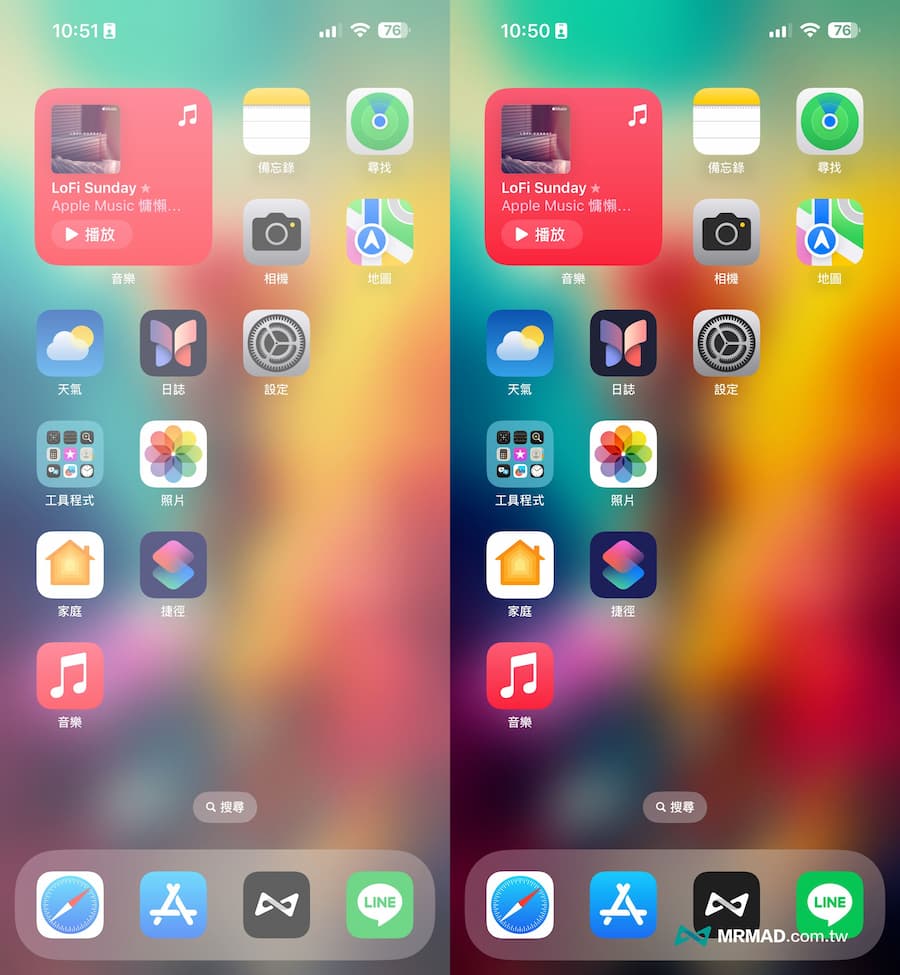 The iPhone screen on the left shows the low saturation effect, and the iPhone screen on the right shows the default vividness.
iPhone Vibrant High Contrast Screen Adjustment Settings
If you feel that the color saturation of the iPhone screen is not enough and you want to adjust the phone screen to become more vivid, you can also use the “Color Filter” of the iOS accessibility function to change it to “Blue/Yellow Filter”. The chroma below can be adjusted according to your preference. Generally, the contrast will be stronger if you pull it to the right. It is recommended to only adjust 1/5 so that the left position will not be too bright.
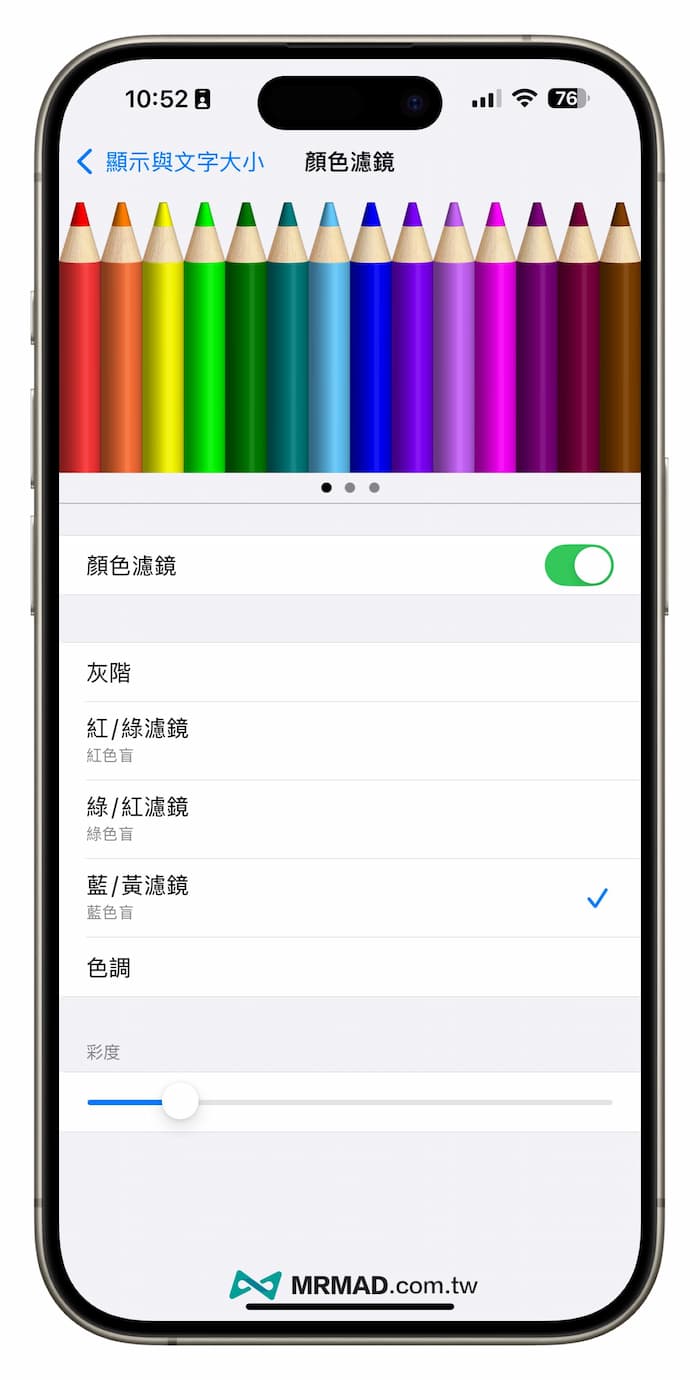
After changing the iPhone screen color to the “Blue/Yellow Filter” tone, the OLED contrast can become more vivid, which is more suitable for browsing videos or scrolling through social software such as IG and FB.
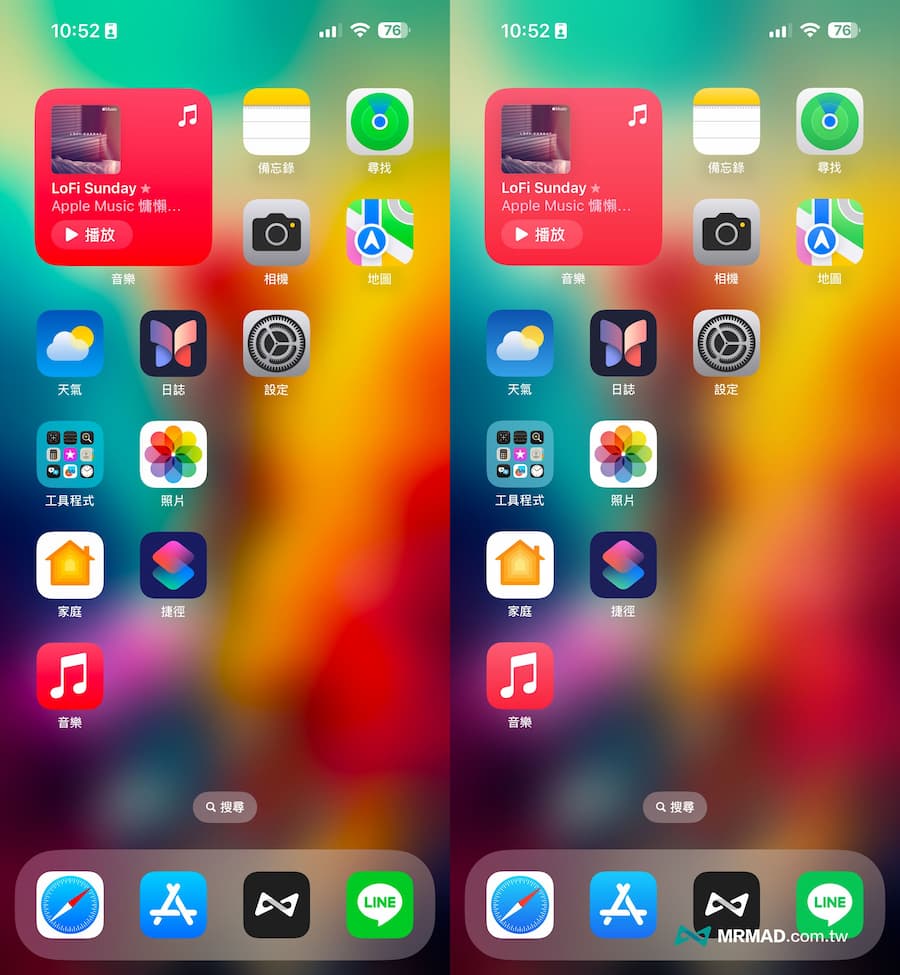 The left picture shows the high saturation effect of the iPhone screen, and the right picture shows the default vividness of the iPhone screen.
iPhone black and white picture mode adjustment
If you want to stop spending too much time scrolling on IG, FB, Threads or watching YouTube every day, you can also directly adjust the iPhone screen tone to black and white mode. According to actual tests by netizens, this can indeed reduce visual stimulation and allow you to scroll. Social media or watching videos can feel boring.
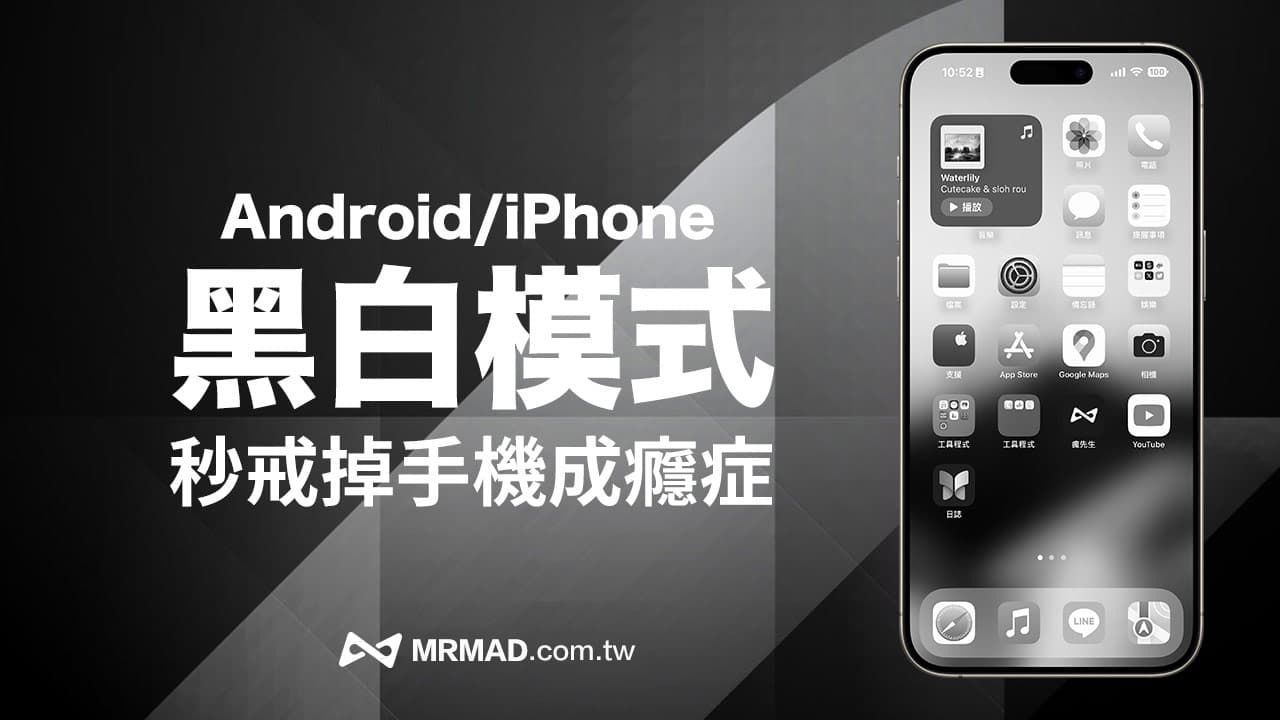
iPhone red night light mode adjustment
The iPhone also has a red screen “night light mode”. This function is mainly used to shoot starry skies or silver fireflies in a completely dark environment. It can prevent the phone from being too bright and affecting other people. It even has an eye protection effect. Please refer to the setting method. “How to turn on red light mode on iPhone? Teach you how to use red eye protection night vision function and when to use it.
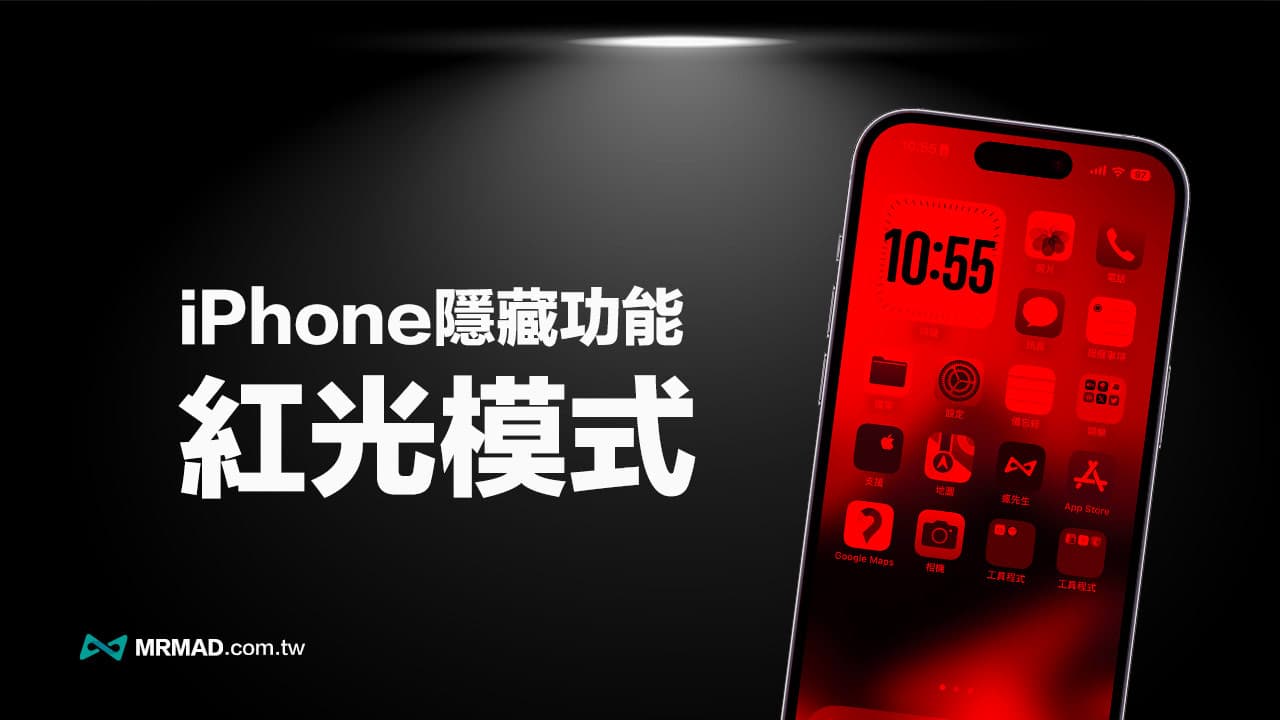
How to adjust iPhone color temperature display?
If you find that the iPhone screen is yellowish, you can actually adjust the color temperature through the tint function in the “Color Filter”. Of course, the iPhone color temperature can be adjusted not only in the tint, but also in relation to the True Tone display and Night Shift display. You can adjust it through “Crazy Mr.” previously shared the “Complete Setting Guide for iPhone Screen Yellowish or Abnormal Color” to adjust it.
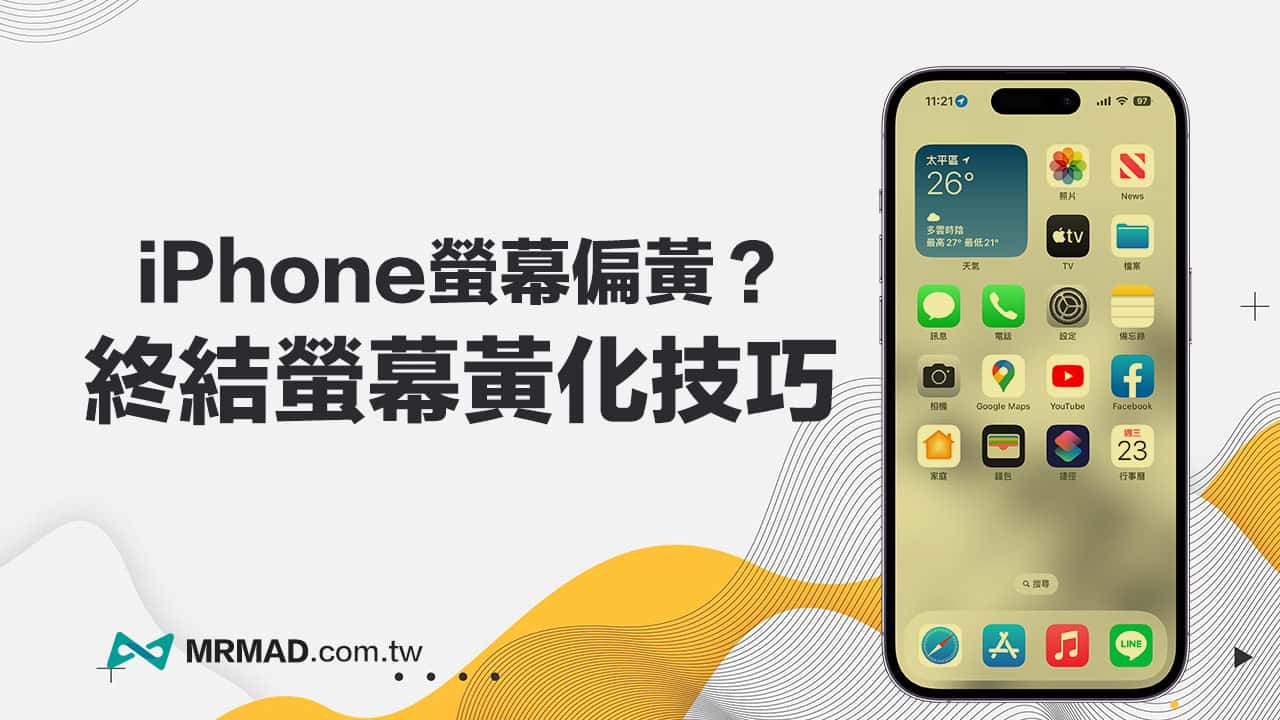
Summary of iPhone color filter precautions
The iPhone’s built-in “Color Filter” screen settings are far richer than you think. You can adjust the color saturation to the screen tone and contrast you want to see, but be warned not to use low saturation for a long time, which will cause When you watch normal photos or videos, the screen will completely reduce the contrast and saturation. It is only recommended in special circumstances.
If you want to make the color of your iPhone photos or videos look more vivid on the phone screen, you can also use the “blue-yellow filter”. If you want to reduce the time you spend scrolling on your phone, the “black and white mode” is very suitable. The other night light modes can allow you to You can safely light up your phone screen even in a completely black screen. If you find that the new iPhone screen is yellowish, you can adjust it directly by adjusting the color tone.
Further reading: