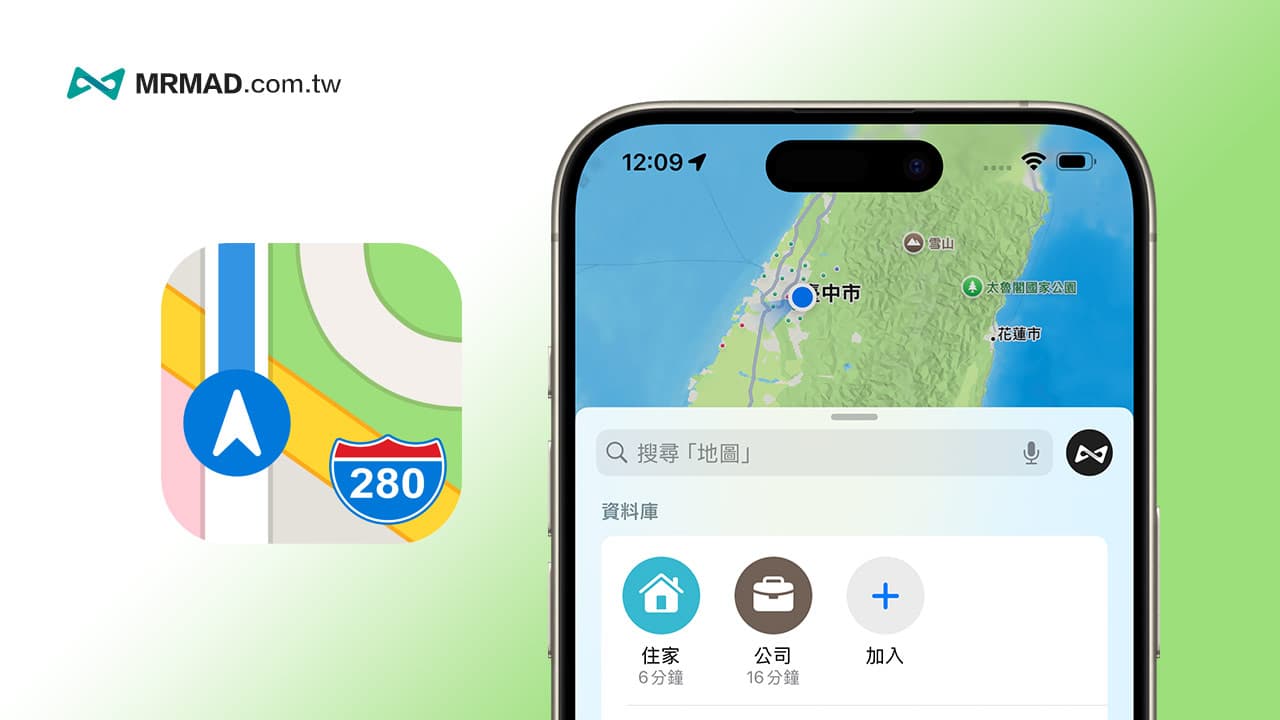
I believe that many people often use their mobile phones to navigate. However, you can first set your home address and company location information on the “Map” app built into the iPhone. The advantage is that you can quickly plan navigation routes and check estimates. Save time and trouble of entering addresses, the following will introduce how to set and modify home and business addresses through iPhone.
How to set home or work address on iPhone?
Method 1: Use the contact’s business card to set the address
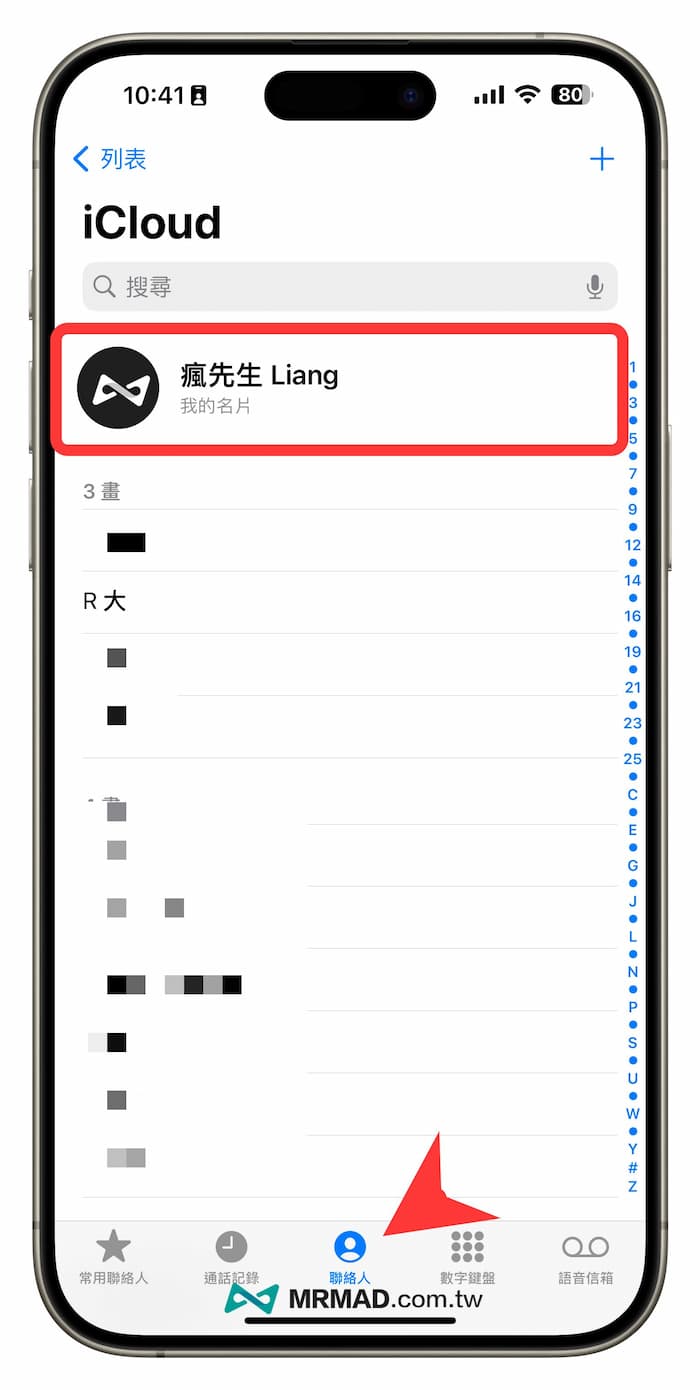
Open the built-in “Phone” App directly through iPhone, switch to the “Contacts” page, and click “My Business Card (Personal Name)” at the top.
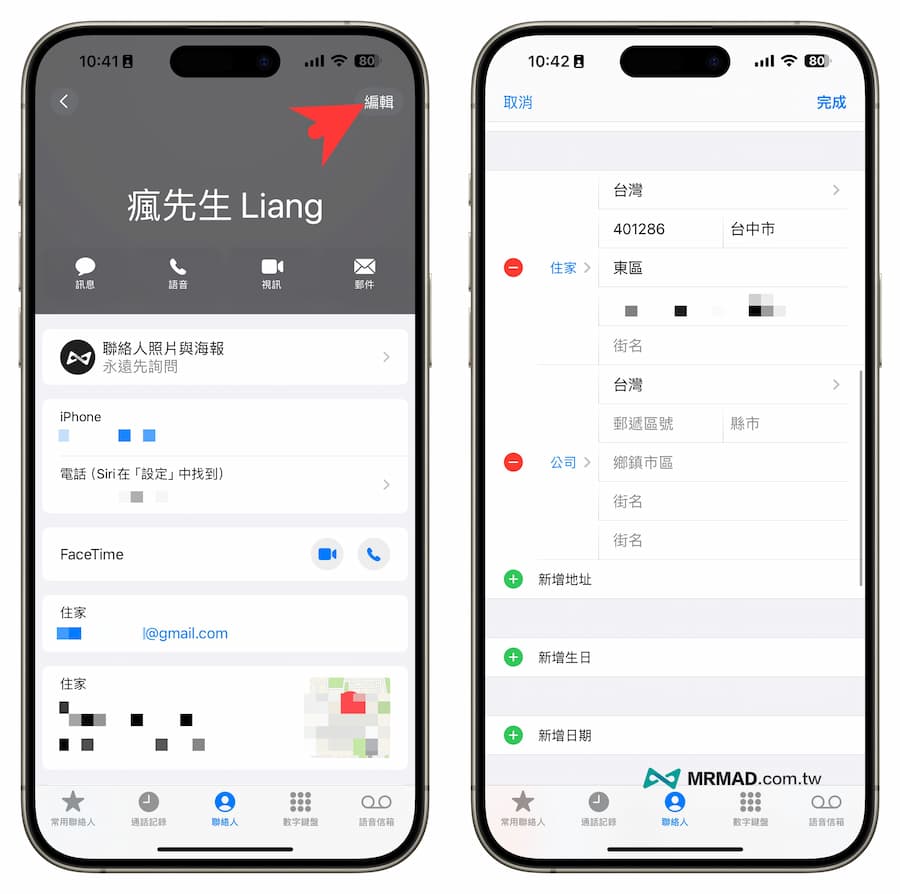
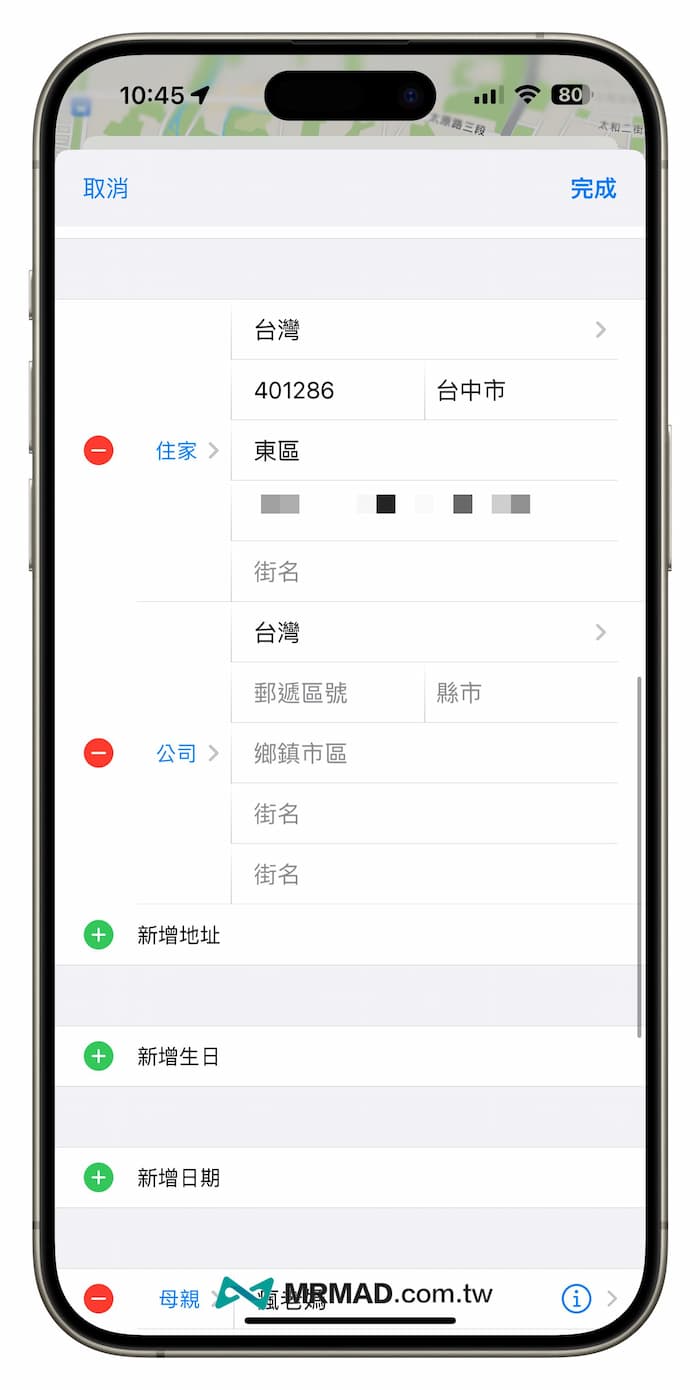
The Apple ID account personal information will be displayed. Just click “Edit” in the upper right corner, scroll down to find the address field block, and you can add and modify the home address or business address information. Once the changes are completed, it will automatically Home and business information is displayed on maps and weather.
Method 2: Use Apple Maps to set home and business addresses (iOS 17 or older versions)
You can also directly set the business address or home location through the “Map App” in the iPhone system. The following is a detailed step-by-step tutorial on how to add a business address in Apple Maps (iOS 17 or older versions):
- Open the iOS built-in “Maps App” (Apple Maps).
- Click on the favorite location at the bottom to join “Company”.
- Click “Open my contact card”.
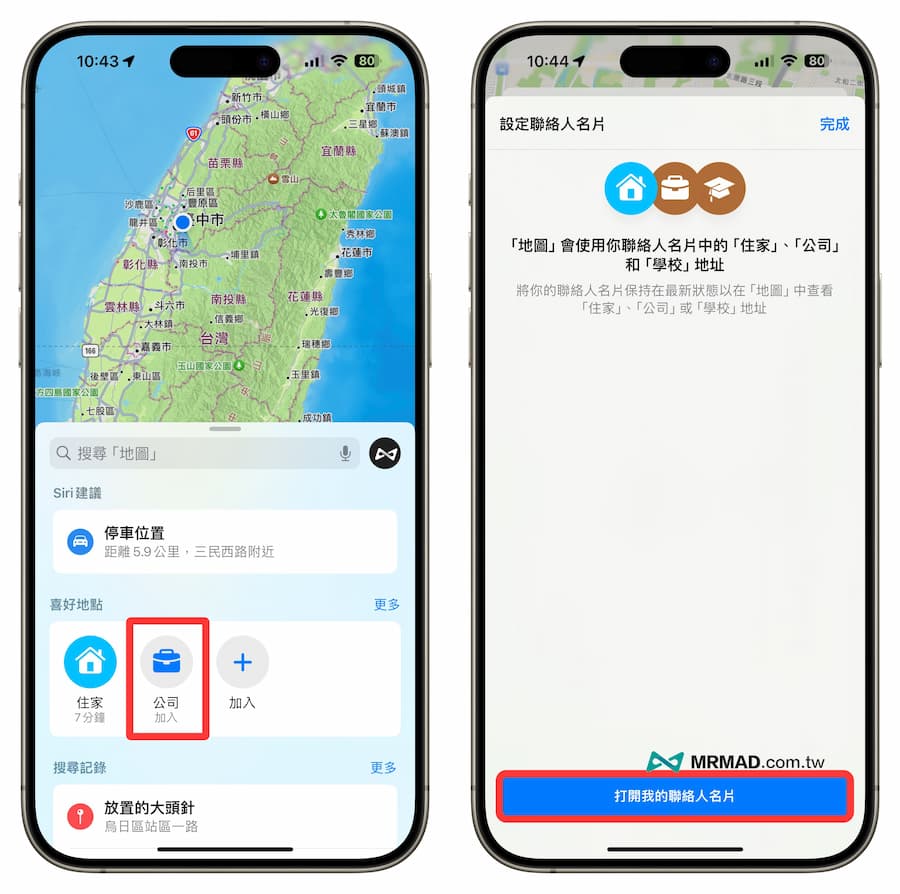
It will then automatically jump to the contact card setting screen. Click Edit to add business address or home information.
Method 3: Set address through iOS 18 Apple Maps
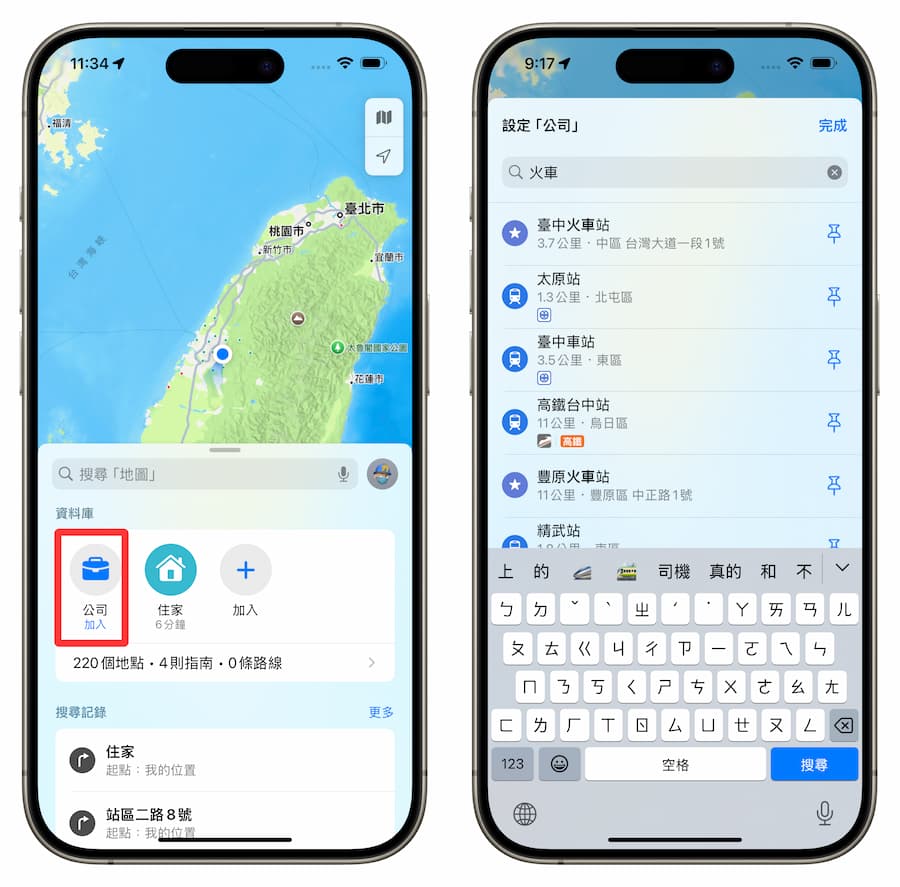
If you have upgraded to iOS 18 or the new system version, it is easier to set an address through Apple Maps. You can directly enter it through the search address. There is no need to jump to the contact card screen to set it. You can add it through the following steps. :
- Open the iPhone “Map App”.
- Click Add “Company” through the database settings at the bottom.
- Directly enter the “residential address” or “landmark name” to set.
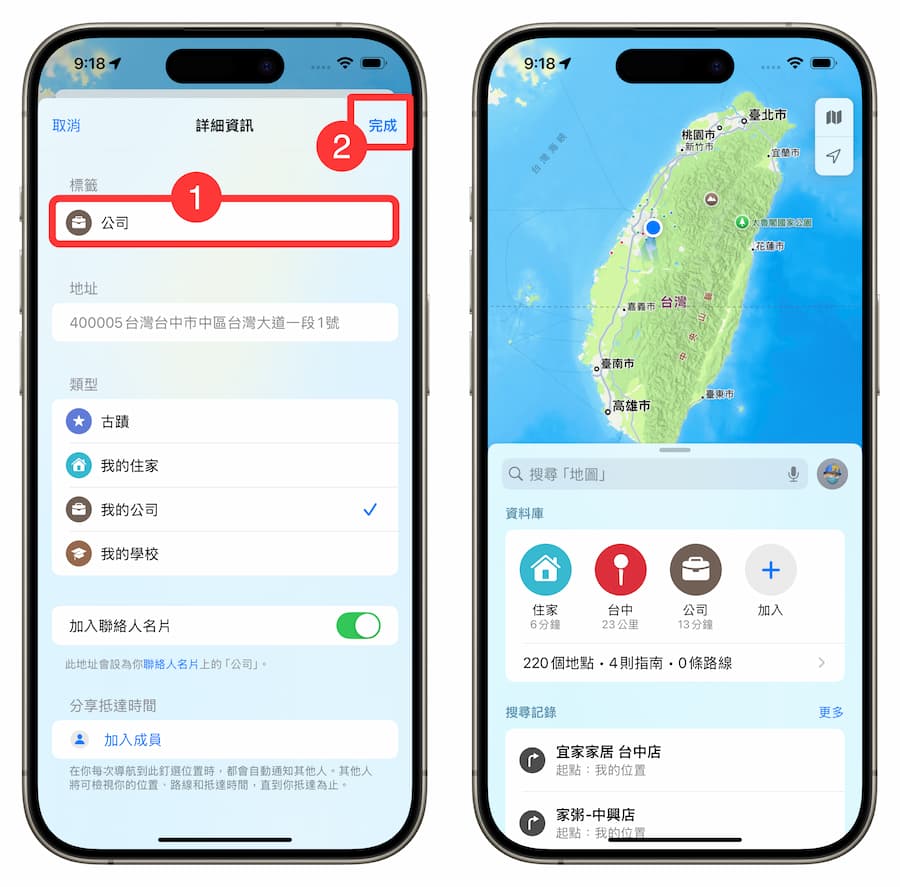
In the page for setting company address details, it is recommended to change the label to “Company”, and finally click “Done” in the upper right corner to allow Apple Maps to display the company button.
How to change the home or business address on iPhone map?
If you move or change companies and want to modify your home and business addresses in the “Map App” on your iPhone, you can follow the steps below:
- Open the built-in “Phone” app in iOS.
- From the “Contacts” page, click “My Business Card (Personal Name)” at the top.
- Just click “Edit” in the upper right corner.
- You can change your home and business addresses.
How to delete home or work address from iPhone?
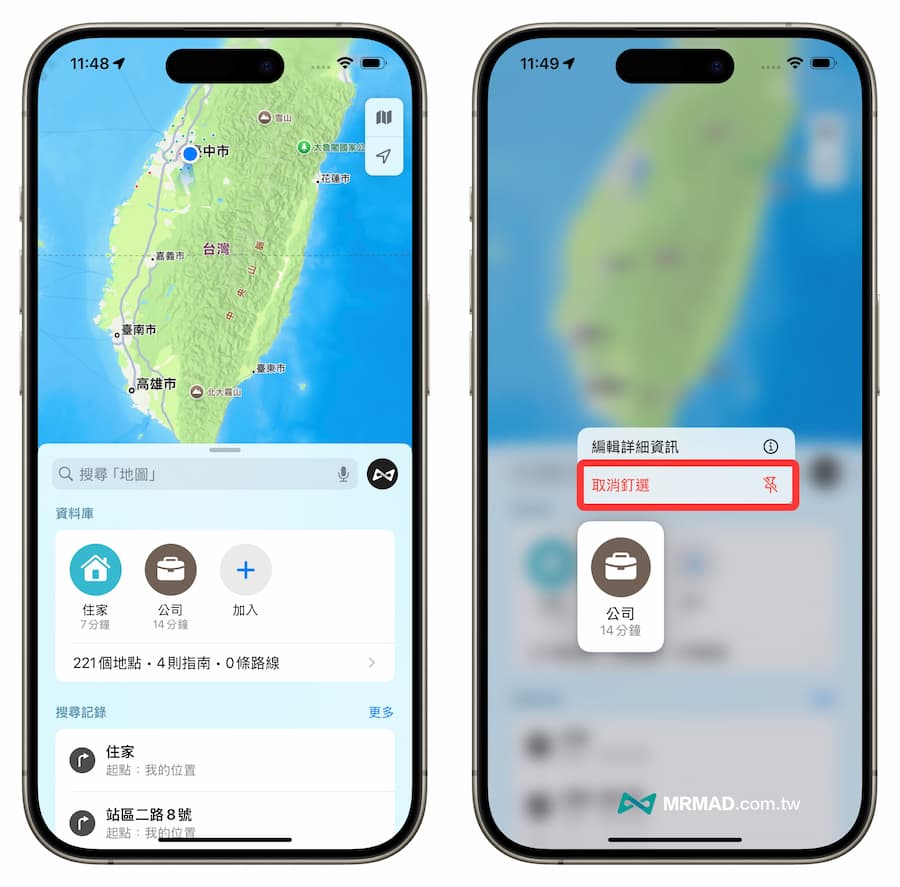
If you want to delete the home address and business address on Apple Maps, the old system version before iOS 18 can only remove the home or business information through the contact card. Unless you upgrade to the iOS 18 version, you can delete it through the iPhone Long press the home or work label icon in the Maps App and select “Unpin” to remove it.
Function summary
Through this article, in addition to using your iPhone to add or modify your home and business addresses, you can of course manually add more different labels, such as your parents’ house, grandma’s house, or grandpa’s house, etc. In this way, when using Apple Maps to navigate, It will be easier to find the address you want.
More practical tips: