As the shooting capabilities and pixels of mobile phones become higher and higher, most people are accustomed to using the lightest mobile phone to record whether they are traveling or in daily life. It is quite convenient to use the built-in photo editor to directly adjust the color to their favorite after taking the photo.
Recently, the Internet has also raised the topic of “Fuji Filter” film style, which can change the photos taken by iPhone to the Fuji film camera effect. It can also be achieved without downloading the Fuji Filter APP. If you want to bring out the Fuji film effect through your iPhone , you can refer to Fuji’s color correction parameter techniques, which will allow you to easily apply a film filter look to your photos.
Fujifilm Style Settings: How to Apply Fujifilm Tone Filter Parameters to iPhone Photos
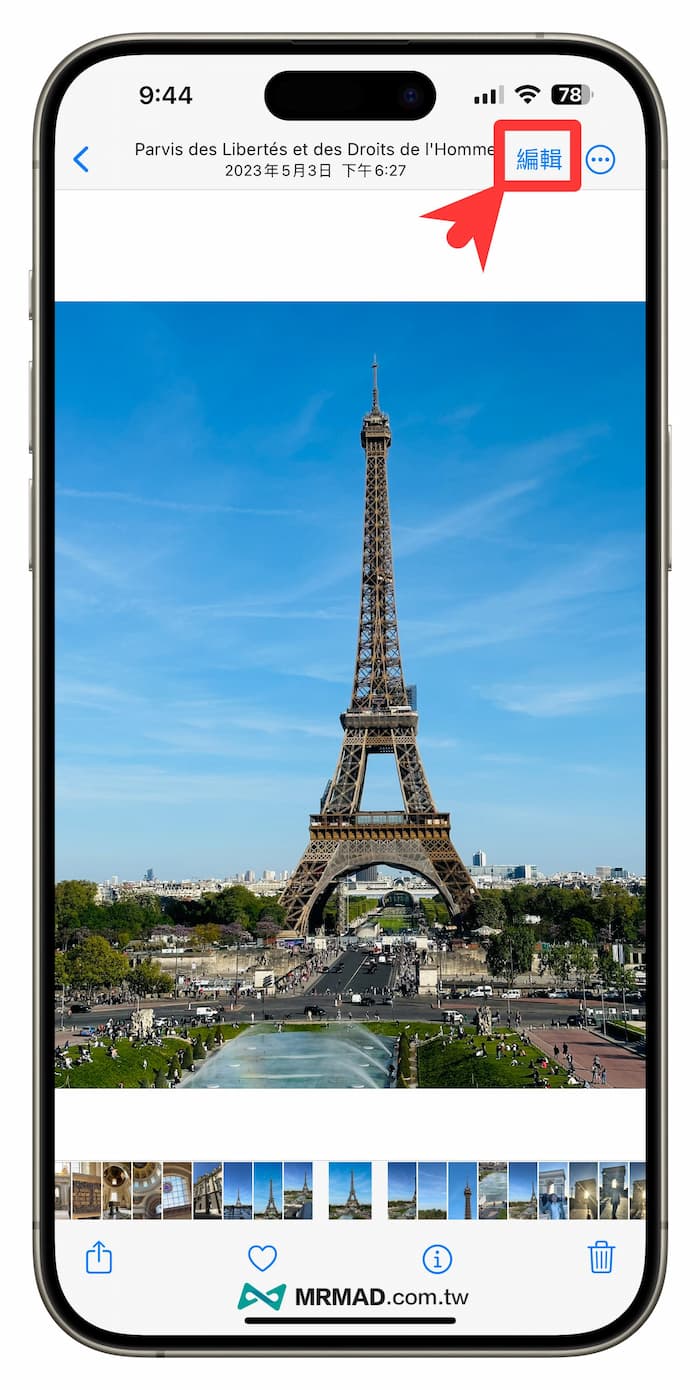
Step 1. Open iPhone photo editing
Open the built-in “Photo App” directly through iPhone, select the photo you want to modify, and click the “Edit” function in the upper right corner.
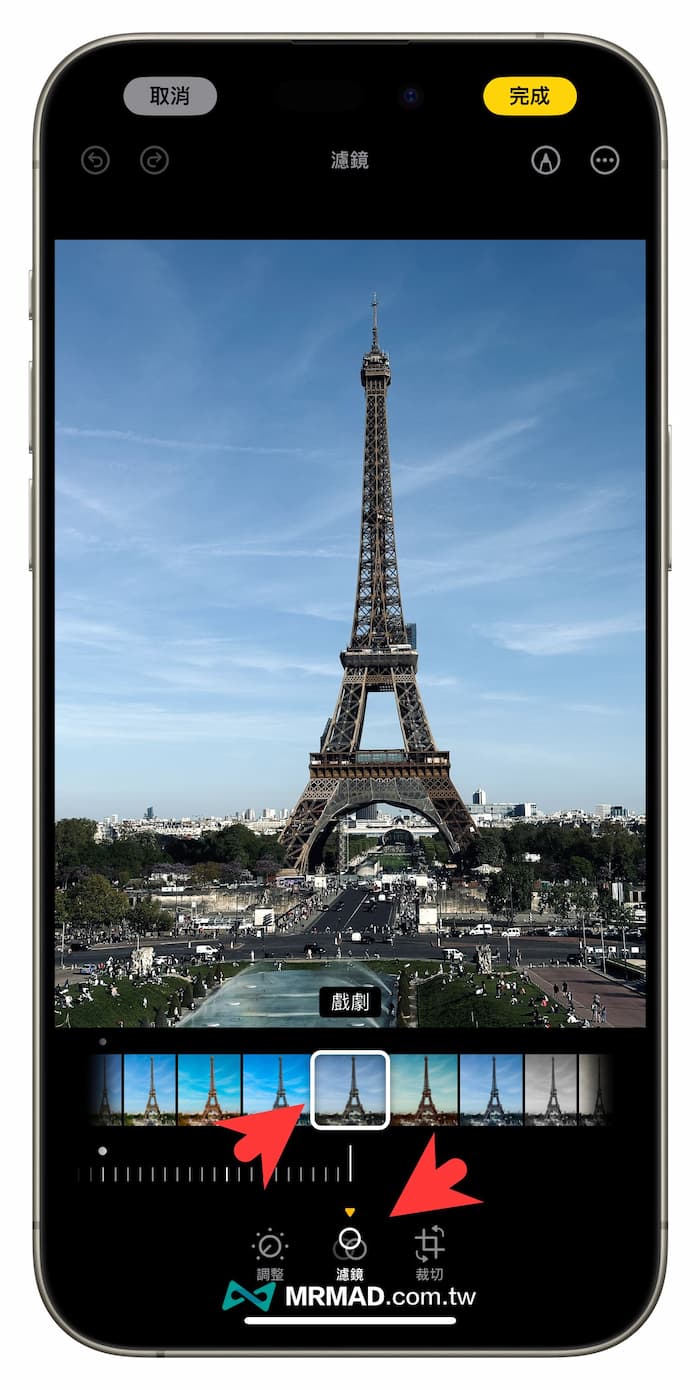
Step 2. Adjust to drama filter
First switch to the “Filter” function at the bottom, select the “Drama” filter effect, and keep the parameters at 100%.
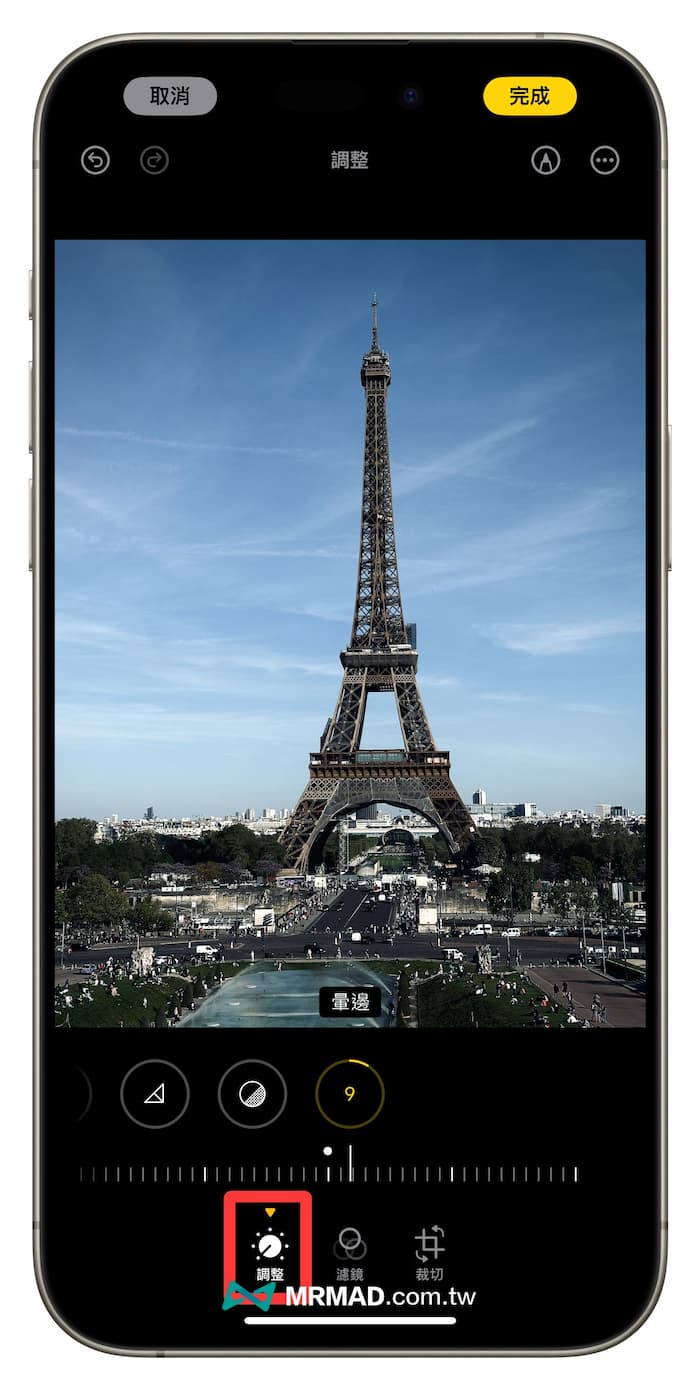
Step 3. Fuji Hue Parametric Filter
Then click the “Adjust” tone function on the left and adjust the tone parameters of the Fuji Film filter below. Don’t forget to click “Finish” in the upper right corner after editing to apply it.
- Exposure-5
- Increase beauty-8
- Highlights +15
- Shadow-12
- Vibrance-6
- Color temperature -10
- Blurring +9
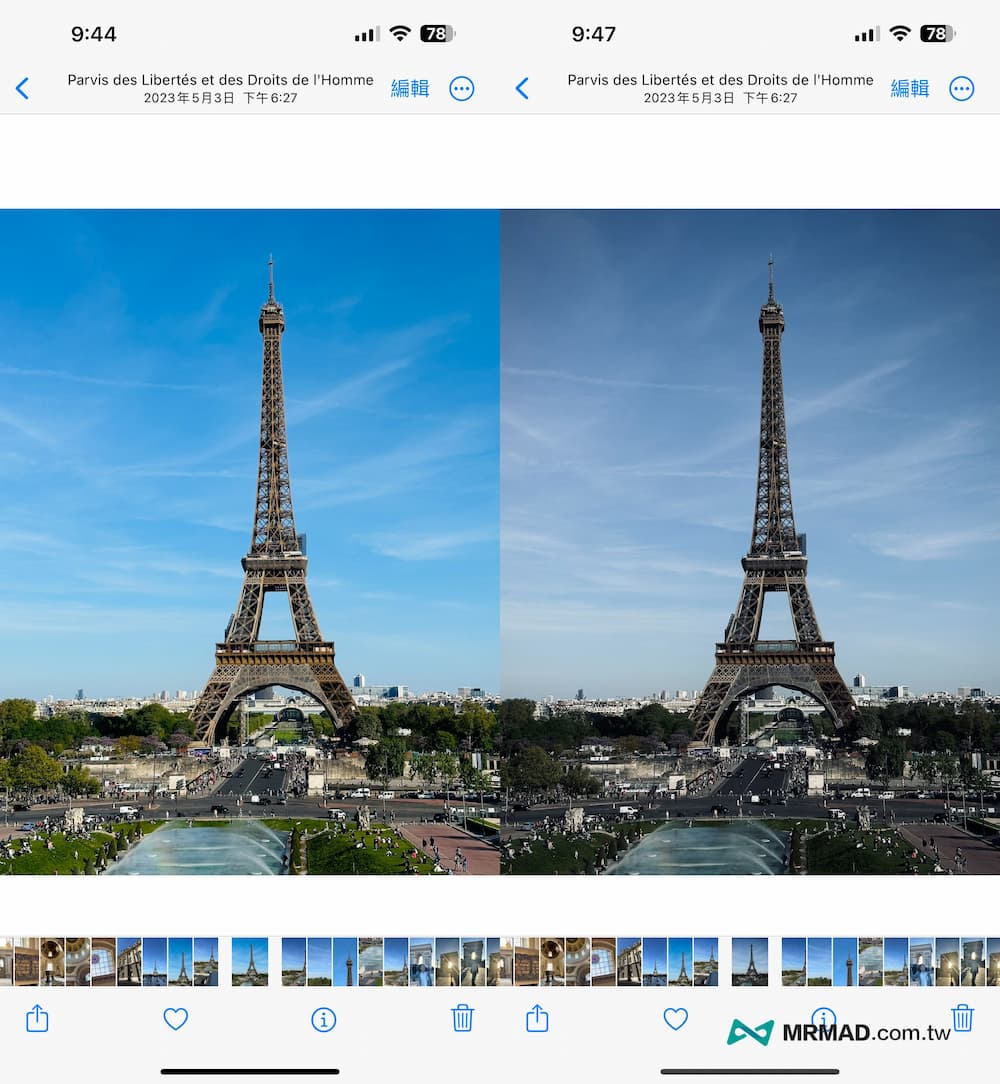
After the adjustment, the photo will have the texture of a Fujifilm film, just like a film shot with a real Fujifilm camera. The color saturation will be lighter, and the tone and texture will be deeper.
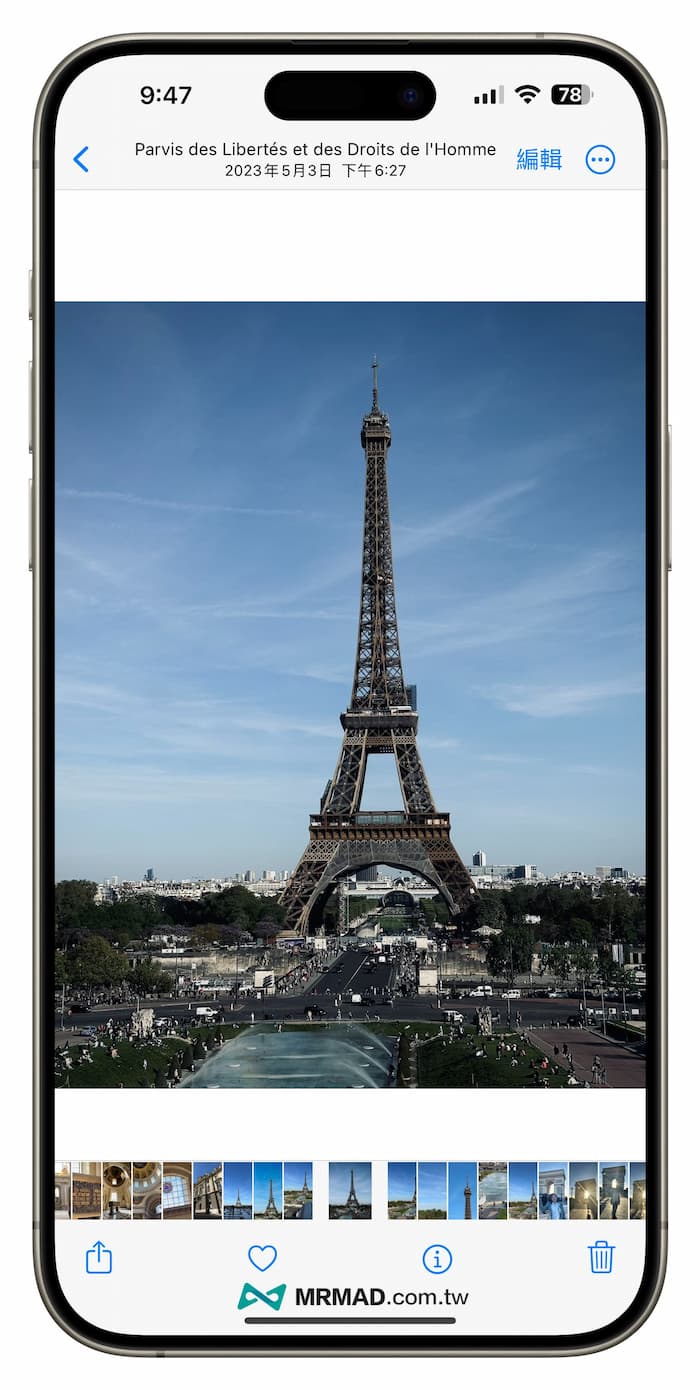
Comparing the original preset photos with no adjustments and the effects of Fuji film filters, you can definitely find that Fuji-style color correction will create a more atmospheric feel.
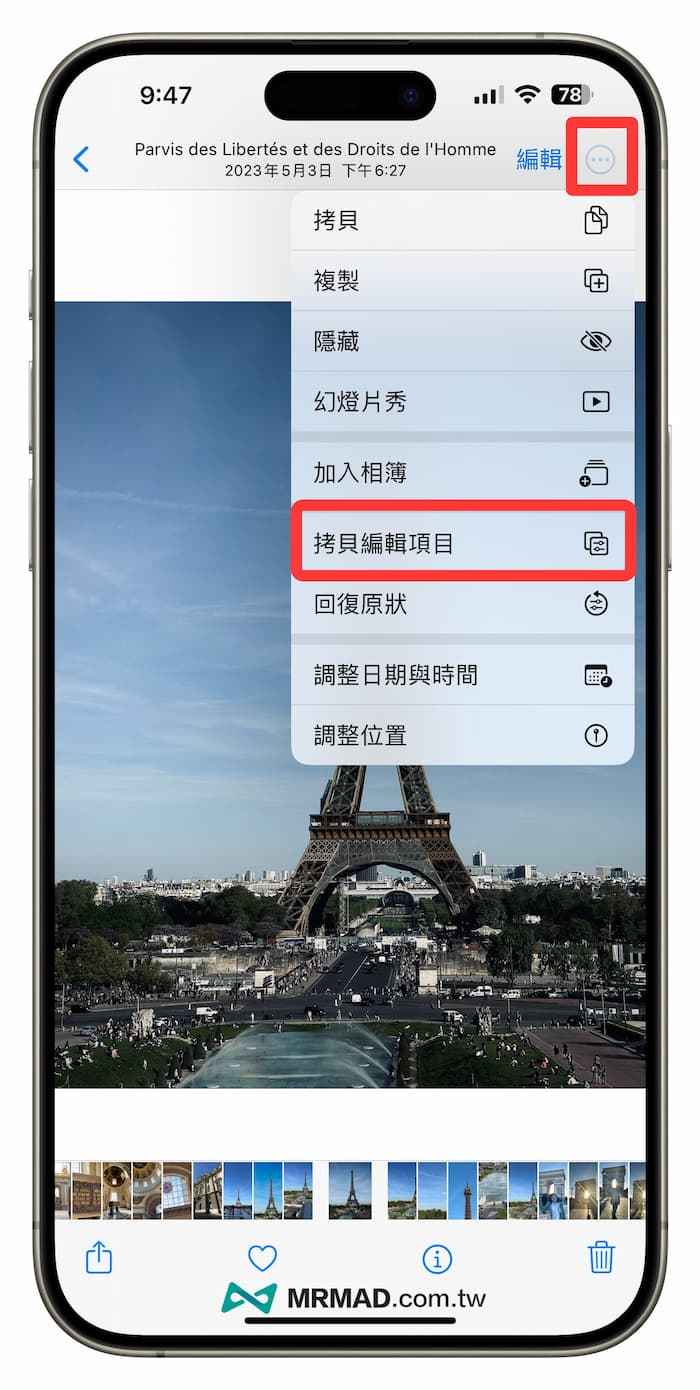
How to quickly apply Fuji filter color adjustment parameters
After adjusting the Fuji filter parameters through the iPhone, you can quickly apply the Fuji Film negative to other photos. Directly click the “•••” in the upper right corner of the photo and select “Copy Edit Project”.
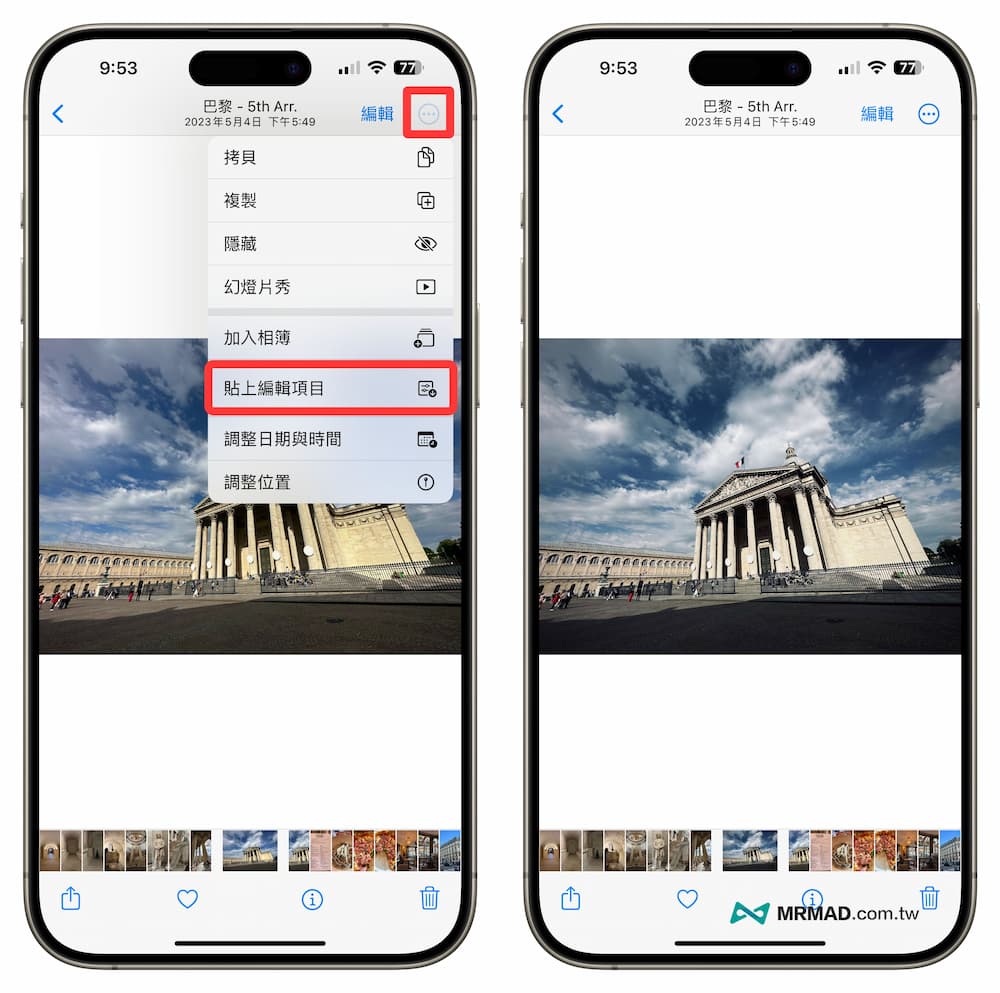
Find another photo that you want to apply the filter to, and also click the “•••” button in the upper right corner and select “Paste Editing Item” to immediately apply the Fuji filter tone to the iPhone photo.
Summary of fujifilm style setting functions
If you want to quickly apply Fujifilm color tones to iPhone photos, you don’t need to download any filter camera APP. You can easily call up Fujifilm style parameters through the iPhone’s built-in photo editing tones, and you can also use “paste editing items” ” function applies Fuji filters to each photo.
More practical tips for iPhone photography: