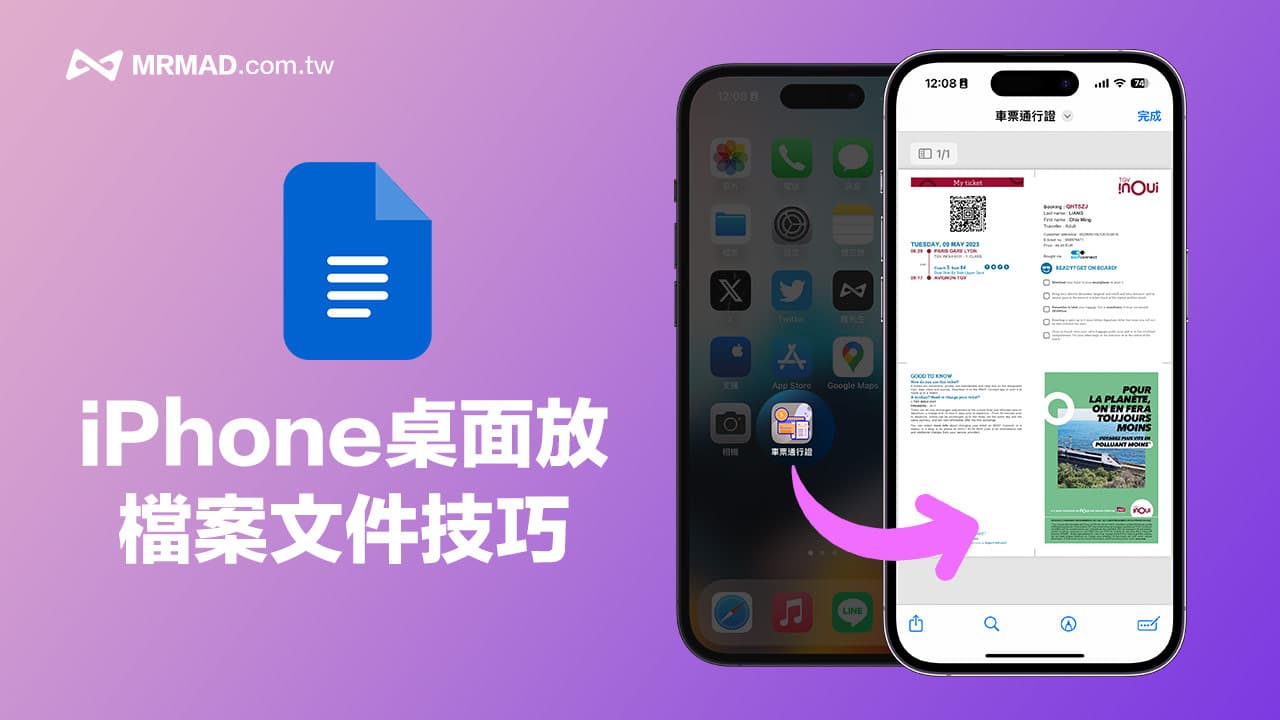
I once shared that you can add iPhone webpages to the main screen. The advantage is that you can quickly open frequently viewed webpages through the iPhone desktop shortcut. Can you also put iPhone files on the main screen? It is convenient to open and view the content of the file at any time later. In fact, the iPhone desktop shortcut can also support all iOS files.
If you often need to open files such as passports, technical documents, or course handouts, no matter if they are PDF or Word files, they can be directly placed on the iPhone desktop as a shortcut. Afterwards, just click the APP icon on the main screen to open them immediately, eliminating the need to Open the file App to find the complicated steps and time.
How to put the iPhone file on the desktop as a shortcut?
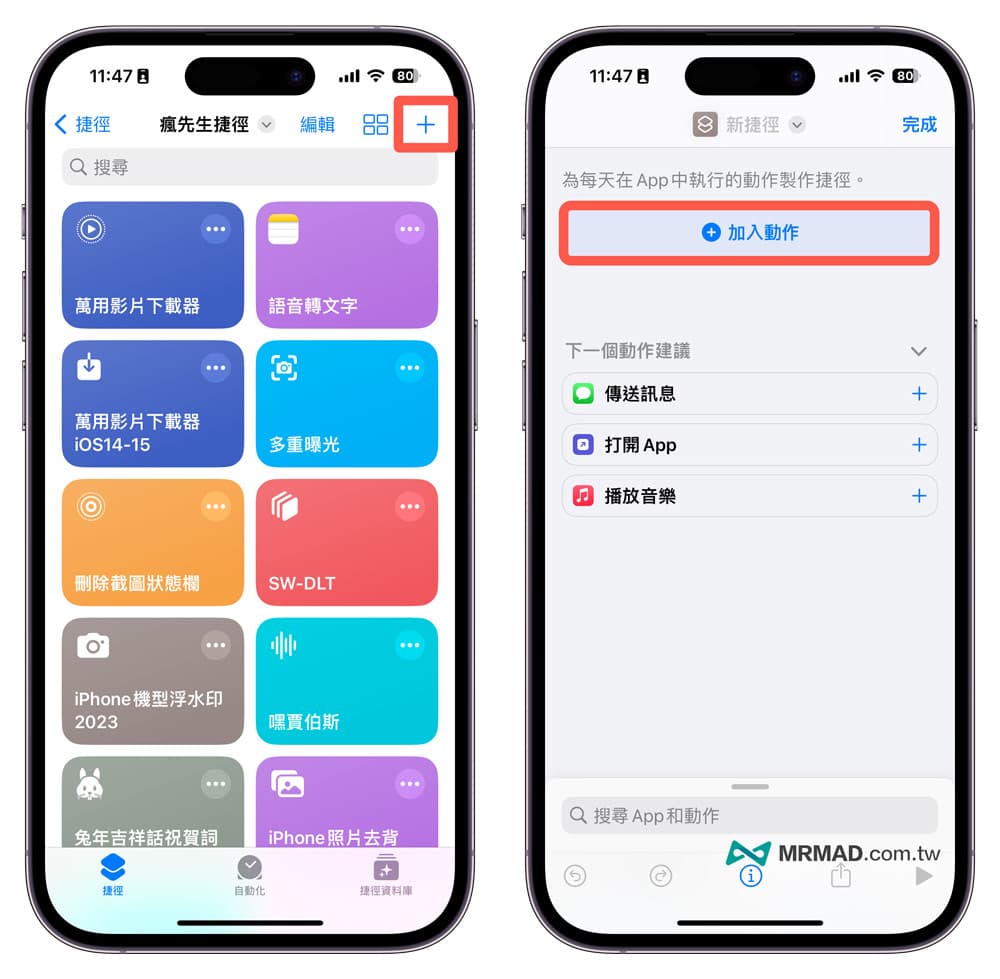
Step 1. Create a new iOS shortcut script
First open the iPhone “Shortcut APP”, and tap the “+” icon in the upper right corner to add a shortcut script, and select “Add Action”. If you have not installed the Shortcut App, you can first download and install the Shortcut App from the App Store.
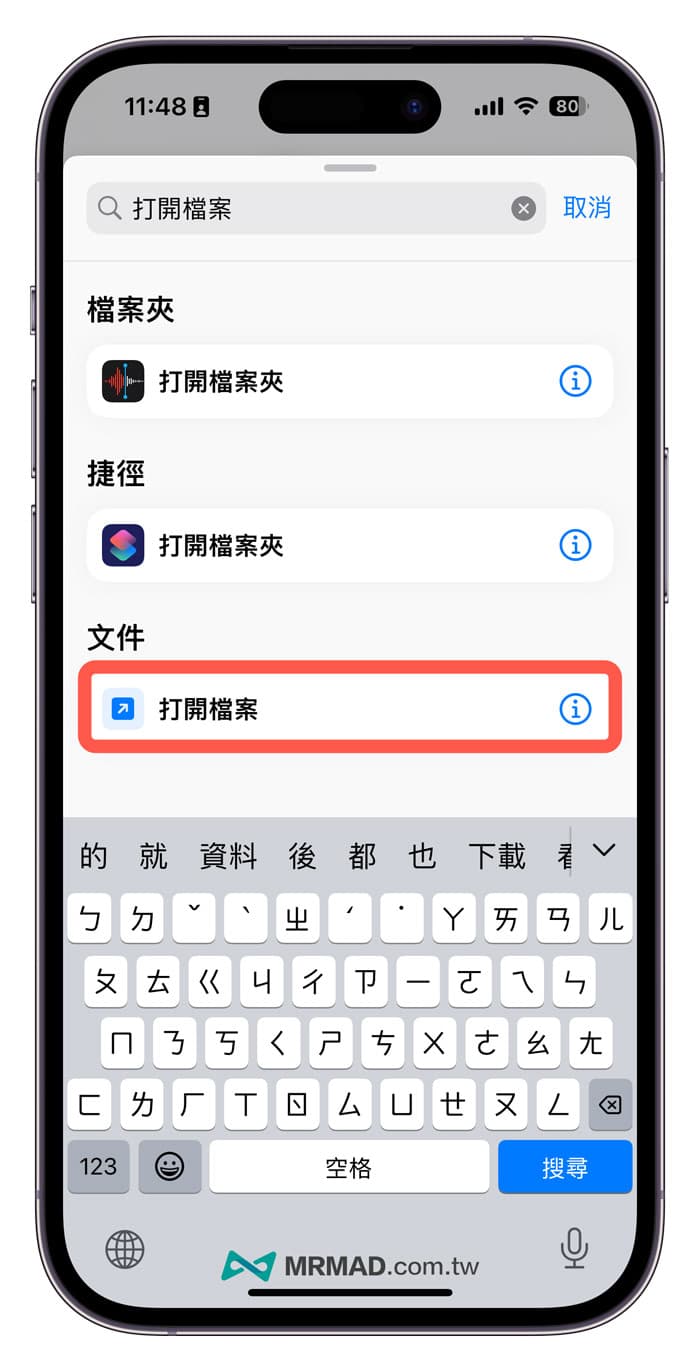
Through the shortcut search, find the “open file” file action command.
Step 2. Set the shortcut action to open the file
The command to open the file will be added to the action list, directly click the light blue “File” text, and select the “File” to be opened, whether it is a PDF, DOC or other format file.
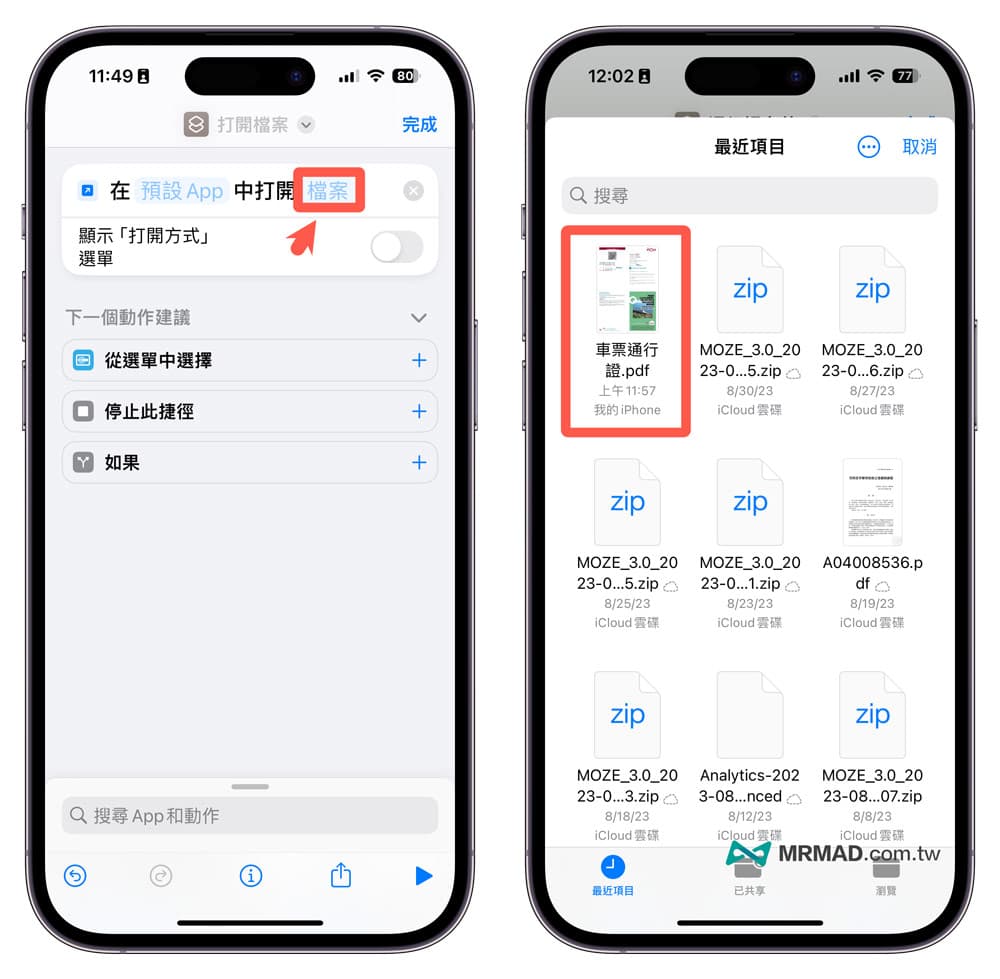
Next, click the light blue “Default App” text on the left, and directly select the “File” App.
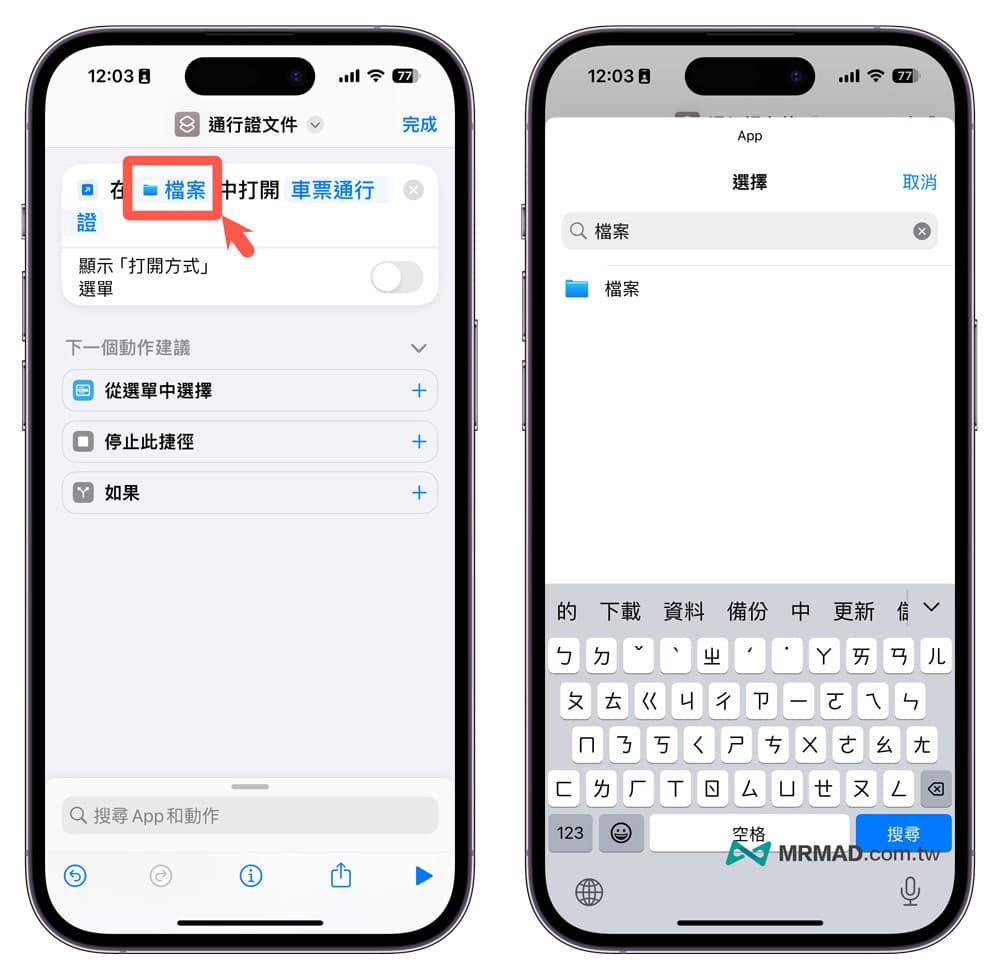
Step 3. Execute the test shortcut
After all the settings are completed, click the “Execute” button in the lower right corner to run the shortcut script once to confirm that you can directly open the file you just set.
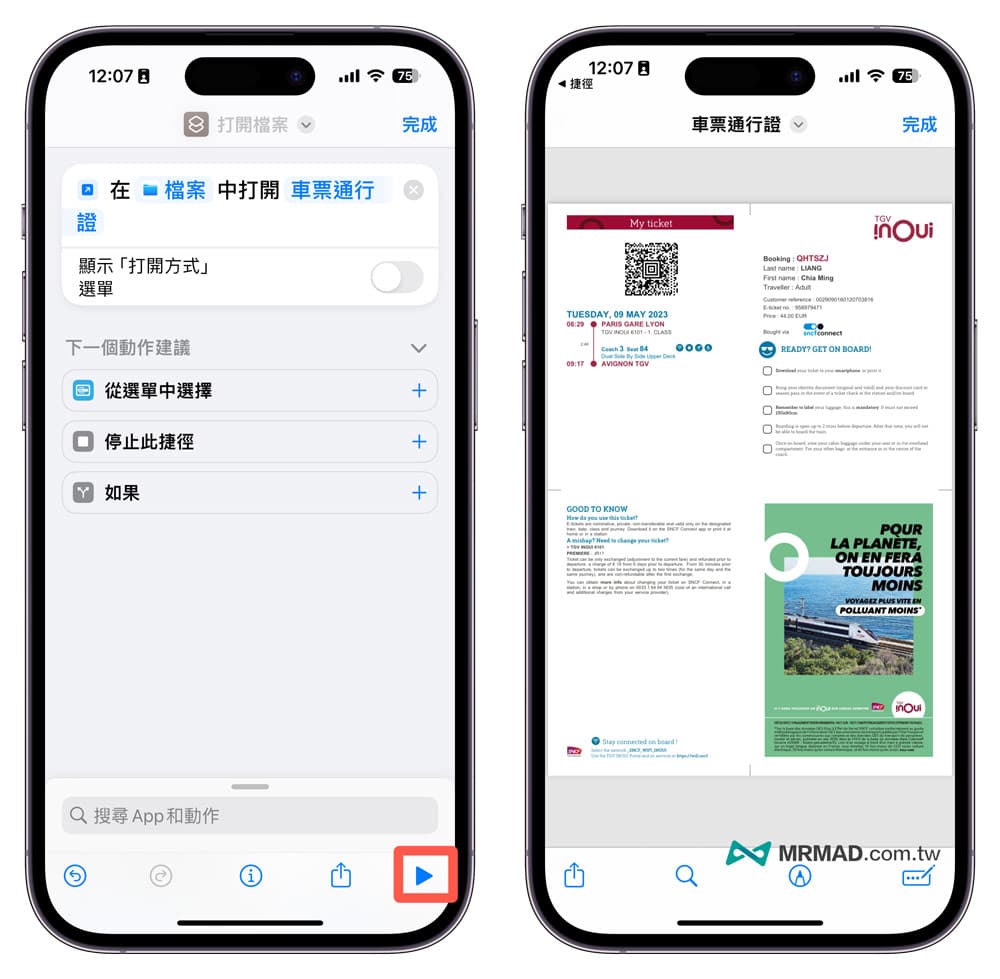
Step 4. Customize the shortcut name
Finally, click the “Down Arrow Menu” at the top, and press “Rename” to change the name of the shortcut script to a recognizable one. For example, if I want to make a pass, I will directly name it “Ticket Pass”.
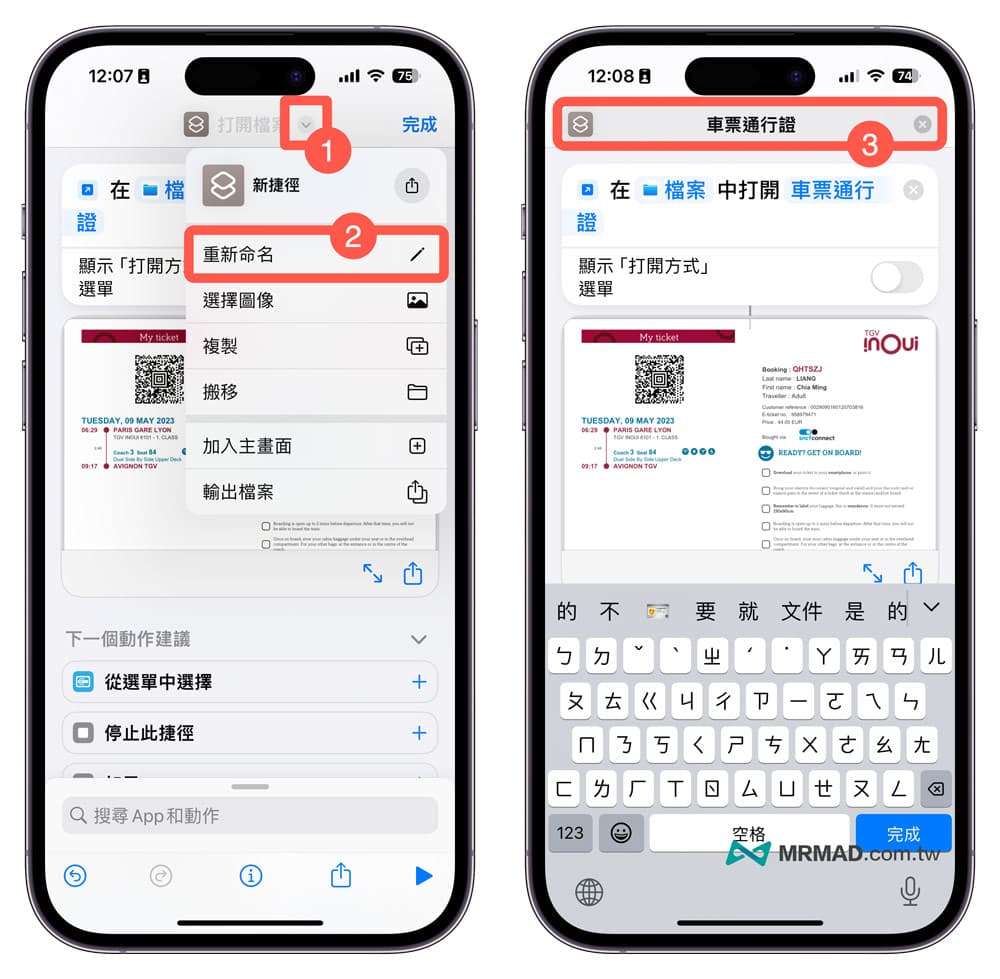
Step 5. Add the shortcut script to the main screen
Click the “Down Arrow Button” again to select “Add to Home Screen”, customize the APP name and image to be displayed on the home screen, and change the APP display style by taking a photo or selecting a photo.
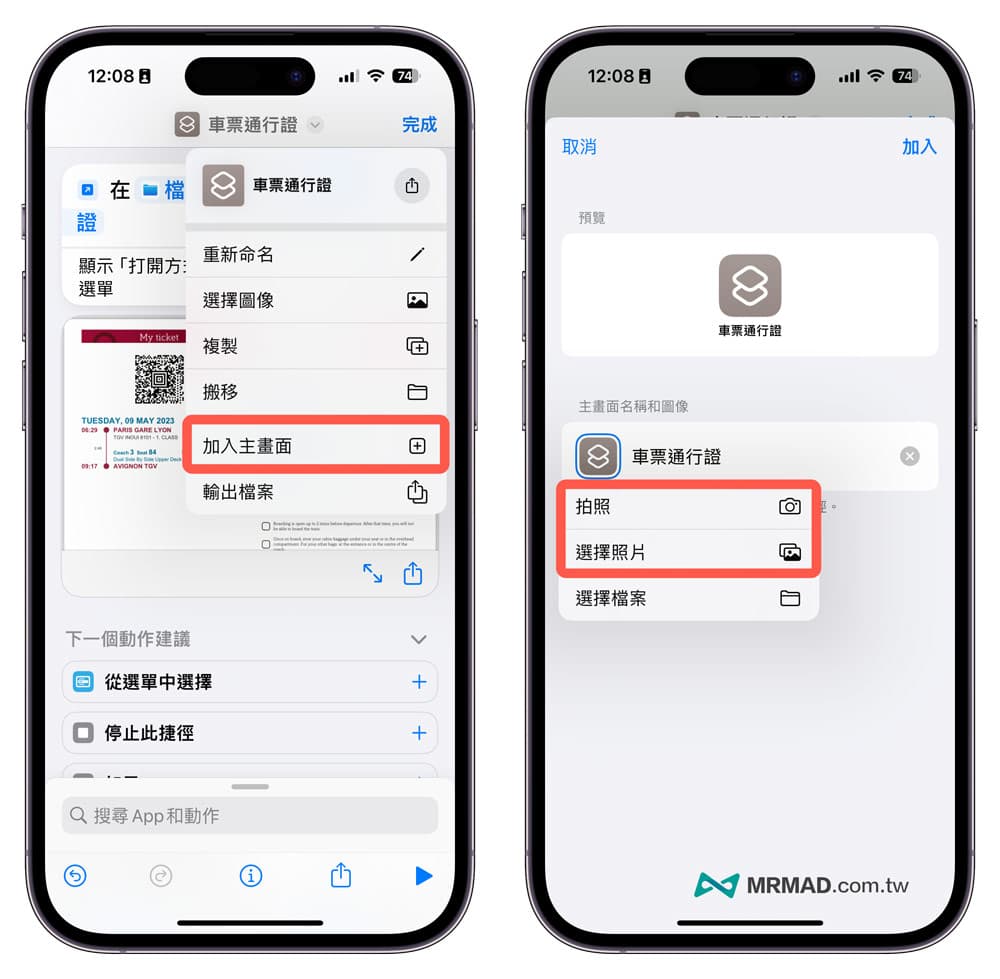
After all settings are completed, click “Add” in the upper right corner to put the file on the iPhone desktop as a shortcut.
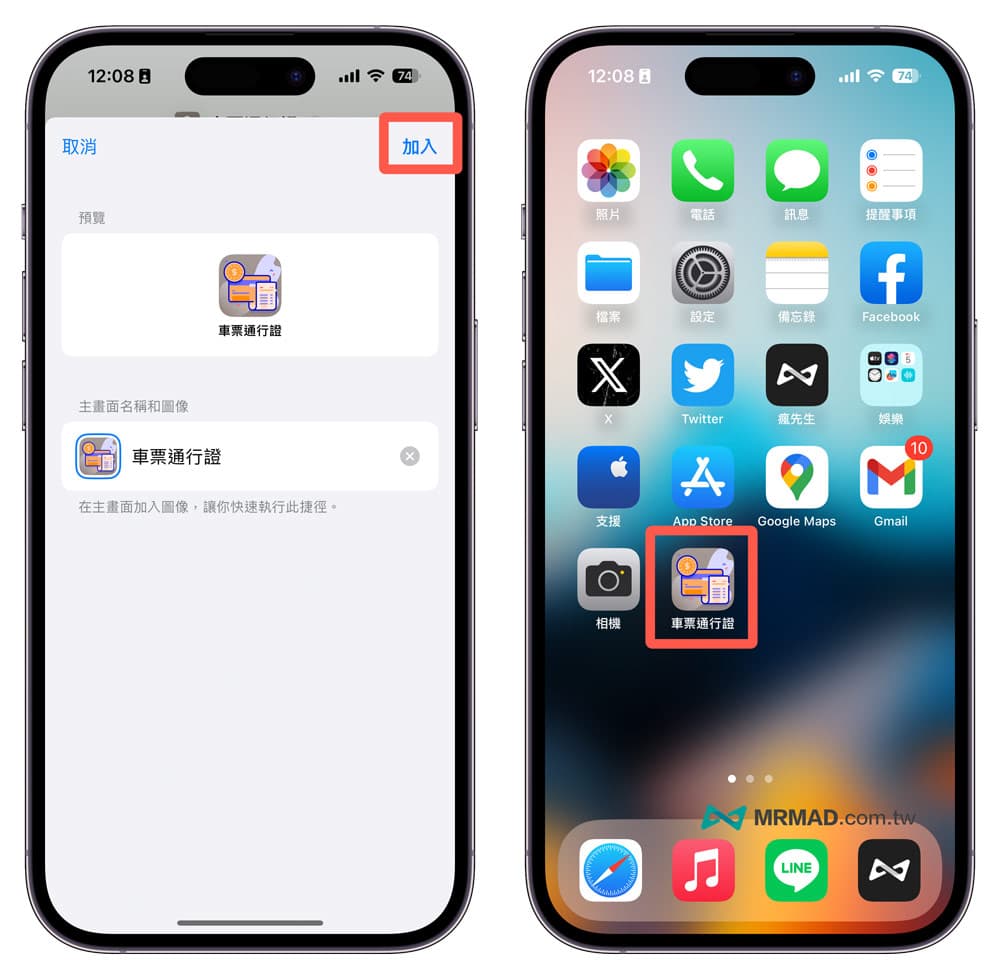
How to open archive files from iPhone desktop shortcut?
Just click on the newly created iPhone desktop shortcut icon App, and the file can be opened immediately! For example, when I went to France to take the TGV high-speed train to buy tickets online, it provided a QR Code scanning method, and through this method, you can quickly scan and pass the customs.
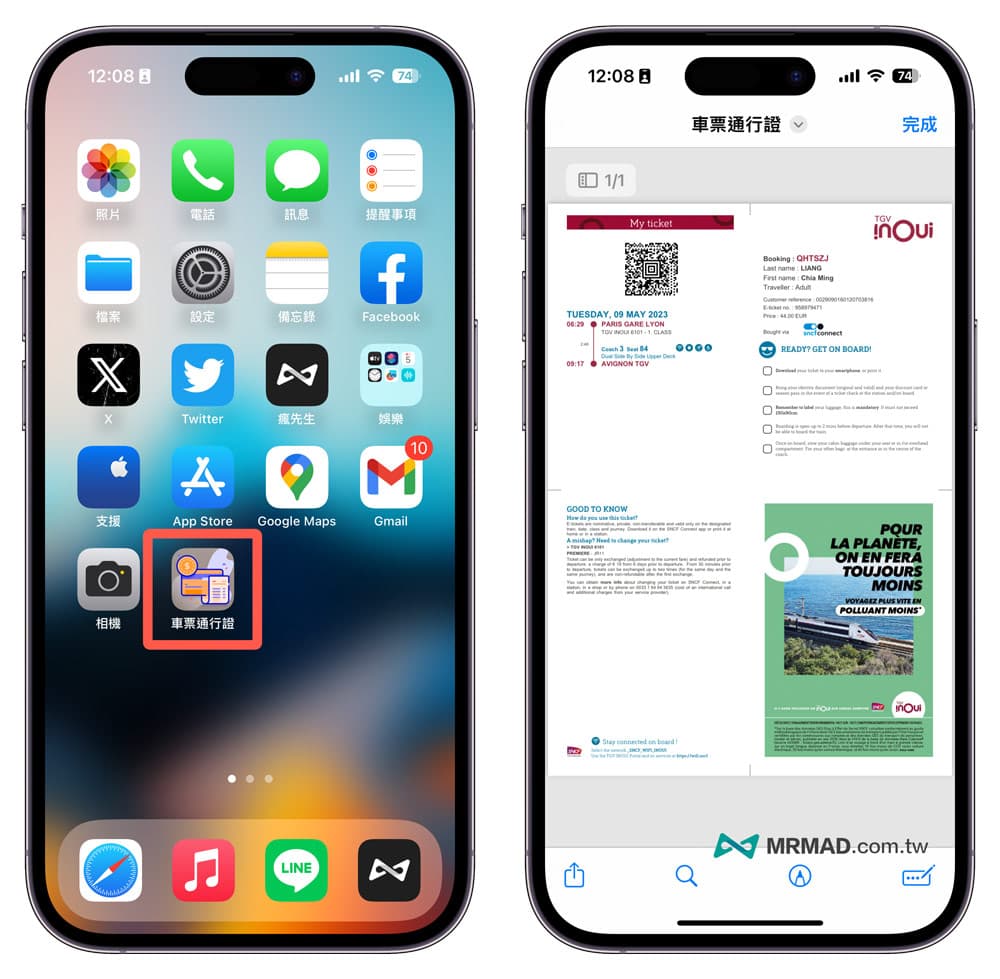
How to modify iPhone desktop shortcut files?
If you want to replace it with another file in the future, just modify it through the following steps:
- Open the iPhone built-in “Shortcut App”.
- Click the “•••” edit icon in the upper right corner of the shortcut script.
- Click on the file name to replace it.
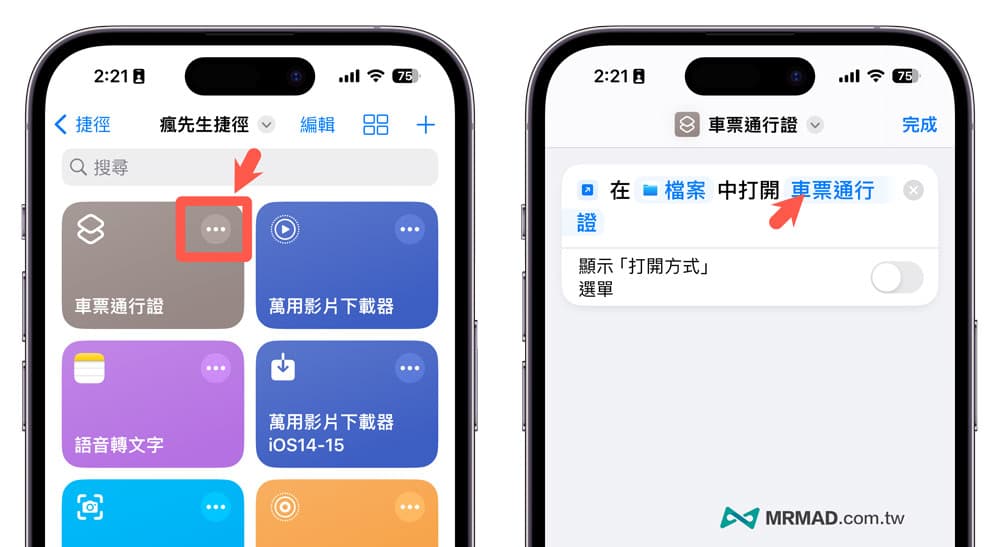
How to delete iPhone desktop shortcut bookmark App?
In the future, if you don’t want to put the file on the main screen of the iPhone, the deletion method is the same as the default method of removing the app on the iOS desktop. Just long press the shortcut icon on the iPhone desktop and select “Delete Bookmark” to remove it permanently.
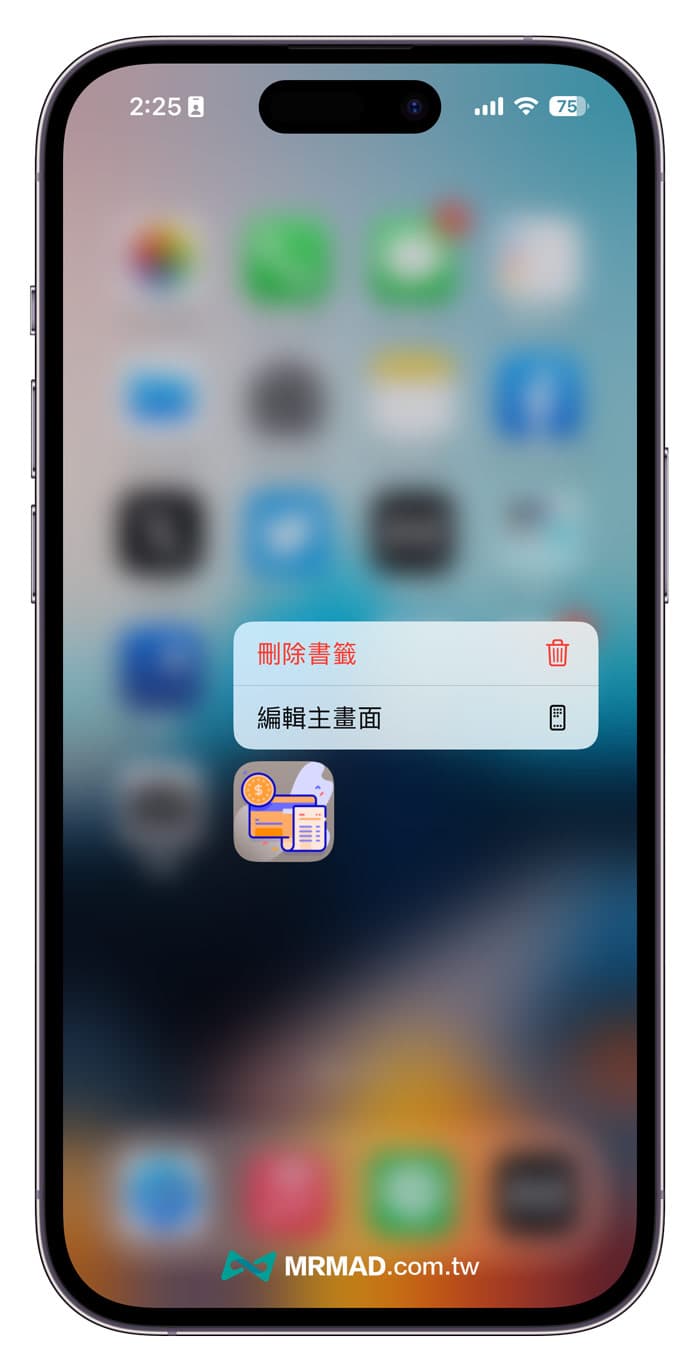
function summary
If you need to open a certain iOS file frequently, you can use this “How to Put iPhone Files on the Desktop Shortcut Tutorial” to put frequently used files on the iPhone desktop and open them at any time.
More practical skills recommended: