I believe that many iPhone or iPad users will find that there is always a red dot number marking the notification reminder in the settings, but it cannot be eliminated no matter how hard it is, and they even thought it would disappear after a few days, but the result is still displayed on the iPhone desktop settings. However, many users may think that after updating or reinstalling the latest version of iOS, why does the red mark still appear in the upper right corner of the iPhone settings and cannot be removed? There is no need to set anything when clicking in it. It keeps appearing for no reason. In this article, I will teach you 4 solutions to turn off all red number mark notification reminders in the iPhone settings.
Notifications: Red mark notifications will appear in iOS settings. Most of them remind users to make settings, such as two-factor authentication, iOS updates and iPhone settings. These most basic functions need to be set up. It is also a kind reminder from Apple to avoid many novices thinking that no other settings are needed after buying a new iPhone and they can use it immediately, which causes these notifications to appear.
4 Tips to Eliminate Red Dot Mark Notifications from iPhone Settings
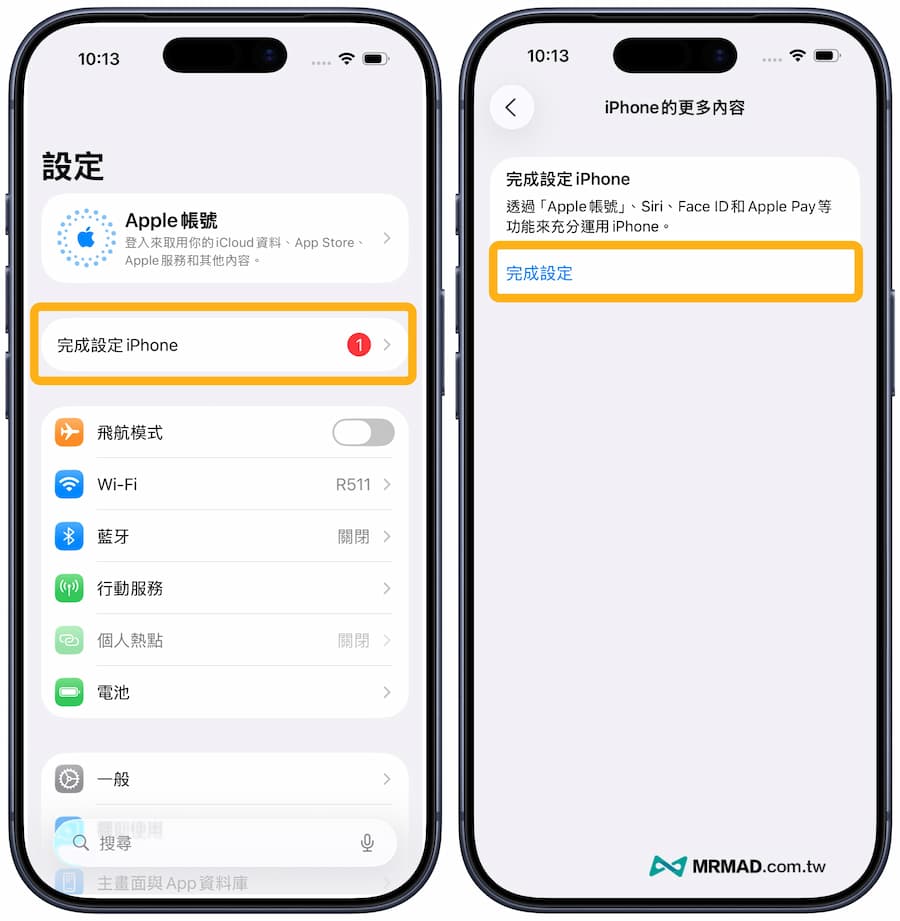
Method 1. Complete setting up iPhone
Open the iOS “Settings”, click “Finish setting up iPhone”, and click “Finish setting”, the user will be guided to start setting up Siri, Touch ID, Face ID and Apple Pay.
Of course, you don’t need to set it up, just click “Set it later from Settings” and wait until you have time to open and set related settings later.
Method 2. iOS system update reminder
Every time a new version of iOS is released, you will see a red number “1” reminder on “Settings” > “General” > “Software Update”, which is mainly to notify users that a new version of iOS is available for update.
However, iPhone users can choose not to update and stay on the old version. If they want to block iOS software updates, they can follow another “Tutorial on Blocking iOS Updates”. Remember to delete the OTA update files downloaded by iOS and reset all settings after blocking, so that the software update reminder will disappear.
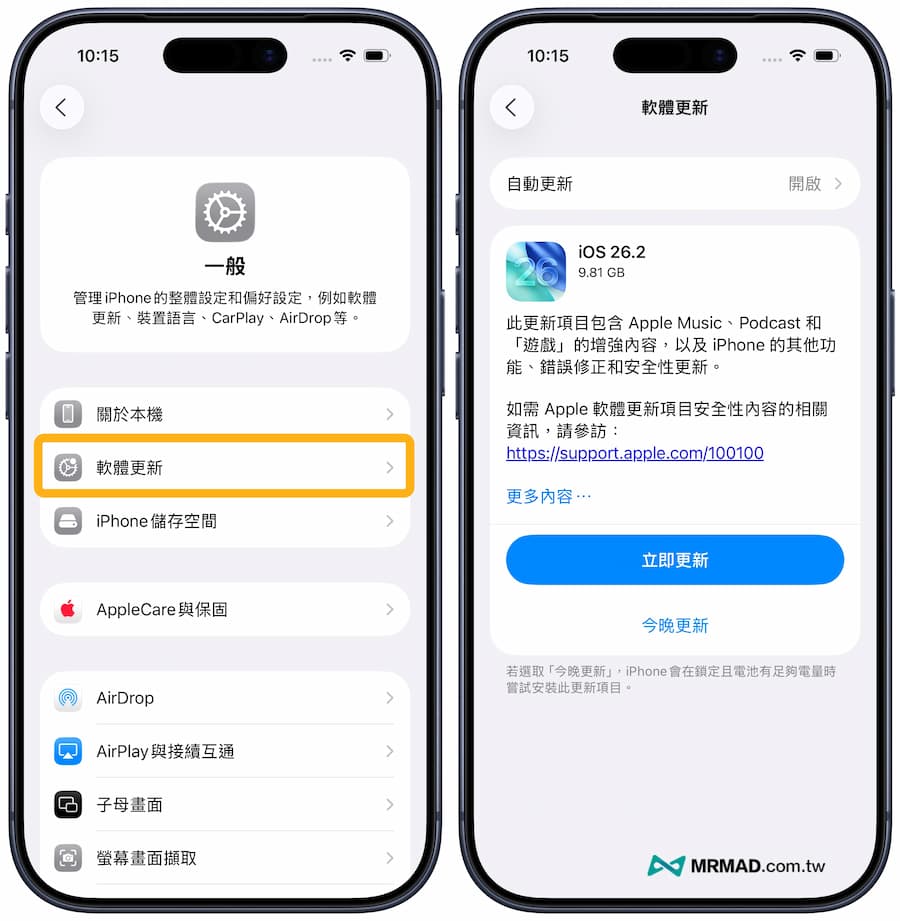
The “auto-update” function has been built-in since iOS 12. Is it still necessary to use a description file to file it? In fact, it is Apple’s official terminology. This function will not secretly download iOS and updates for the iPhone while sleeping at night, but will continue to pop up upgrade reminders.
Method 3. AppleID two-factor authentication
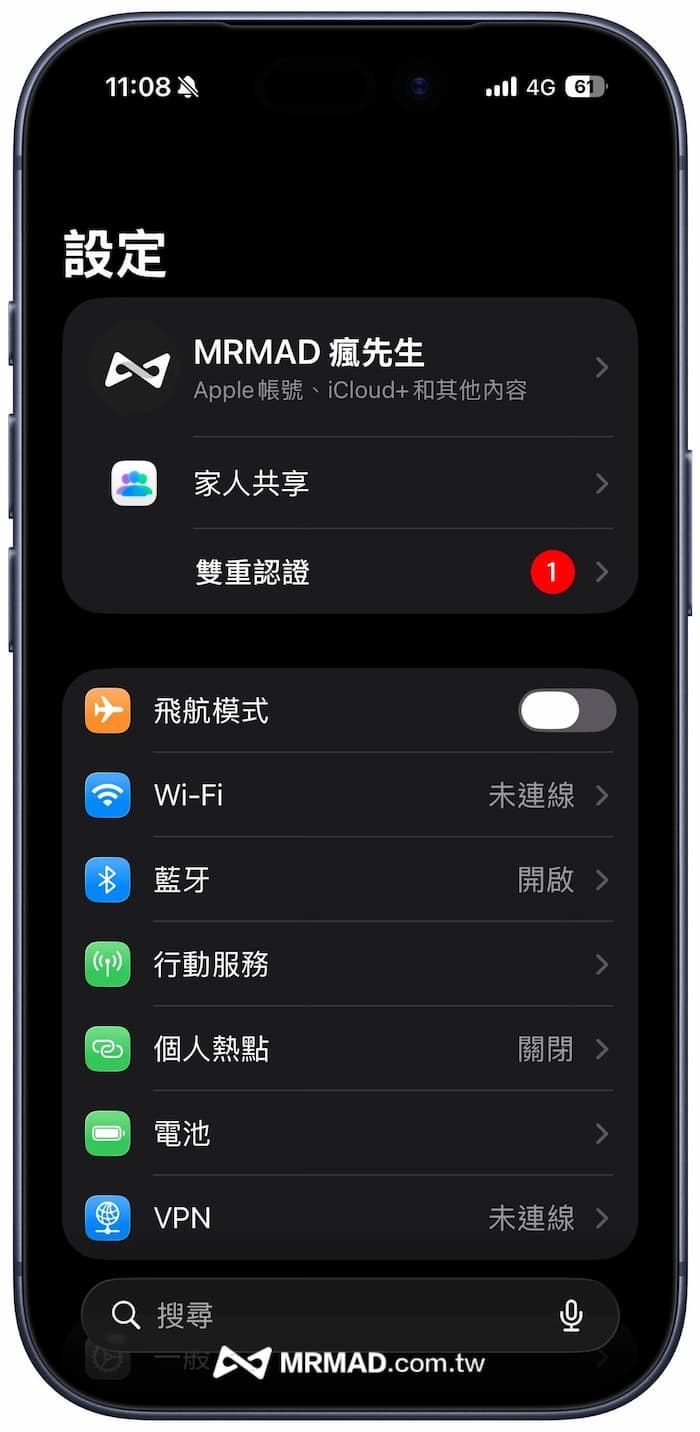
For the sake of the security of users’ Apple ID accounts, Apple will strongly require that two-factor authentication be turned on. In subsequent iOS versions, after two-factor authentication is turned on, it cannot be turned off! There is actually a reason why this function is designed like this, which is to prevent Apple ID accounts from being stolen. After all, there are too many non-jailbroken users who, for the sake of convenience or functionality, install non-App Store applications on the Internet at will, which can easily lead to Apple ID being stolen.
It is recommended that two-factor authentication must be turned on. When reflashing an iOS device, a “two-factor authentication” prompt will be displayed in the settings. Click on it and select “Turn on” and follow the process, or “Don’t now” to eliminate the two-factor authentication red dot prompt.
Method 4. Encounter iOS bugs
After trying the above three methods to solve the problem, the red dot mark notification no longer appears in the options in the iPhone settings, but the red numbers are still displayed in the iPhone home screen settings. Even after restarting, the red dot mark notification still appears. What should I do?
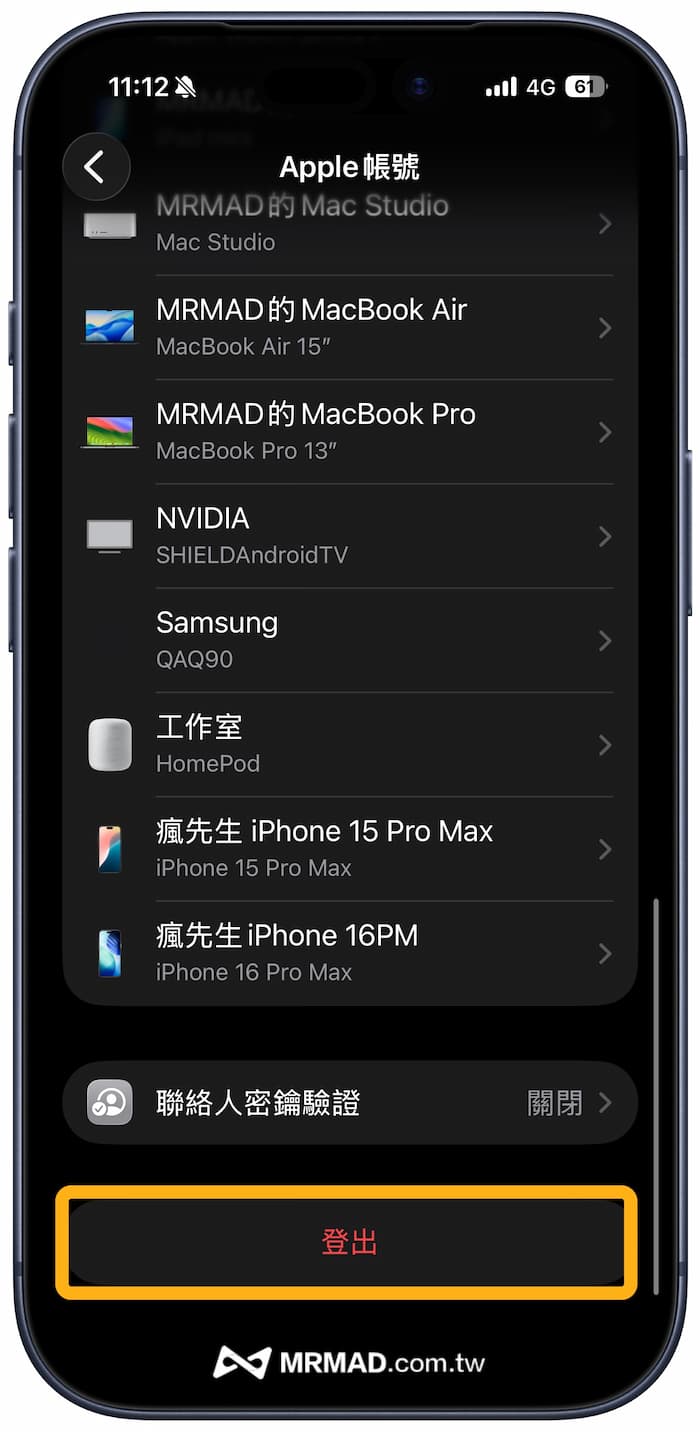
If you encounter an iPhone settings red dot error that cannot be eliminated, you can go to iOS “Settings” > “Apple ID Information” and scroll to the bottom. Click “Log Out” to log out the Apple ID account. Click to log in again and the red mark notification will be eliminated.
After reading the above tips for eliminating red dot mark notifications on iPhone, there is also a good tutorial below, and I recommend that you learn it by the way.
If you want to know more Apple information, iPhone teaching and 3C information skills, please follow us
Crazy Mr. FB fan group,
Subscribe to Mr. Crazy Google News,
Telegram,
Instagramas well as
Subscribe to Mr. Crazy YouTube.