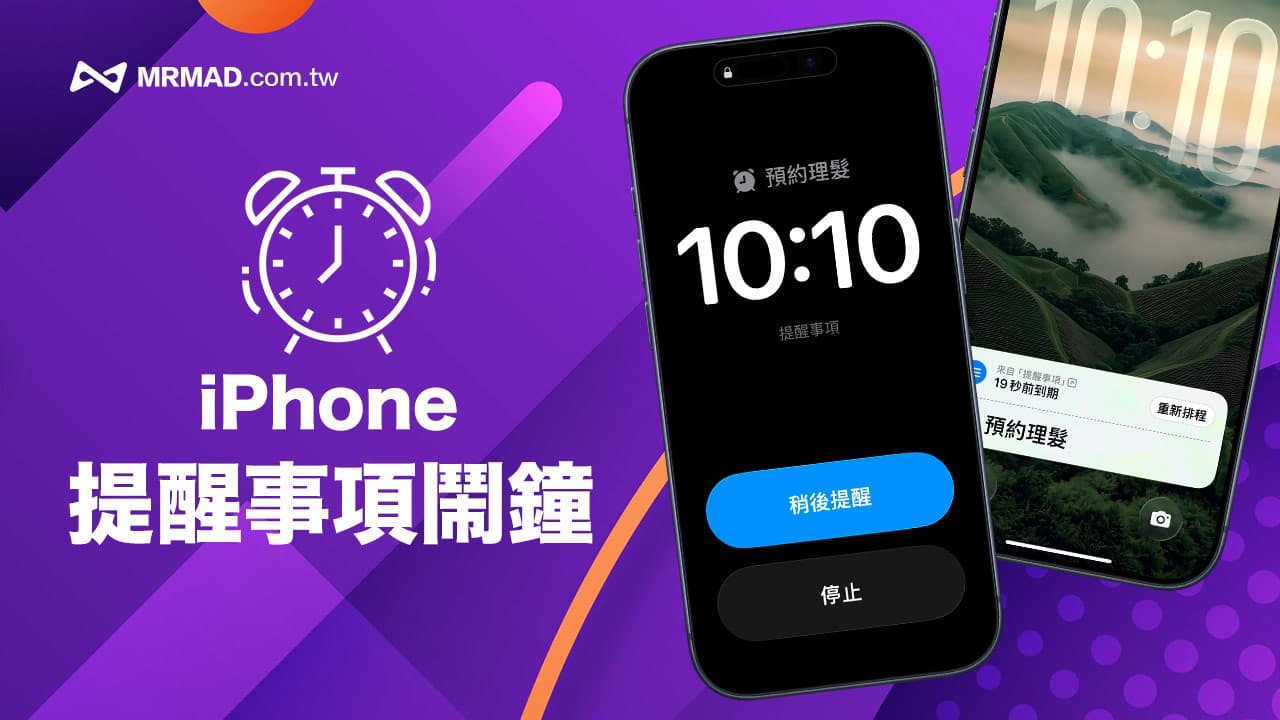
Have you ever set up an iPhone reminder, but when the time comes, only an obscure notification banner pops up on your phone, which can easily be ignored, resulting in missing the time to take medicine, grab tickets or attend a meeting? In the past, iPhone reminders could only send push notifications and could not force a sound like an alarm clock. Now Apple has solved this pain point in the latest iOS 26.2 version! Adding a new “Reminder Alarm Clock” function, the to-do list can also have a strong reminder effect like an alarm clock.
Why do you need to use iPhone Reminders as an alarm clock?
Maybe you are curious, wouldn’t it be better to set the alarm directly with the Clock App? Why use a reminder alarm clock in particular? In fact, this function is more suitable for task management than traditional alarm clocks. There are three main reasons for its benefits:
- Task-oriented: When the alarm clock sounds, the “task name” (such as paying a credit card fee) will be directly displayed on the screen instead of the monotonous word “alarm clock”.
- One-click completion: After the ringing ends, you can directly check to complete the task on the lock screen. The task will be automatically archived, and there is no need to enter the App to delete the alarm.
- Stay focused: It doesn’t interrupt your sleep setting like a traditional alarm clock, but focuses on specific events in your schedule.
How to turn on the reminder alarm function on iPhone?
Please make sure your iPhone or iPad has been updated to iOS 26.2 (expected to be released in December 2025) or later to use the reminder alarm function.
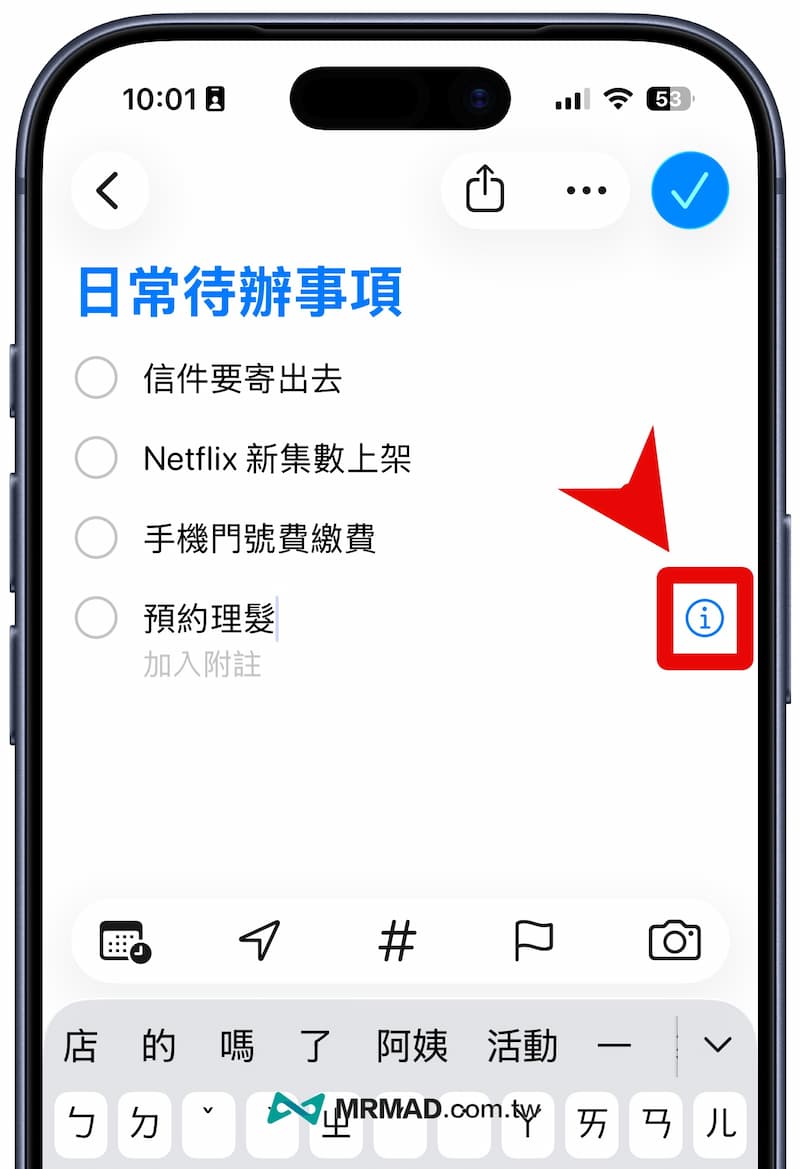
Step 1: Create a matter and enter settings
Open the iPhone’s built-in “Reminder” app and create a new task, such as making an appointment, grabbing concert tickets, etc. Then, click the “i (information)” icon on the right side of the task to enter the detailed settings page.
Step 2: Set date, time and emergency mode
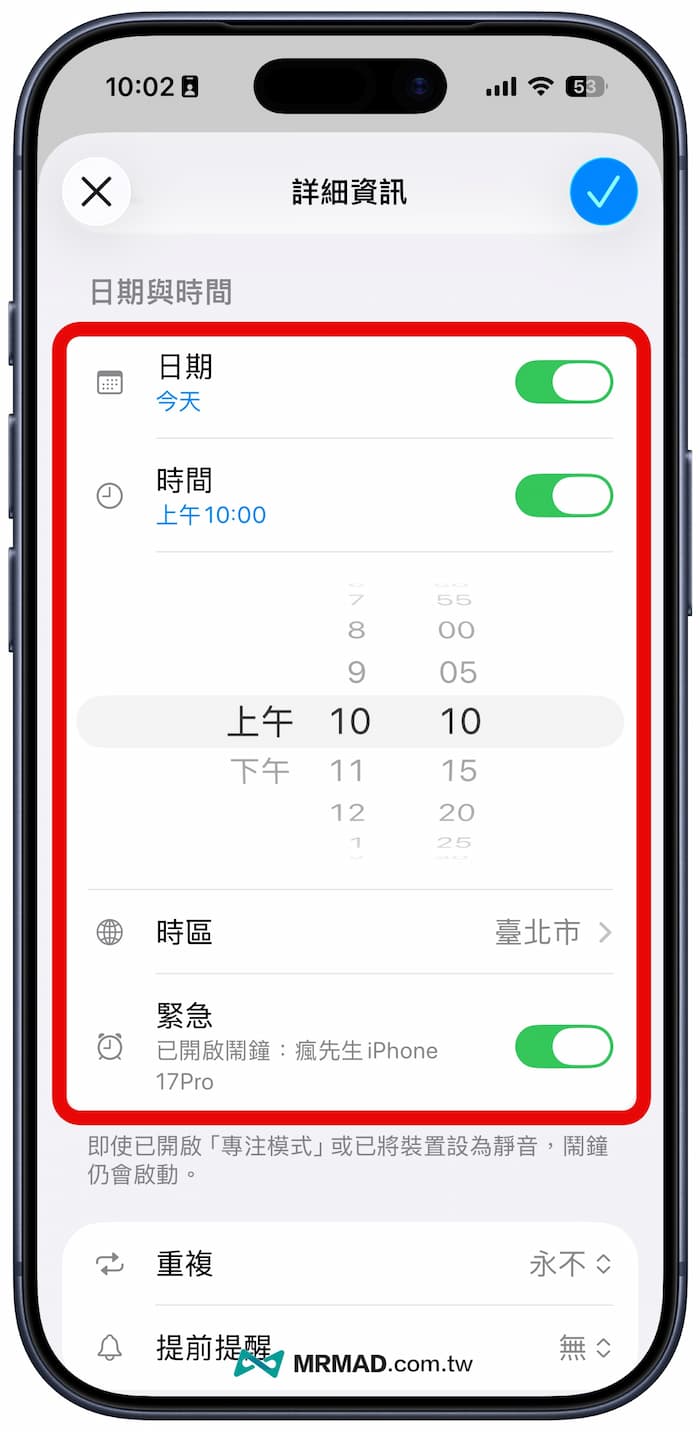
On the reminder details page, turn on the following options in order:
- Turn on “Date”: select a day to be reminded.
- Turn on “Time”: Set the time you want iPhone to remind you of notifications.
- Turn on “Emergency”: Force the iPhone reminder alarm function to be enabled.
Note: If you do not see the “Emergency” menu function, it means that the iPhone has not been updated to iOS 26.2 or a newer version.
Step 3: Set advance reminders and repeats
If you don’t want to be in a hurry when the time comes, it is recommended to set an “advance reminder” first. For example, if you have a video conference at 10:00, you can set a “5 minutes in advance” reminder to give you time to tidy up and test the microphone.
If you do something you have to do every day (such as taking vitamins or health supplements), remember to select “Daily” in the “Repeat” field below.
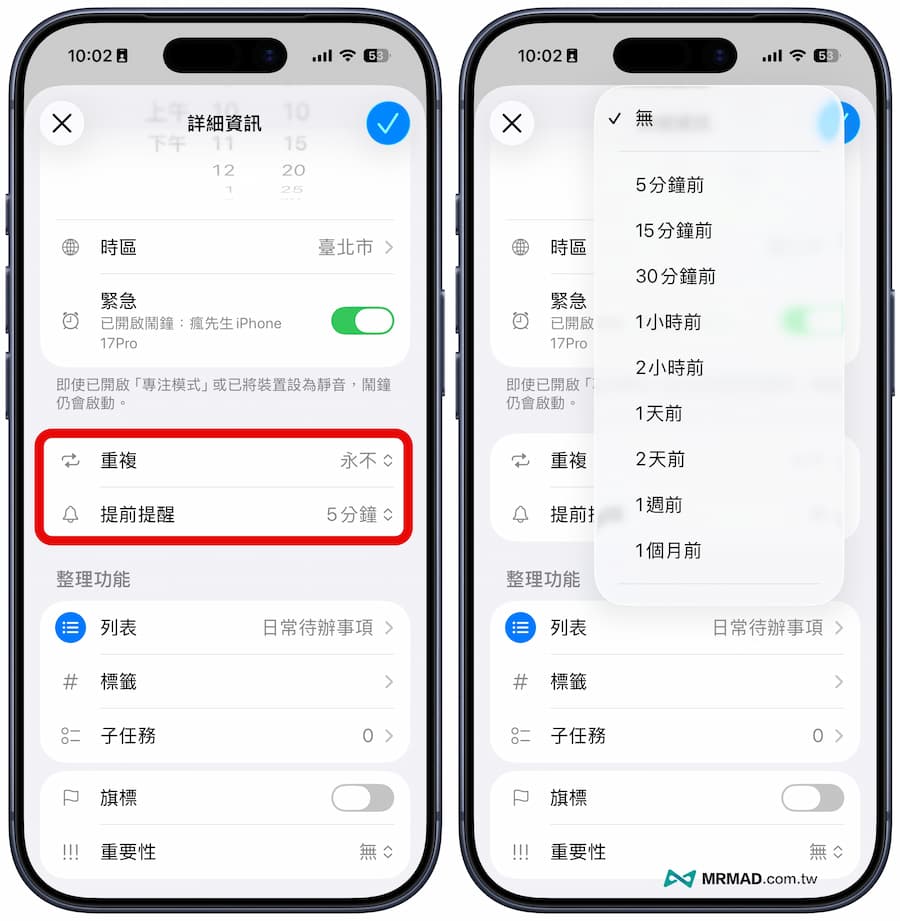
By default, as long as you set the advance time for iPhone reminders, the notification screen will usually pop up in advance.
How to set and turn off iPhone reminder alarm clock?
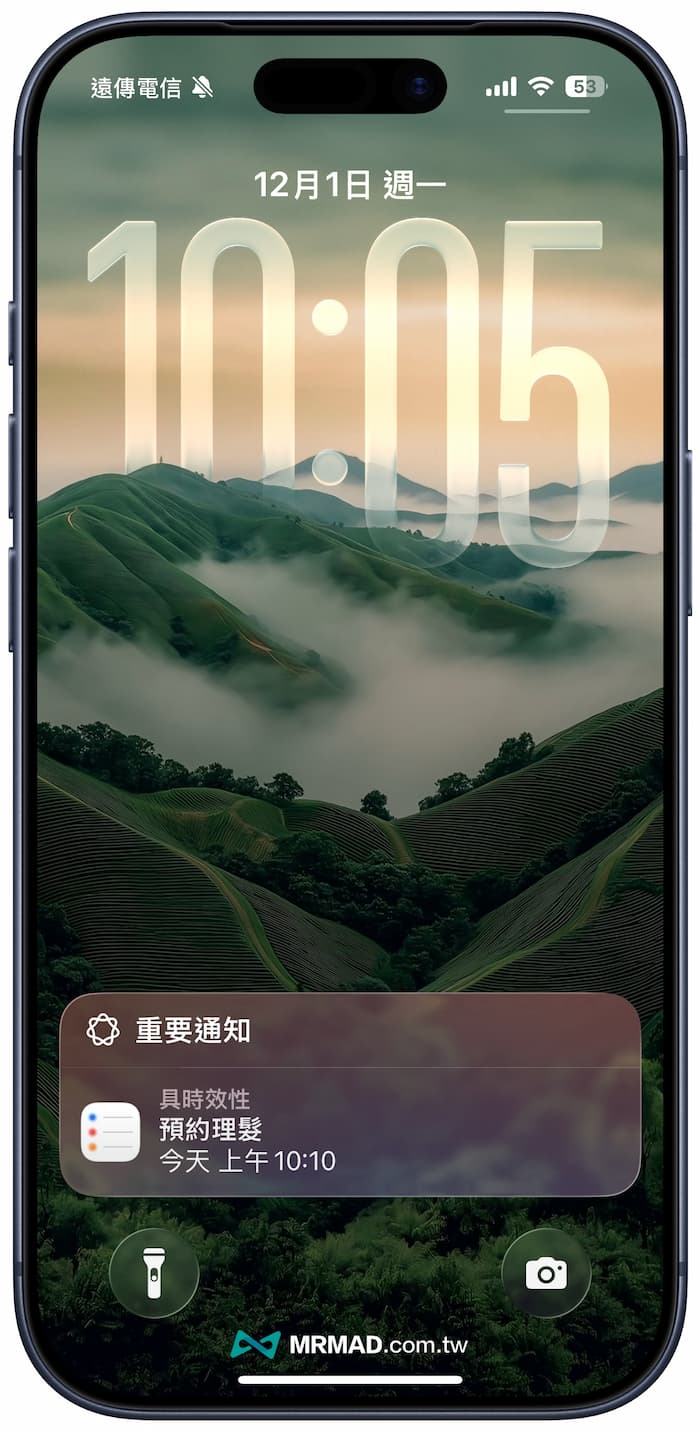
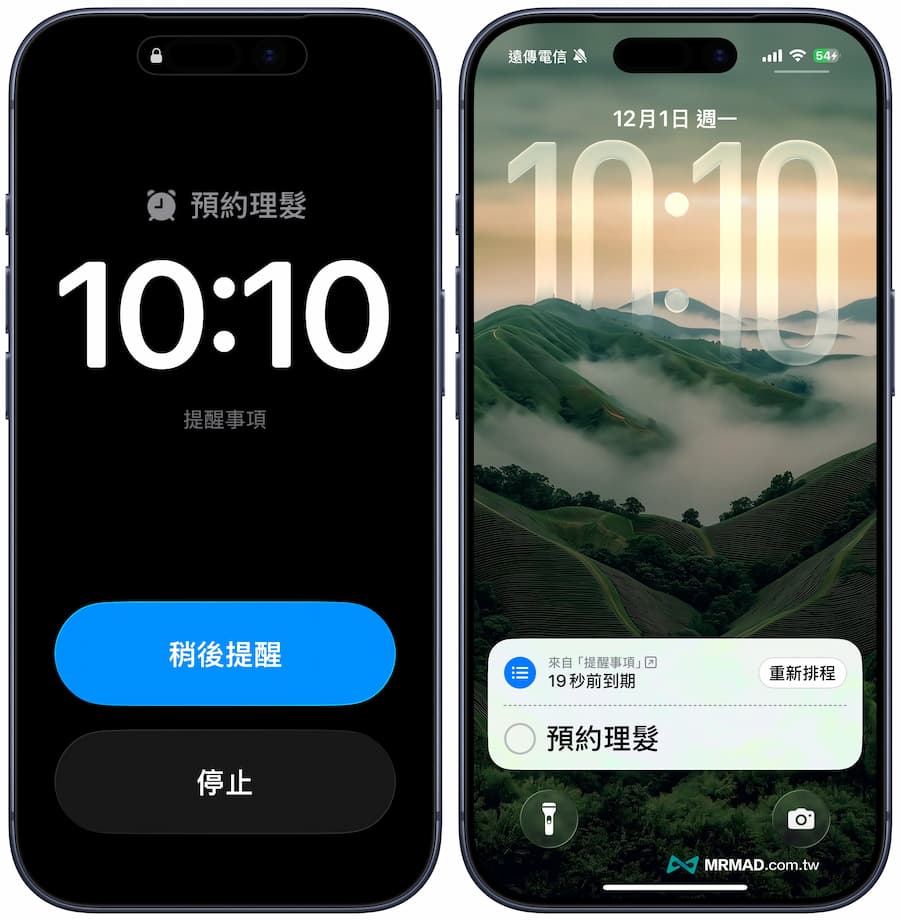
As long as the iPhone reminder alarm is set, the iPhone will immediately pop up the alarm screen when the time is up, and the reminder will also be displayed on the screen. You can decide whether to remind you later or stop it directly.
After pressing Stop, the name of the reminder task will be displayed again on the iPhone lock screen, so you can directly check and confirm with one click, or you can also reschedule it, which is very convenient.
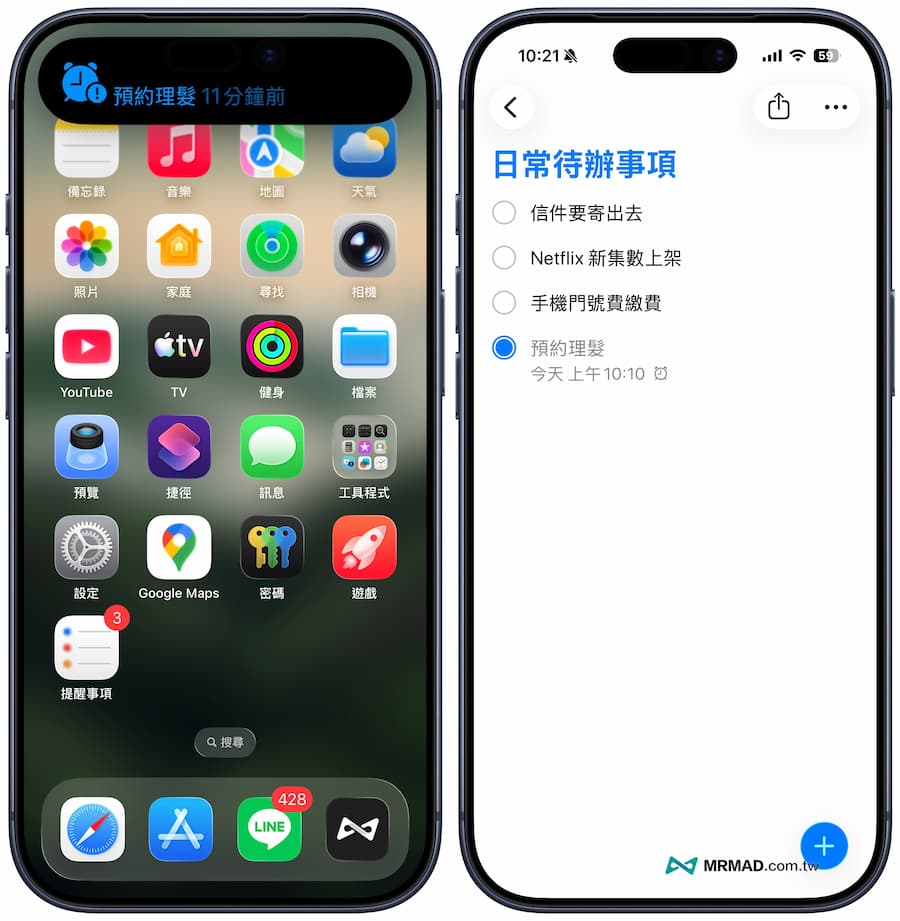
If the reminder alarm event is not checked, the reminder will always be displayed on the iPhone dynamic island, and it will not disappear until the check is actually clicked to confirm. The function is very user-friendly!
iPhone reminder alarm vs system clock alarm
There may still be many people who can’t tell when to use which tool. The following table will help you quickly clarify:
| Function comparison | iPhone reminder alarm clock | Traditional Clock App |
| Main purpose | To-do tasks (Take medicine, pay bills, reply to letters) |
physiological arousal (get up, take a nap) |
| display screen | Show specific task content and notes | Show only time or simple label |
| Operation interaction | You can directly “check the box to complete” or “postpone” | Can only “Stop” or “Snooze” |
| Follow-up processing | Tasks automatically hide archives | The alarm needs to be turned off manually to avoid it going off again tomorrow |
| Recommendation index | ⭐⭐⭐⭐⭐ (For goldfish brain) |
⭐⭐⭐ (For those who have difficulty getting up) |
iPhone Reminders and Alarm Clock Frequently Asked Questions
My iPhone is muted, will the reminder alarm still sound?
Yes! As long as you turn on the “Emergency” option in the settings, even if the mute button on the side of your iPhone is turned on or in “Do Not Disturb mode”, the system will still forcefully play a sound reminder to ensure that you will not miss important events.
Why can’t I find the emergency option in Reminders?
Please check the iPhone system version. This feature is an update unique to iOS 26.2 or newer versions. Please go to “Settings” > “General” > “About This Mac” to check the version number.
Can the iPhone reminder screen be customized?
The current screen will display your “reminder title” and the pictures or notes you added. It is recommended that when setting items, detailed information should be written in the remarks column so that it will be clear at a glance when the bell rings.
Summary of iPhone Reminders and Alarm Clock Functions
The human brain is for thinking, not for remembering things. Now through the reminder alarm function of iOS 26.2, you can safely leave trivial daily tasks to your iPhone for management. Pick up your phone now and try to set your first powerful to-do alarm clock reminder!
If you want to know more Apple information, iPhone teaching and 3C information skills, please follow us
Crazy Mr. FB fan group,
Subscribe to Mr. Crazy Google News,
Telegram,
Instagramas well as
Subscribe to Mr. Crazy YouTube.